

Before You Begin
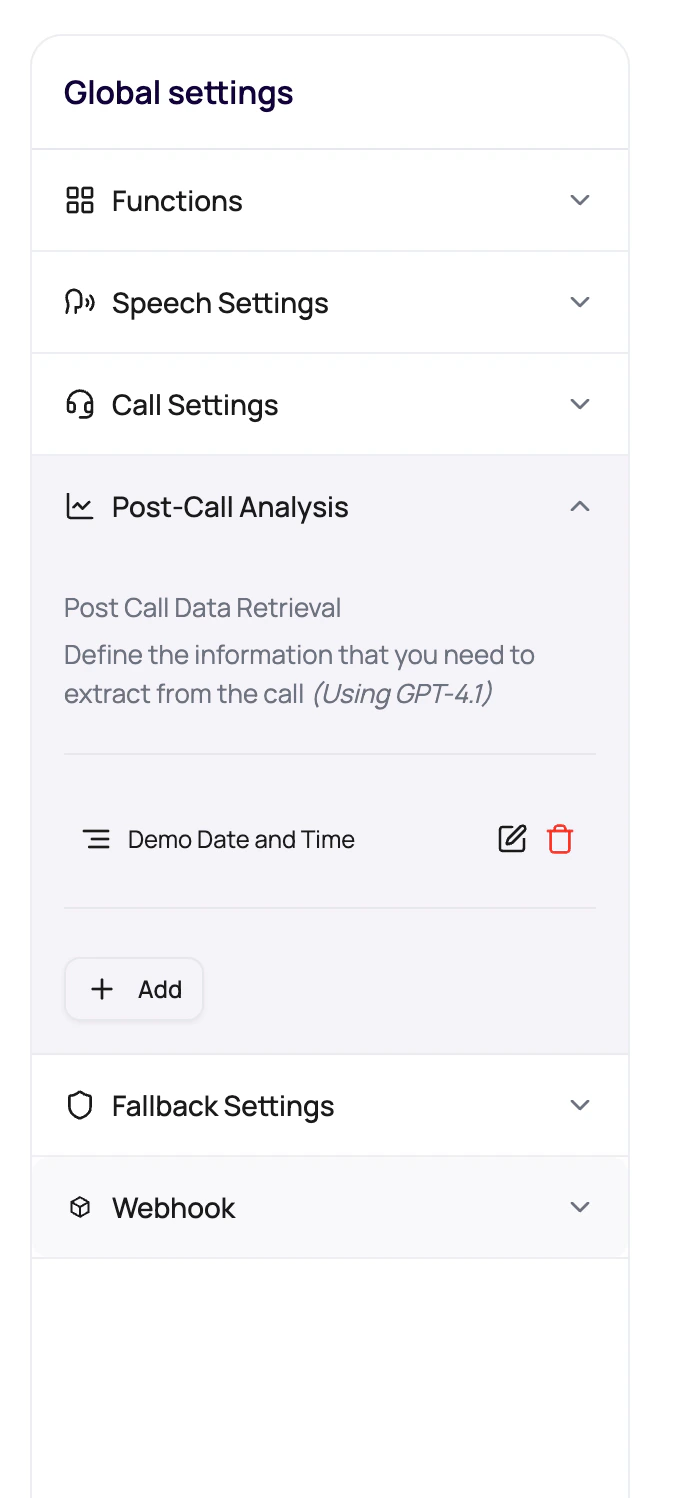
Define the business decision each field supports, its output type, allowed values, and the transcript evidence needed to answer it. Avoid fields that are merely interesting but never used.Supported Field Types
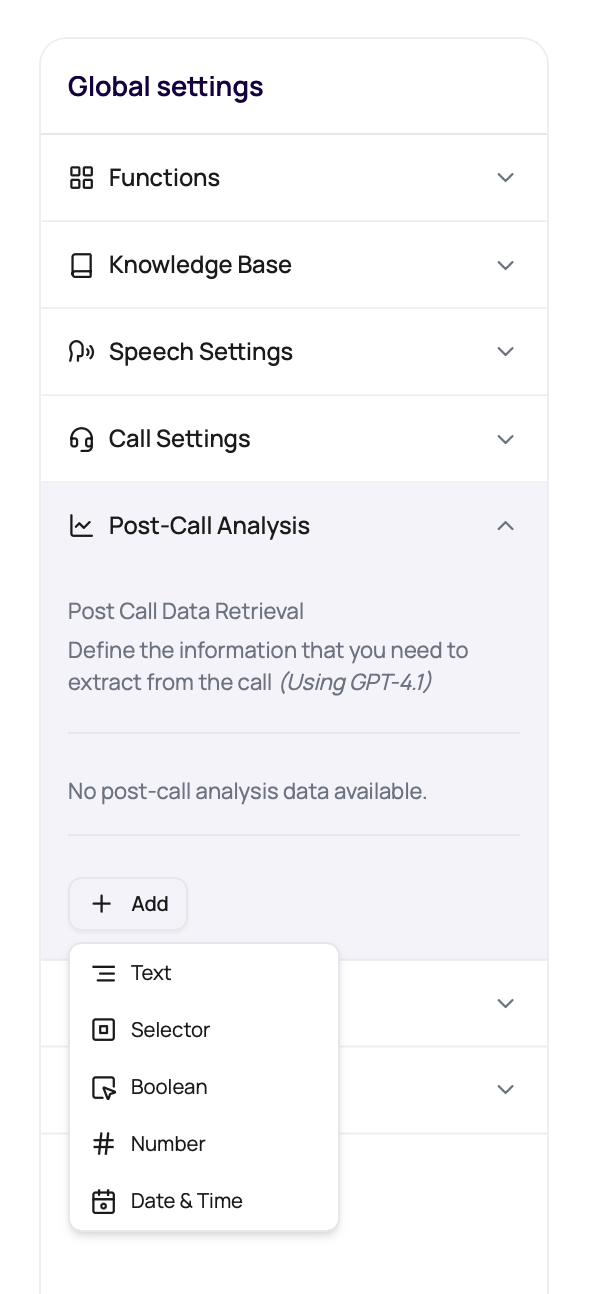
Choose the type that matches the value you need.
Use DateTime when another system or a workflow needs a schedulable time. In the field Prompt, ask for the value in UTC ISO 8601 format so the extracted result can be parsed consistently.
Where Results Appear
Post-call fields become operational data after the call.Call detail custom section
CSV exports
Workflow decisions
QA review
DialNexa Post-Call Analysis Model
The Post Call Analysis panel includes a model settings control for the LLM used by post-call extraction. This is separate from the live conversation model so teams can tune completed-call extraction without changing how the agent speaks during the call.
GPT-5.6 Luna is available in every workspace. If your conversation uses Sarvam and no separate post-call model is selected, post-call processing uses GPT-4o Mini. Choose the extraction model in a draft, save it, and check the extracted fields after a test call.
Use a stronger extraction model when the transcript is long, the fields depend on reasoning across multiple turns, or selector values need careful evidence. Keep the live model and post-call extraction model aligned only when you want both tasks to share the same cost and behavior profile.
Write Strong Extraction Prompts
The dashboard labels each extraction instruction Prompt because it tells the post-call model what evidence to find and how to format the result. The public API keeps the existingfield_description key for compatibility.
1
Name the field like a column
Use names that will make sense in exports.
2
Write the Prompt
Tell the extractor exactly what part of the conversation proves the value and what to return when the fact is missing.
3
Use selector options for finite outcomes
Do not ask for free text when operations needs a clean report.
4
Use DateTime for schedulable callbacks
Ask for UTC ISO 8601 output when the caller gives a callback time, appointment time, or other follow-up date.
5
Test on real calls
Check whether the transcript contains the evidence needed to extract the field.
Extraction Problems
Field is empty
Field is empty
The transcript may not contain the fact, or the Prompt may be too vague.
Selector returns unexpected value
Selector returns unexpected value
Use clearer allowed options and a more specific Prompt.
Boolean feels inconsistent
Boolean feels inconsistent
Define what counts as true and false.
Callback time cannot schedule a workflow
Callback time cannot schedule a workflow
Use the DateTime field type and describe the expected UTC ISO 8601 output. Workflow Time nodes should point at a DateTime PCA field.
Editing is disabled
Editing is disabled
Published versions protect live settings. Edit a draft version.
Verify Post-Call Analysis
Run calls that should produce different results, including an unknown or missing answer. Confirm the Call Detail page and exports show the correct type and value without inventing information.Validate Post-Call Analysis Fields
Give every field a non-blank name that is unique within the version. Choose Text, Selector, Boolean, Number, or DateTime. A Selector needs at least one non-blank text choice; empty choices and numeric-only choice arrays are rejected. When configuring fields through Create Agent or Update Agent, sendTEXT, SELECTOR, BOOLEAN, NUMBER, or DATETIME. Update replaces the complete supplied list, so keep all fields you still need.