

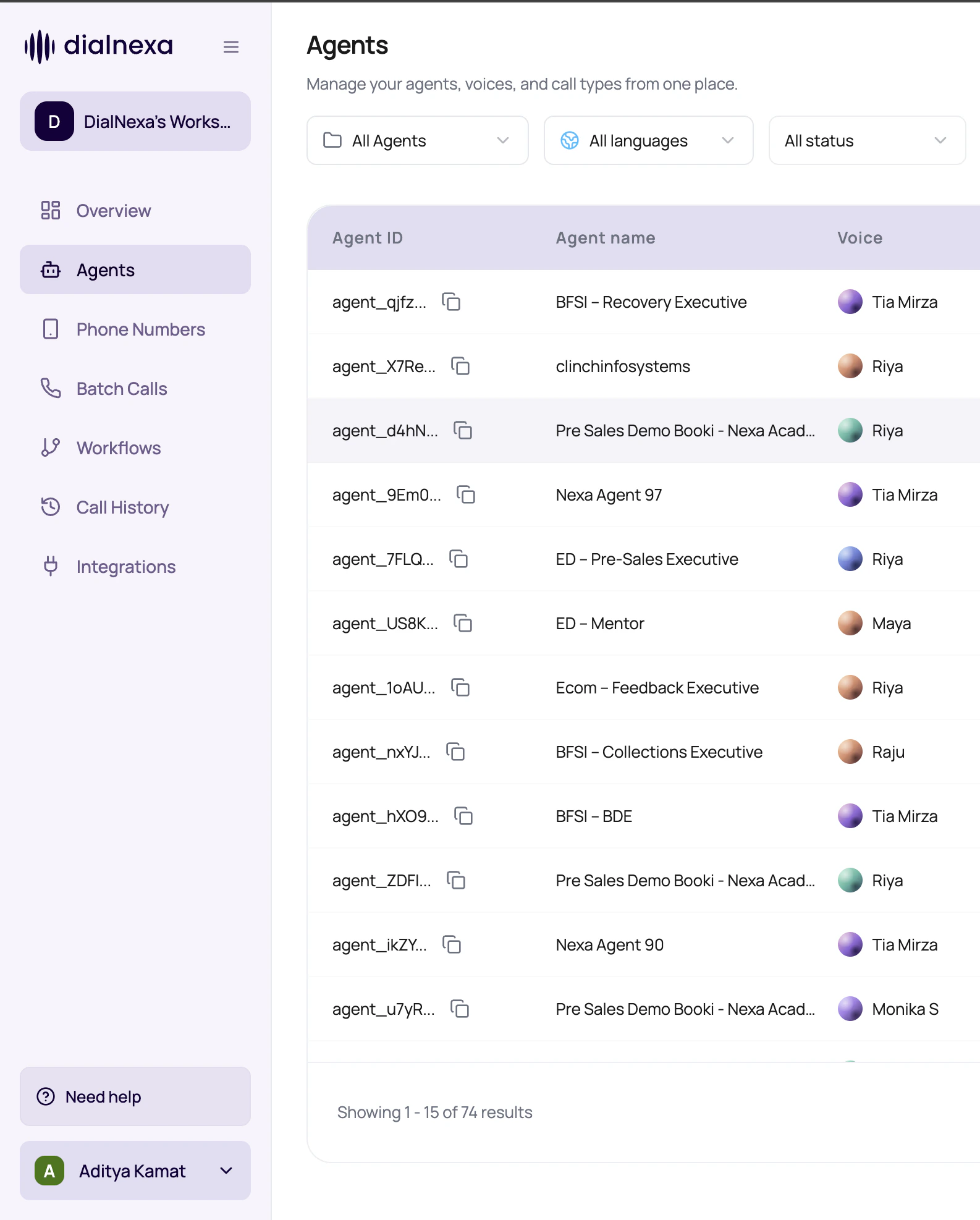
Start with the area that owns the object you need to change. Use Call History to verify the result after a test or live call.
DialNexa Dashboard Platform Map By Tab
Use this as the first routing table for the dashboard.Overview
Agents
Knowledge Base
Workflows
Phone Numbers
Batch Calls
Call History
Integrations
Workspace Settings
Sidebar Behaviors Worth Knowing
The left navigation changes state based on workspace context and account readiness.Move Through The Platform Without Losing Context
1
Start with the owner tab
Open the area that owns the object you need to change: agent, knowledge base, number, batch, workflow, integration, call record, or workspace setting.
2
Publish before routing
For agent behavior, publish the version before assigning it to numbers, batch campaigns, or workflows.
3
Launch from the execution surface
Start one call, a batch, or a workflow from the page designed for that launch mode.
4
Confirm in Call History
Use Call History as the common proof layer after any live or test action.
Navigation Confusions To Avoid
Webhooks versus agent webhooks
Webhooks versus agent webhooks
Use Webhooks for the workspace event endpoint. Use Agent Webhooks from agent settings when you only need to enable or disable webhook events for that agent.
Phone number assignment versus test call
Phone number assignment versus test call
A test call can prove the agent talks. Phone number assignment proves the right agent is routed for live inbound or outbound traffic, on its latest published version.
Workflow status versus call status
Workflow status versus call status
Workflow status describes the automation. Call status describes one call inside that automation.
Integration connection versus integration action
Integration connection versus integration action
Connection stores credentials. Actions are the actual things an agent function or workflow application node can perform.