

Use DateTime post-call analysis fields when the caller chooses the follow-up time during the call.
Time Node Config
Time nodes support four timing sources. In the builder, choose one under Wait Until: Duration, Date & time, Day of week, or PCA time.Wait Until A Date And Time
Choose Date & time to hold every lead until one fixed moment, such as a launch day or the start of a campaign window. Pick a date from the calendar, then choose the hour, minute, and AM or PM from the time dropdowns. The first time you pick a date, the time starts at 10:00 AM, or, when you pick today after 10:00 AM, at the next quarter hour. The builder uses your browser’s timezone and shows it under the field. DialNexa saves the value as an exact instant, so the release time does not change when someone in another timezone opens the workflow. Leads that reach the node before that time wait until it. Leads that reach it afterwards continue straight away. The calendar does not offer past days, and if the saved time has already passed, workflow activation shows a warning that leads will continue without waiting.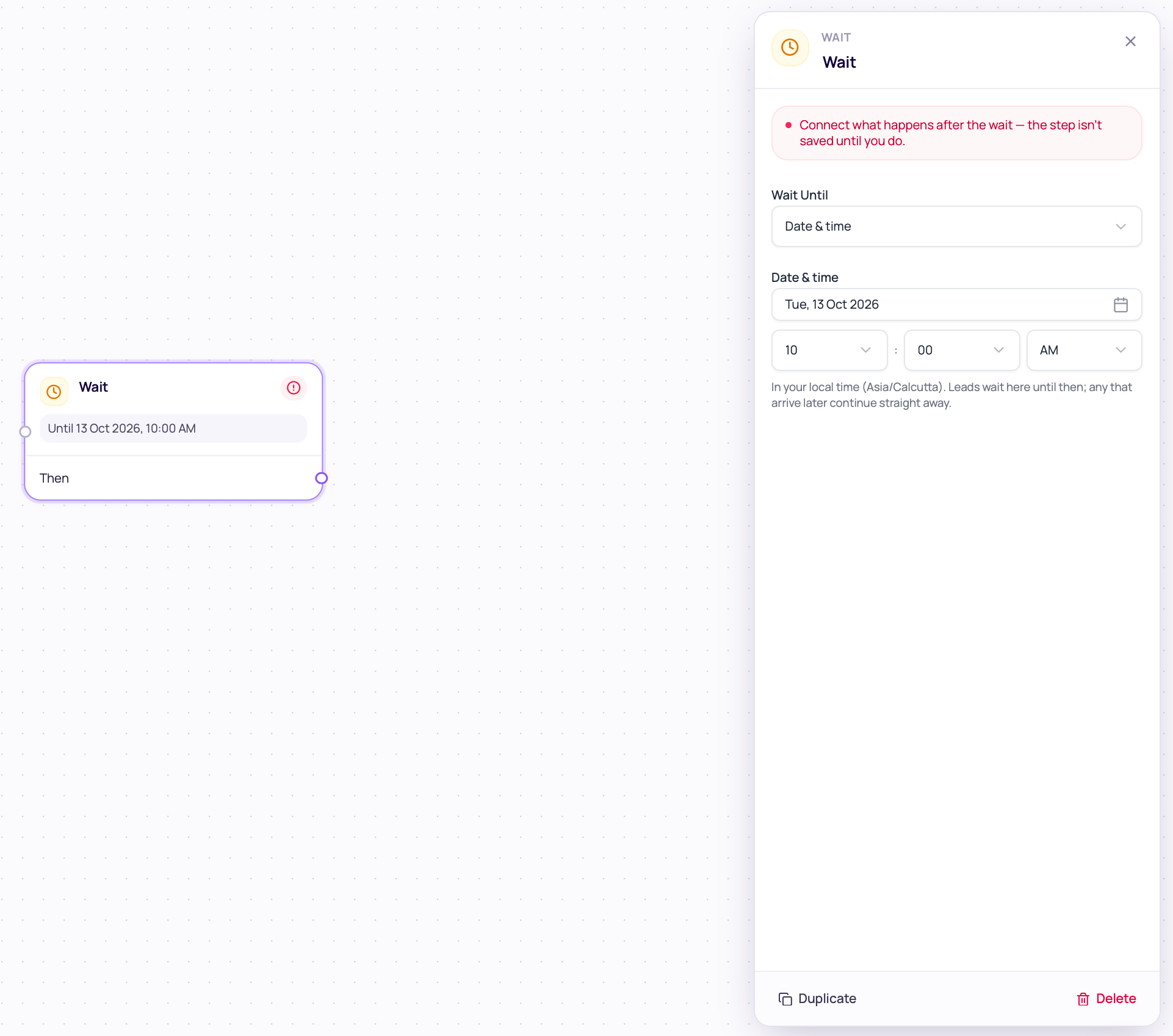
Wait For Selected Days Of The Week
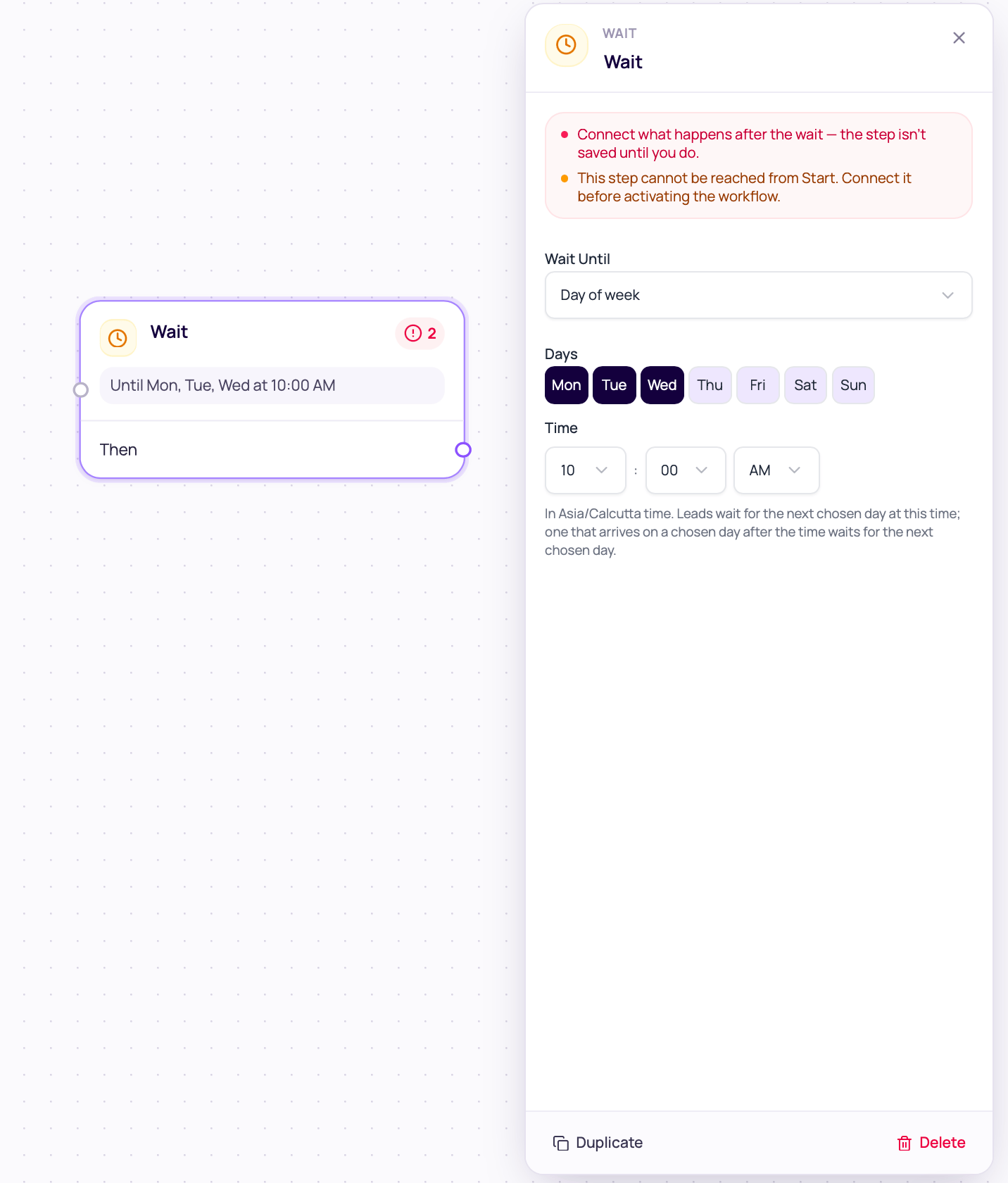
Choose Day of week when leads should continue only on selected weekdays at a fixed local time, such as Monday and Thursday at 10:00 AM.- Select Day of week under Wait Until.
- Select at least one day. Select it again to remove it.
- Choose the hour, minute, and AM or PM. Check the timezone shown below the time; the saved timezone stays with the step when another teammate opens it.
- Connect the incoming path from Start and the Then output to the next step. Resolve the editor’s connection warnings before activating the workflow.
time_source: "weekly" and a weekly object with days such as ["mon", "thu"], a 24-hour time such as "10:00", and an IANA timezone such as "Asia/Kolkata".
Post-Call Analysis Time Fields
Whentime_source is postcall_analysis, the Time node reads pca_field or postcall_analysis_field from the most recent call log for the workflow lead. In the builder, the PCA field selector lists DateTime fields from the governing Voice Call node’s current outbound agent. Field names can be written as the raw field name or with a postcall_analysis. prefix in stored config.
DialNexa schedules PCA times in the most specific timezone it can determine. It first checks timezone data stored with the call, then the agent timezone, then the phone number country timezone. If none of those are available, it falls back to the server’s current timezone.
The parser accepts common spoken time formats:
If the field is empty or cannot be parsed, the workflow throws a configuration error for that Time node. Test this path with real post-call analysis output before using it for production follow-ups.
Workflow activation also validates PCA references. If the phone number assigned to an upstream Voice Call node now points at a different outbound agent, DialNexa warns about the agent change. If a Time node points at a PCA field that no longer exists for the current agent, activation is blocked until you edit the node and pick a valid field.
When To Use Time Nodes
Waiting is useful when timing changes outcomes.Retry spacing
Wait before a second call attempt in a custom workflow.
Follow-up sequence
Send a message or call later after a completed conversation.
Caller-selected callback
Use a post-call analysis field such as
callback_time to wait until the next requested callback time.Business-hour routing
Design waits that align with team availability.
Time Node Mistakes
No output configured
No output configured
The lead has nowhere to go after waiting.
Wait is too short
Wait is too short
A follow-up may feel like duplicate contact.
Wait is too long
Wait is too long
The lead may forget the previous conversation.
Workflow paused
Workflow paused
A paused workflow still releases waits: when the wait ends, the lead moves on. If the next node is a Voice Call node, the call is held until the workflow is active again.
Related Reading
Workflow Statuses
Understand pause and resume.
Lead History
See when a lead entered and exited nodes.
Application Nodes
Follow waits with messages or actions.