

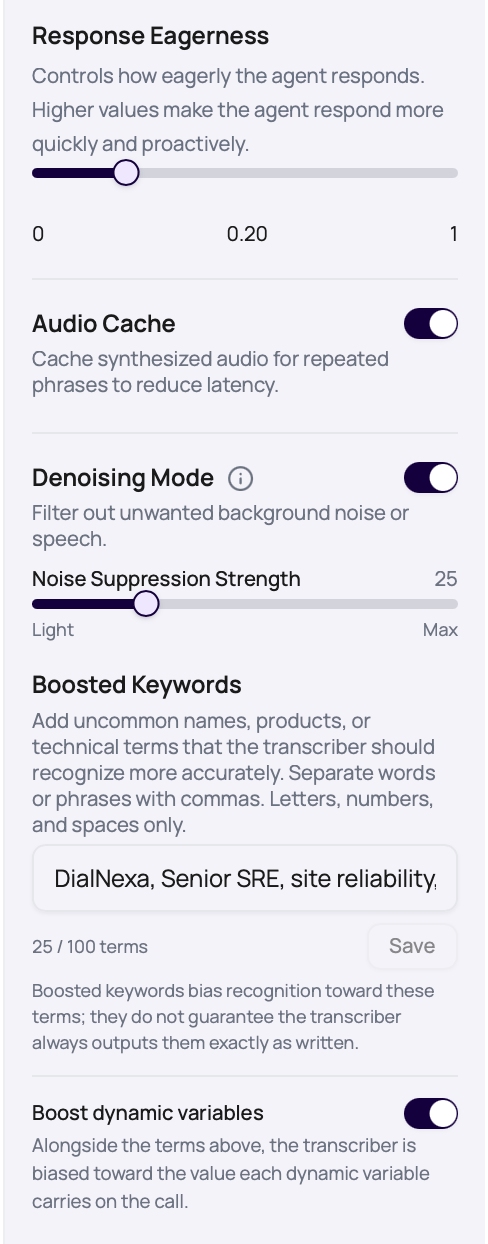
DialNexa Speech Settings Controls
Response Eagerness
Response Eagerness runs from patient to eager. It is not a quality slider. It is a timing choice.How Response Eagerness Changes Turn Timing
With Sarvam Saaras, Deepgram Nova 2 or Deepgram Nova-3, a patient setting waits briefly after a final transcript so continued speech can join the same turn. With Deepgram Flux, the setting changes how confident the transcriber must be that the turn has ended; it does not add a second wait after the final transcript. With Soniox, the setting changes the maximum endpoint delay from 3 seconds at the patient end to 2 seconds at the eager end. Soniox finals do not receive an additional transcript hold; a Soniox primary also keeps that extra hold off for fallback results. Test a sentence with a natural pause in the middle, then a complete short answer. Compare recordings and transcript boundaries before choosing the setting; a more patient value can prevent an early reply but also adds waiting.Interruption Sensitivity
Interruption Sensitivity runs from0 to 1. Higher values make the agent more sensitive to caller speech while the agent is speaking. Lower values make interruption detection more conservative.
Boosted Keywords
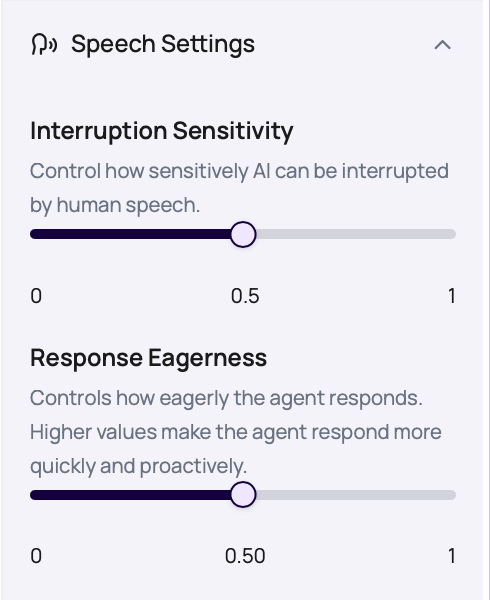
Boosted Keywords lets you bias supported transcribers toward uncommon words that matter to the call, such as product names, locality names, medical terms, plan names, abbreviations, or internal brand terms. It appears for cascaded agents when the selected transcriber is Deepgram, Soniox, or Sarvam. It is hidden for Speech to Speech agents and for transcribers that do not support recognition-bias vocabulary. Enter terms as a comma-separated list. DialNexa trims whitespace, removes empty entries, and de-duplicates terms case-insensitively while keeping the first spelling you entered.
Use Boosted Keywords for terms the caller may say, not for whole prompt instructions. The setting can improve recognition, but it does not guarantee the transcript will always output the term exactly as written. Verify it with recordings and transcripts before using it in a large batch.
Sarvam Recognition Hints
Sarvam receives Boosted Keywords and supported dynamic-variable values through a best-effort prompt hint. This is not a guaranteed vocabulary list. The provider request has a smaller encoded-text budget, so later terms can be omitted even when the dashboard accepts the list. Keep important terms first and compare the transcript with the recording.Boost Dynamic Variables
Turn on Boost dynamic variables when per-call values such as customer names, cities, plan names, or order IDs are likely to be misheard. DialNexa appends usable values from the test-call form or batch recipient row to the agent’s configured Boosted Keywords for that call. The configured keywords always come first. Dynamic values are sanitized, de-duplicated case-insensitively, and added only while the combined list stays within the100 term and 2,000 character limits. Punctuation is replaced with spaces, text after a colon is removed, and values longer than 50 characters after cleanup are skipped. Deepgram, Soniox, and Sarvam receive the merged list for both primary and fallback STT when supported.
Existing agents remain opted out until the setting is enabled. Review the displayed term count before saving because each configured variable name represents one possible value added at call time. If the configured terms already fill the limit, later dynamic values are dropped rather than replacing the agent’s reviewed keywords.
Audio Cache
Audio Cache helps repeated text-to-speech output start faster. It is on by default, and only DialNexa can turn it off, so contact DialNexa if you need it off. DialNexa tracks cache lookups, hits, misses, and new cache entries in call evidence when data is available.Emotion Tags
Turn on Emotion tags when a cascaded agent should express emotion through a supported voice. Cartesia Sonic 3 and Sonic 3.5, and Soniox TTS v2 support this setting. It is off by default, hidden for Speech to Speech agents, and disabled for unsupported voices.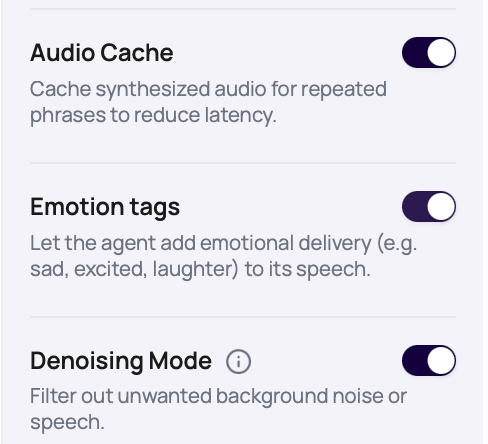
- Select a supported voice model and open Speech Settings.
- Turn Emotion tags on and wait for the save to complete. This control can also update the published version; do not toggle it on a live agent merely to preview it.
- Use a browser test for a draft, or publish it before a phone test. Compare an emotional response and a routine business response in the recordings in Call History.
400. Check the voice model and the control again after changing voices.
Thinking Fillers
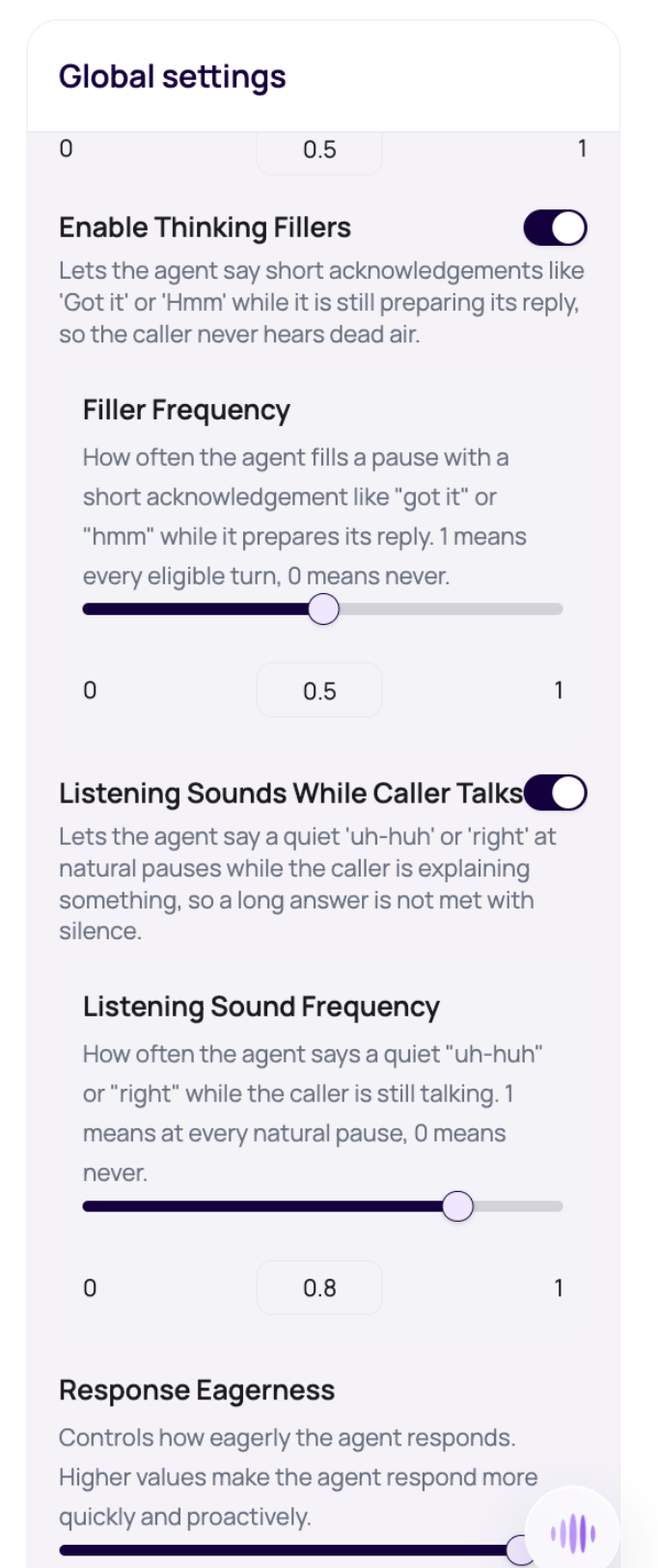
Enable Thinking Fillers lets a cascaded agent speak short acknowledgements while its model prepares a reply. The setting is available to every workspace. Turn it on in a draft, adjust Filler Frequency from0 to 1, and publish the reviewed version before testing phone calls. Phrases come from the platform’s catalog; there is no custom keyword field.
A filler is conditional, not guaranteed on every turn. Greetings, thanks and closings, questions, “are you there” checks, and replies shorter than three words never get one. A filler can also be skipped when the reply is already ready, the caller is still speaking, or suitable audio is unavailable. Filler Frequency changes how often eligible turns use a filler; it does not make the model answer faster. Review a recording with a longer caller statement (not a question) and an interruption before using it in a larger campaign.
Listening Sounds While Caller Talks
Listening Sounds let a cascaded agent say a quiet acknowledgement, such as “uh-huh” or “right”, during a natural pause while the caller is explaining something. They are separate from Thinking Fillers, which play while the agent prepares its reply. Both controls are off by default.- Open Speech Settings on a draft agent.
- Turn on Listening Sounds While Caller Talks (shown as Enable Listening Sounds in some dashboard versions).
- Adjust Listening Sound Frequency from
0to1. Zero prevents playback; higher values allow more eligible opportunities. The default frequency is0.8. - Publish the reviewed draft for phone calls. Test a longer caller explanation and a short question, then compare the recordings.
Denoising Mode
Denoising Mode can help with background noise, but it should be tested with the actual phone path. When Denoising Mode is on, the Noise Suppression Strength slider lets you choose how strongly DialNexa asks the denoiser to reduce background sound. Lower settings preserve more caller detail. Higher settings can suppress more noise, but aggressive cleanup can also damage speech details.Current outbound call processing keeps server-side denoising off unless DialNexa enables it for the route. Use recordings and transcripts to confirm whether a specific call path is receiving noise cleanup.
1
Listen to the bad call
Open Call History, play the recording, and identify noise, echo, clipping, silence, or distance from microphone.
2
Change only denoising
Keep transcriber, voice, prompt, and phone route the same for the next test. If Denoising Mode is already on, adjust Noise Suppression Strength one step at a time.
3
Retest the same call pattern
Use the same caller, route, and script if possible.
4
Compare transcript and recording
Keep denoising only if it improves recognition without making speech sound unnatural.
Hinglish Map
Hinglish Map appears for Hindi-English setup. Use it when the agent uses formal Hindi words that callers would not use in a real conversation.Troubleshoot By Symptom
Agent replies before the caller finishes
Agent replies before the caller finishes
Use a more patient Response Eagerness setting where available, shorten the welcome message, and inspect live transcript boundaries.
Repeated lines are still slow
Repeated lines are still slow
Check whether the text repeats exactly. Names, amounts, dates, and model rewording create new phrases.
Noisy calls produce bad transcripts
Noisy calls produce bad transcripts
Compare recording and transcript, try Denoising Mode, then compare transcribers through the same route.
Boosted Keywords will not save
Boosted Keywords will not save
Check term length, total length, punctuation, unsupported characters, and whether the selected transcriber is Deepgram, Soniox, or Sarvam.
A dynamic value was not boosted
A dynamic value was not boosted
Confirm Boost dynamic variables is enabled, the call came from a supported test or batch path, and the value survives the character and length rules. Configured keywords take priority when the combined term limit is full.
Hindi-English sounds too formal
Hindi-English sounds too formal
Use Hinglish Map, add prompt examples, and test the selected voice on mixed-language phrases.
Related Reading
Speech To Text
Understand transcribers and transcript evidence.
Text To Speech
Tune voices and Audio Cache.
Latency And Turn Taking
Diagnose response timing.
Audio Cache Monitoring
Read cache metrics after calls.
Speech Settings Video
Watch the speech settings walkthrough.