

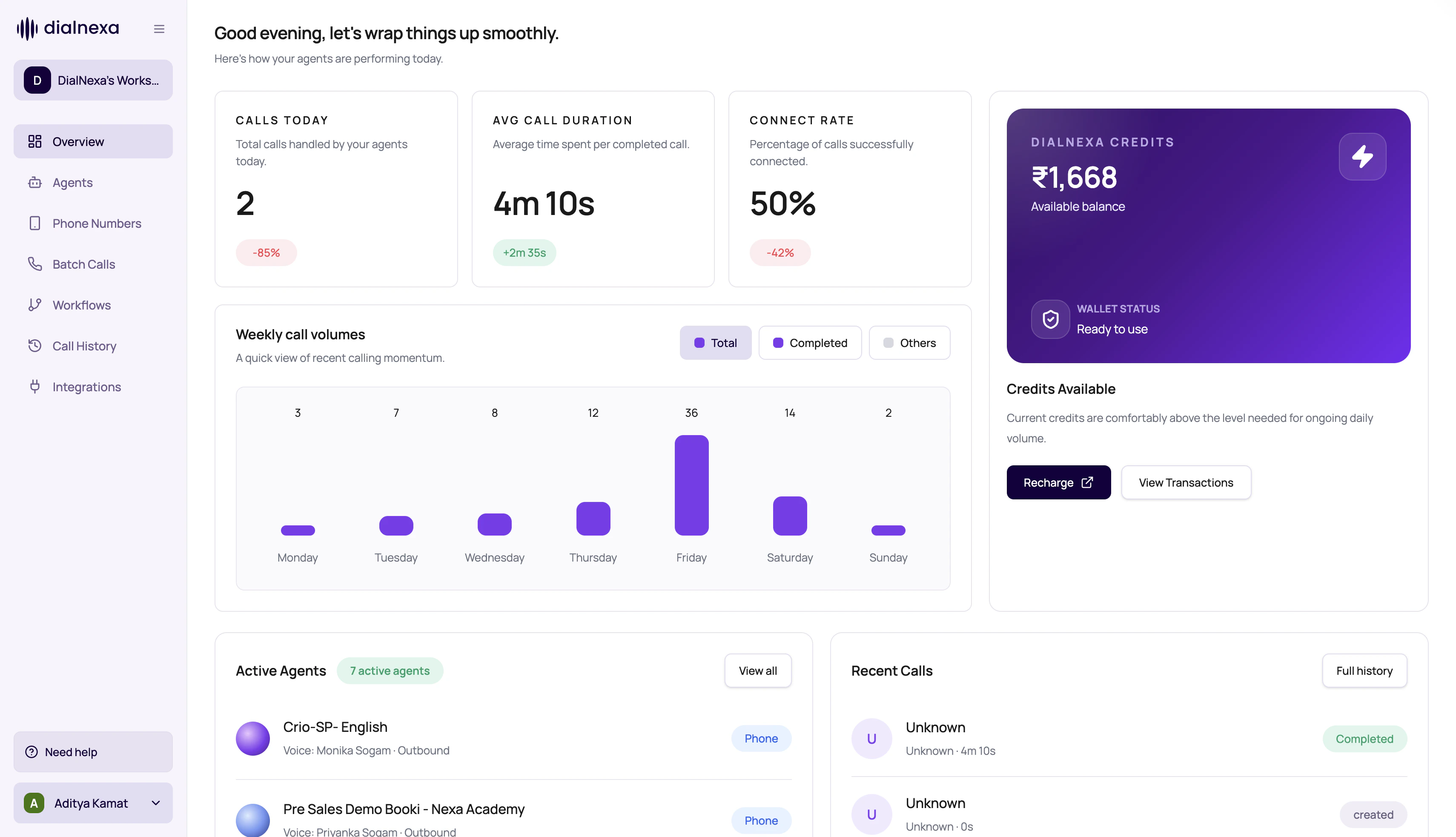
Overview is for orientation. The serious edits still happen in Agents, Phone Numbers, Batch Calls, Workflows, Integrations, Call History, and Keys.
What The DialNexa Dashboard Overview Shows
The exact cards depend on workspace state.How To Use Overview Without Getting Lost
1
Confirm workspace
Check that the selected organization is the one you intend to change.
2
Read readiness signals
Look at onboarding, wallet, and any account readiness prompts before launching outbound traffic.
3
Use voice exploration lightly
Explore voices to get a sense of options, then configure the real voice inside an agent version.
4
Open the owner tab
Move to Agents for behavior, Phone Numbers for routing, Batch Calls for campaigns, or Call History for proof.
Overview Cards Versus Owner Tabs
Common Confusions
Why is Overview different across workspaces?
Why is Overview different across workspaces?
New and active workspaces can show different cards. Setup progress is useful early; recent calls and active agents are useful after traffic starts.
Can I configure a production voice from Explore voices?
Can I configure a production voice from Explore voices?
Use Explore voices for discovery. Configure the production voice inside the agent builder so the selected language, voice model, and settings are saved on the agent version.
Why does a recent call need Call History?
Why does a recent call need Call History?
Overview gives a shortcut. Call History gives the complete review surface with recording, transcripts, summary, transfers, Audio Cache, and exports.