

Before You Begin
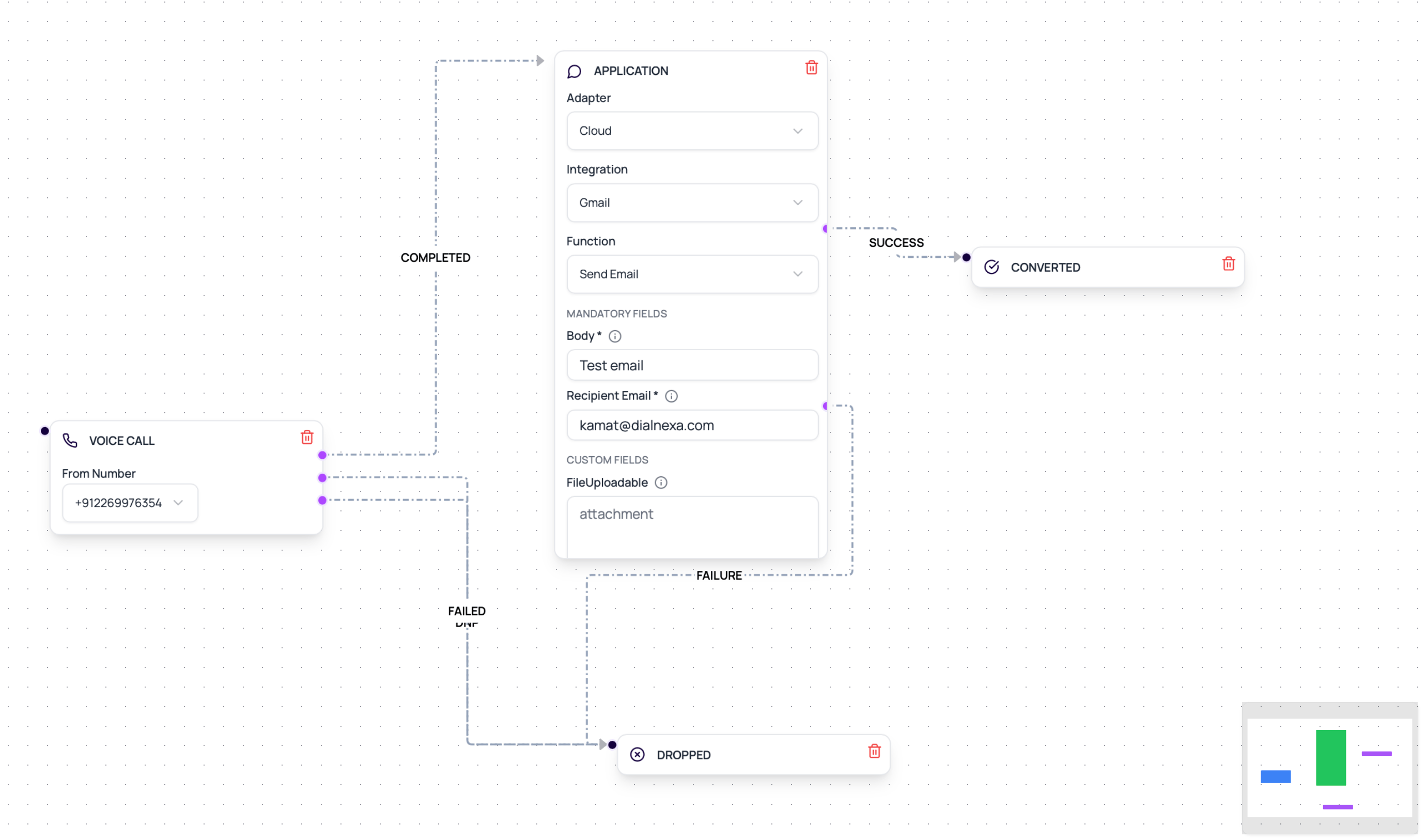
Connect and validate the provider, identify every required action field, and prepare workflow fallback variables. Plan success and failure routes for Cloud actions. Native Wati uses one continuation route.Application Node Fields
These are the stored configuration keys - what the API returns for the node. In the builder you do not type them; they are filled in automatically when you pick the integration, action, and template from the node’s dropdowns.
The workflow editor shows Application nodes in the node palette for all organizations. In Cloud mode, the node loads connected integrations and their workflow-safe functions. In Native mode, the node loads WhatsApp (Wati) and the organization’s synced Wati templates. Wati is intentionally excluded from the Cloud picker. For text-like fields, use the variable picker to insert lead variables, post-call analysis fields from the workflow’s call agent, and runtime call attributes.
Variable Sources
Use the picker rather than typing placeholders from memory when possible.Common Application Actions
Use actions that fit the workflow moment.Wati template
Wati native template
Resend email
Catalog action
Prepare An Application Node
1
Connect the integration
Set credentials or hosted connection before using the action.
2
Choose the adapter mode
Use Native for Wati template messages. Use Cloud for connected integration functions from other providers.
3
Select a synced Wati template
For Native Wati, sync approved templates from the Integrations page, then search and select the template in the node. Map its parameters in order.
4
Validate the connection
Use validation so obvious credential issues surface early.
5
Map variables
Use the variable picker for lead variables, post-call analysis fields, and runtime call attributes.
6
Wire success and failure
Connect both outputs for Cloud actions. Native Wati continues through one output path.
7
Review invocation evidence
Use lead history and integration results when troubleshooting.
Billing For Cloud Integration Actions
Composio-backed Application node executions are counted for billing whether the provider action succeeds or fails, because DialNexa still sends an integration execution request. Billing is batched in groups of100 executions at approximately INR 1.79 per batch. The wallet deduction is recorded after a batch is reached and does not block workflow execution.
Review wallet transactions and integration invocation evidence together when reconciling workflow automation costs.