

Before You Begin
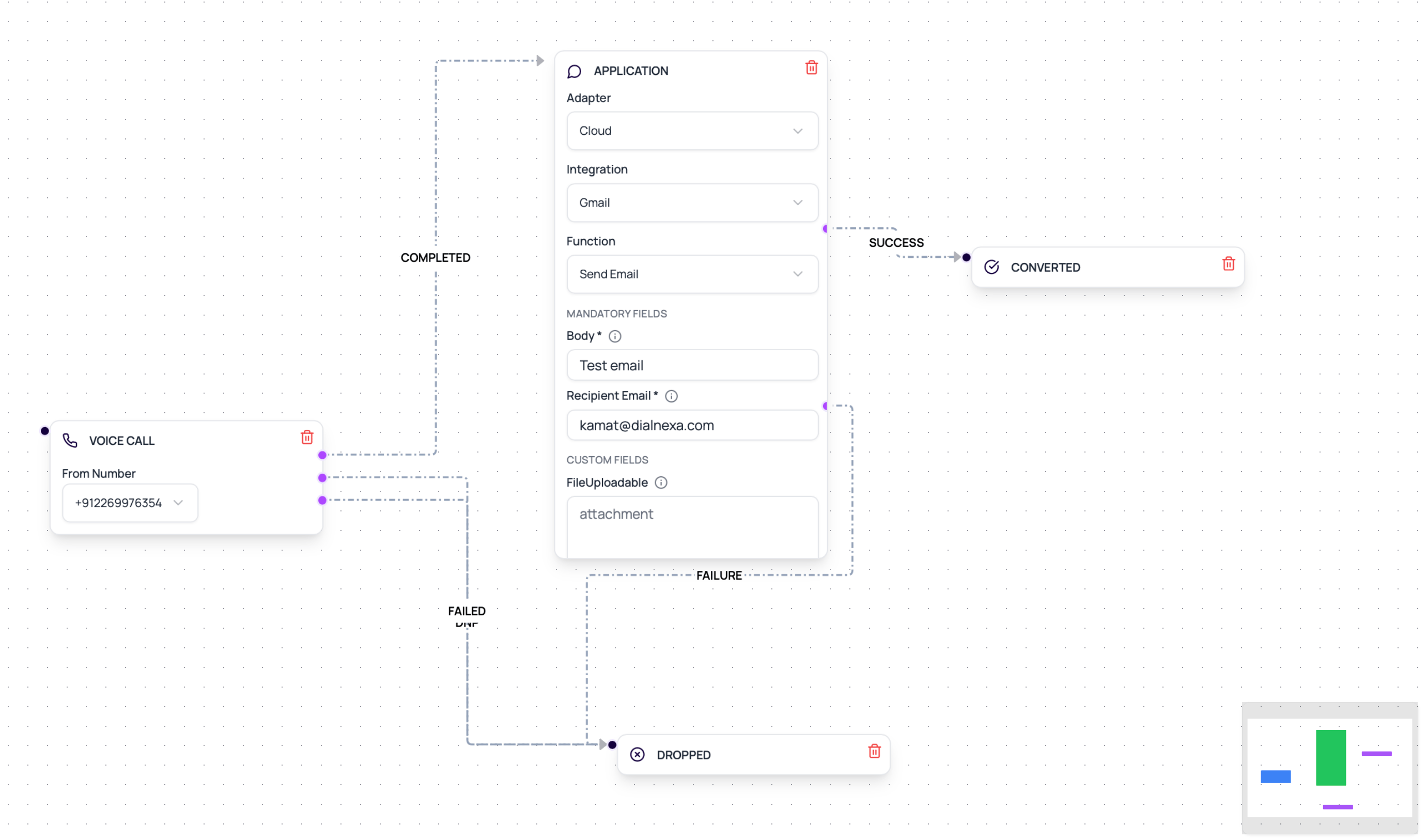
Connect and validate the provider, prepare test lead values, and map every required field before activation. For Cloud actions, wire explicit success and failure outputs. For native Wati, connect the single continuation output.DialNexa Workflow Integration Fields
These are the stored configuration keys behind an Application node - you never type them by hand. Picking the integration, action, and template in the node’s dropdowns fills them in.Data Mapping Sources
Lead variables
Call attributes
Static config
Invocation response
Wati And Resend Workflow Examples
Build A Reliable Application Node
1
Validate provider connection
Do this before adding the node to an active workflow.
2
Choose the adapter mode
Select Native for WhatsApp (Wati) templates. Select Cloud for connected integrations and their workflow-safe functions. Wati is intentionally absent from the Cloud picker.
3
Sync and select Wati templates
For Wati, sync approved templates from the Integrations page first, then use the searchable template picker in the Application node.
4
Map every required field
Use lead variables, post-call analysis fields, call attributes, or static values. Empty fields should be intentional, not surprising.
5
Connect the available outputs
Name Cloud success and failure paths clearly. Native Wati has one continuation output.
6
Test one lead
Open lead history and check the integration invocation result.
7
Scale only after evidence is clean
One successful test should show correct request payload, provider response, and downstream branch.
100 at approximately INR 1.79 per batch. Billing does not block workflow execution, so review integration invocation evidence and wallet transactions together.
Workflow Integration Mistakes
No failure branch
No failure branch
Cloud provider actions can fail because of credentials, rate limits, template rules, missing fields, or invalid recipient data. Always route the Cloud failure output. Native Wati uses one continuation path, so review invocation evidence separately.
Static test data left in production
Static test data left in production
Replace hard-coded email addresses, phone numbers, and template parameters before launch.
Using call text instead of extracted fields
Using call text instead of extracted fields
If a workflow needs a stable value, extract it into a post-call field first and map that field.
Action placed before data exists
Action placed before data exists
A workflow node can only map fields that are already available at that point in the workflow.