

What Belongs To A Workspace
Workspace context scopes most operational objects.Agents and versions
Numbers and campaigns
Workflows and leads
Keys and webhooks
Workspace Actions Users Commonly Need
Use workspace controls when the account context, not the agent, is the issue.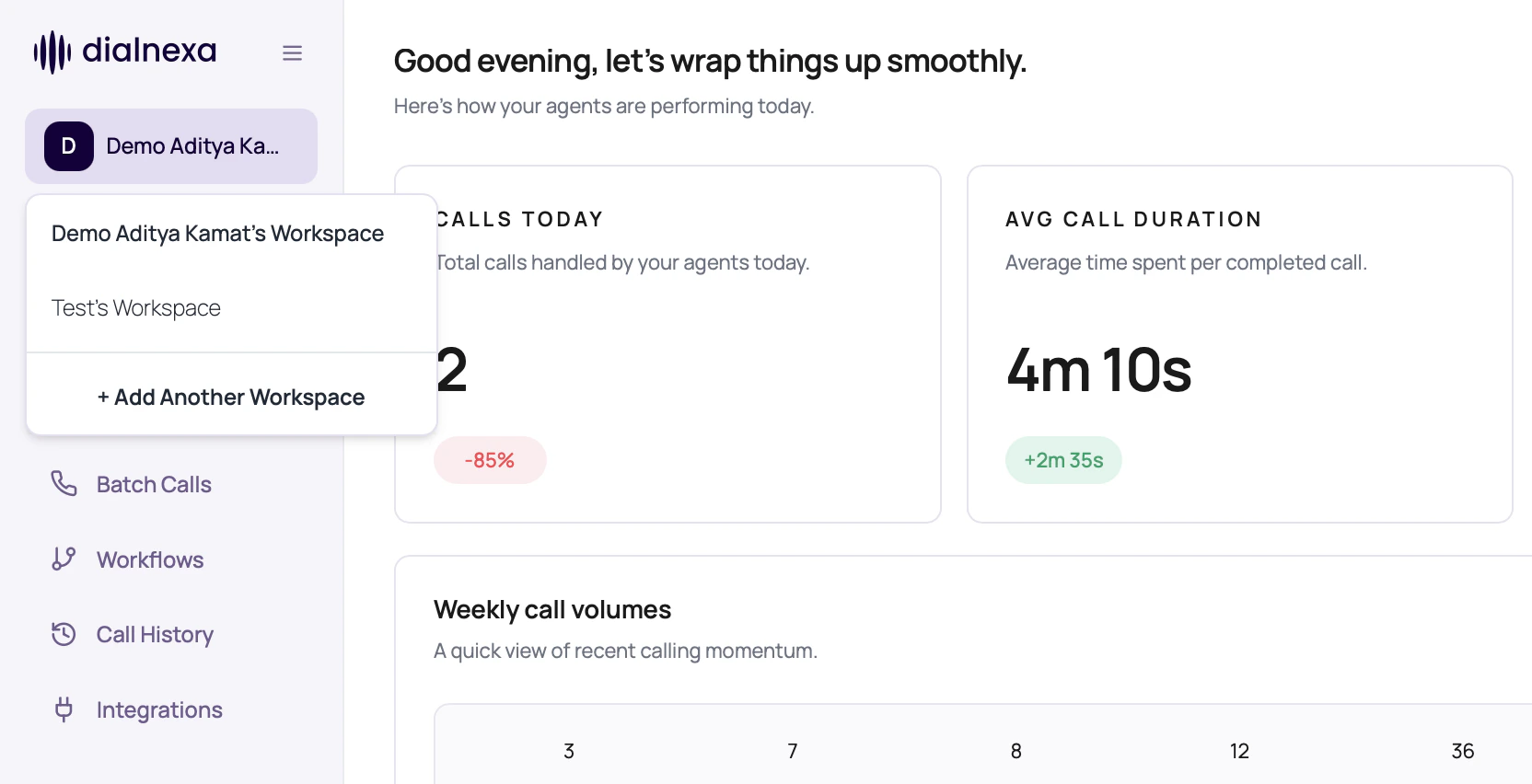
DialNexa Workspaces And Settings Tabs
Workspace settings groups its sections under Workspace, Calling, and Connections. Use the desktop links or the Settings section picker on a narrow screen to open the same section.
If you land on
/dashboard/workspace, the dashboard redirects into the tabbed settings area. Choose a settings link or a value in the Settings section picker without changing the active workspace. Existing route URLs continue to open the same sections.
Open Workspace Settings From The Sidebar
Choose Workspace settings under System in the main sidebar. Check the workspace name first; the workspace switcher now includes search. The settings navigation includes AI app access, which manages external AI apps authorized to access DialNexa. Use Integrations for tools that your DialNexa agents call during conversations.Update Workspace Contact Information
Open General and edit the contact phone number. Choose Verify and save number, enter the verification code, and finish verification. Successful verification saves the number immediately; you do not need to save the workspace details again for that phone change. Reload General to verify the persisted contact number. Use Save changes in General settings for the workspace name and description. These details have their own save action.Manage Connected Apps
The AI app access tab, previously called Connected Apps, lists external AI apps, such as ChatGPT or Claude, that a workspace member authorized through DialNexa OAuth. Use it to confirm which app has access, whether that access is read-only or can make changes, and when it was connected.1
Open the correct workspace
Confirm the workspace name in the main sidebar, then open Workspace Settings > AI app access.
2
Review each connection
Check the app name, permission label, and connection date. Internal DialNexa services are not shown in this customer-facing list.
3
Disconnect access you no longer need
Click Disconnect, read the confirmation, and confirm the action. The app immediately loses access to this workspace.
4
Reconnect from the external app when needed
A disconnected app must start OAuth authorization again. Review the requested workspace and permissions before approving it.
API Keys And Webhook Settings
The API keys & webhooks section includes API keys and Webhooks. Use the Webhooks tab to send workspace-level webhook payloads to your own endpoint.Avoid Cross-Workspace Mistakes
1
Read the workspace label
Confirm the sidebar workspace before creating agents, keys, numbers, or workflows.
2
Check the route after switching
Some pages reload data based on organization. Wait for the new workspace data before acting.
3
Name objects clearly
Use agent, batch, and workflow names that reveal workspace or campaign purpose when needed.
4
Audit in the same workspace
Call History only helps when you are in the workspace where the call was created.
Workspace Confusions
I cannot see an agent
I cannot see an agent
You may be in a different workspace, folder, or organization context.
A key does not work
A key does not work
Keys are organization scoped. Confirm the key belongs to the workspace your integration is calling.
Batch Calls are blocked
Batch Calls are blocked
Check KYC readiness for the workspace.
Call logs look empty
Call logs look empty
Confirm date range, filters, and workspace selection.
AI app access does not load
AI app access does not load
Confirm that your role can view workspace settings and that the correct workspace is active. If the tab remains unavailable, ask a workspace administrator or DialNexa support to check the connection permissions.