MCP Turns Your Voice AI Dashboard Into a Conversation
It’s 9:40 on a Tuesday morning and you want to know one thing: how did yesterday’s campaign do?
So you log in to the dashboard. You open Call History. You set the date filter, then the status filter, because the failed calls are what you actually care about. You open three call logs in three tabs and read the transcripts. One of them makes you wonder whether the agent’s opening line is the problem, so you head over to the Agents page, find the agent, open its configuration, and scroll to the prompt. Now you want to compare this week’s numbers to last week’s, which means Overview, then back to Call History with a different date range, and by the time you have your answer you’ve been clicking for fifteen minutes and you have four tabs open.
None of that was hard. It was just slow. Every question you had was simple, and every answer was buried under navigation.
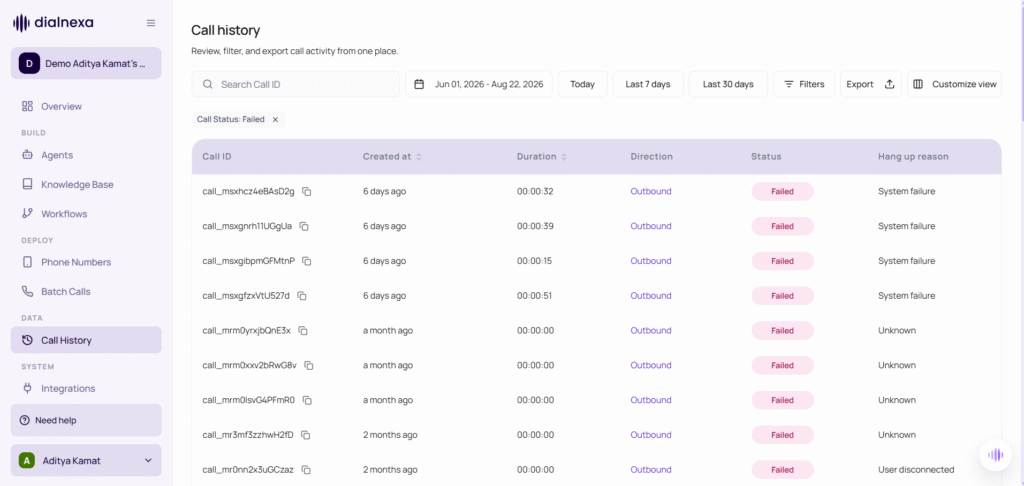
We think that entire routine is going to feel dated very soon. Not because dashboards are bad, but because there’s now a better way to ask.
Asking instead of operating
Here’s the same Tuesday morning, done differently. You open Claude, or ChatGPT, whichever one you already keep open all day, and you type:
“How did yesterday’s campaign go? Show me the failed calls, tell me if there’s a pattern, and what did the whole thing cost us?”
A few seconds later you have the campaign totals, the list of failed calls with their end reasons, the exact spend down to the rupee, and an observation you didn’t ask for but are glad to have: most of the failures were numbers that never picked up, concentrated in one time window. You type one more line, “pull the transcript of the longest failed call,” and it’s in front of you. No tabs. No filters. No remembering where anything lives.
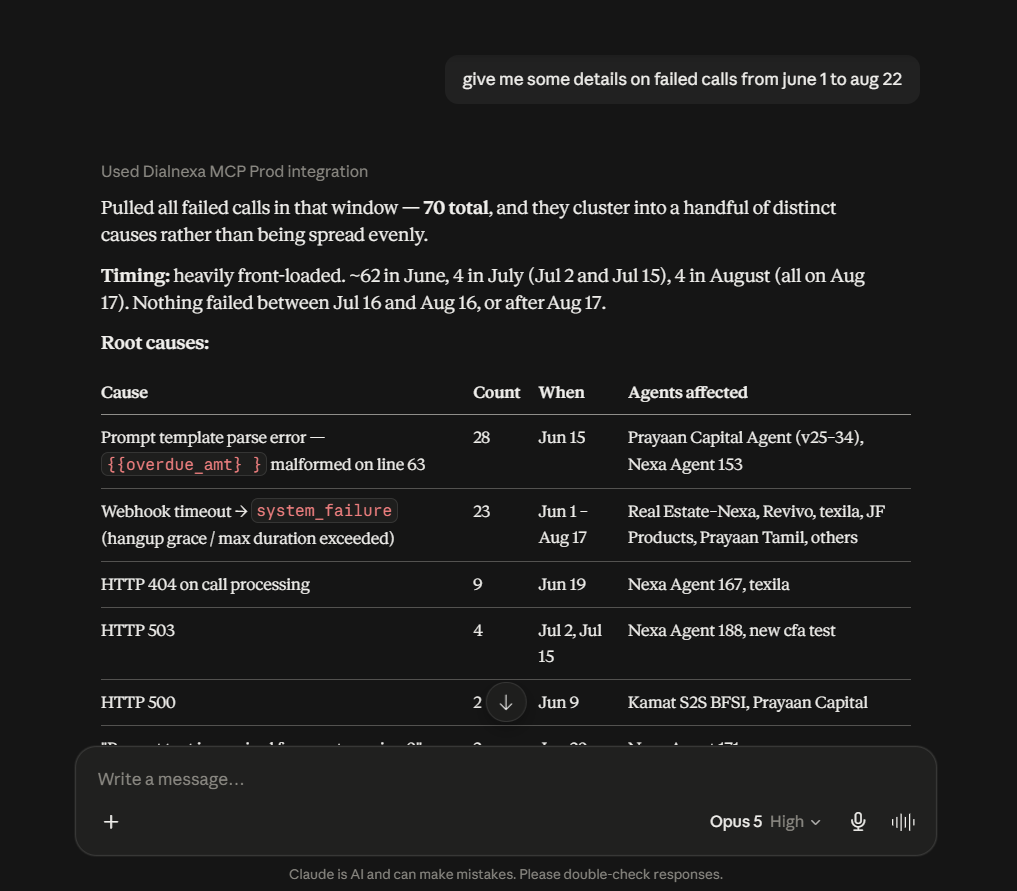
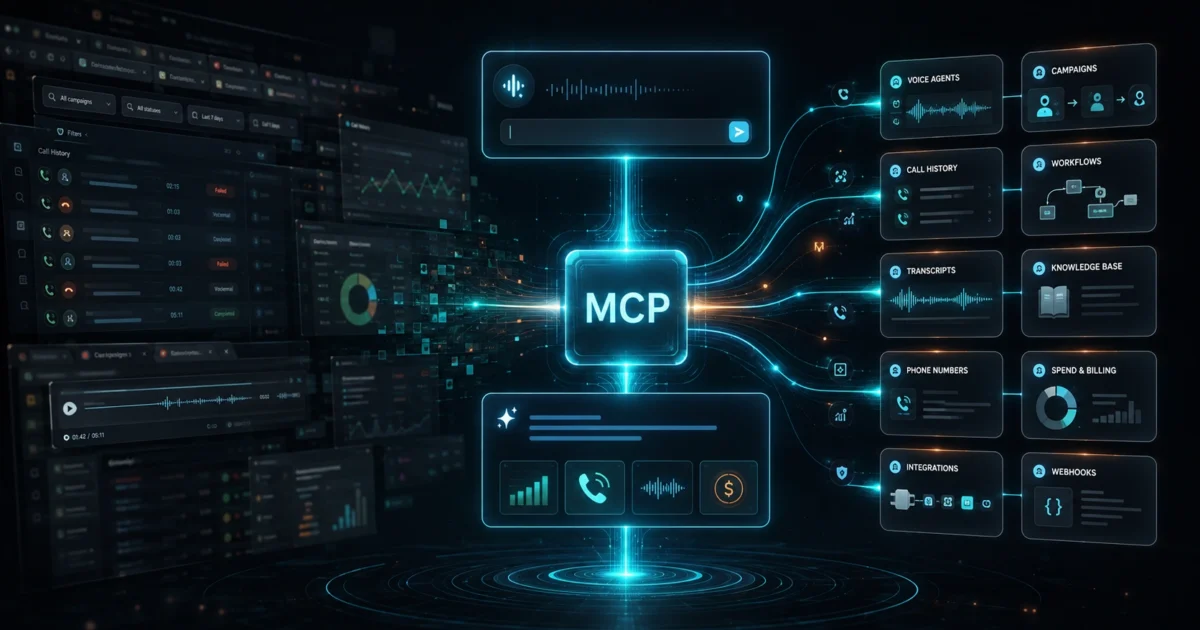
This works because of something called MCP, the Model Context Protocol. Strip away the jargon and it’s a secure, permissioned connection that lets an AI assistant use DialNexa on your behalf. Your assistant doesn’t guess at answers or make things up about your account. It calls the same operations our own dashboard uses, with your login, scoped to your organization, and shows you real data. When it says a call cost twelve rupees and ended because the customer hung up, that’s coming from your actual call log.
You’ve operated software your whole working life: find the screen, find the button, fill the form. This is different. You state what you want, and the navigating happens on the other side of the curtain.
Why we went all in
Plenty of platforms have shipped something MCP-shaped over the past few months. Look closely at most of them and you’ll find a thin wrapper: list your resources, maybe place a call, and that’s about it. Useful for a demo, not for a workday.
We took a different position. If an assistant is going to be the way people work with DialNexa, it has to be able to do the work, all of it, not just the easy reads. So we built what we believe is the most complete MCP surface of any voice AI platform we know of: nearly one hundred operations covering the full span of the product.
That includes the deep stuff. You can build a Conversational Flow Agent, our flow-based agent type with a real identity and background, entirely through conversation. You can design a multi-step calling workflow, adding nodes and connecting the branches, without ever opening the visual builder. You can duplicate your best-performing agent, adapt it for a new market, and publish it, from a chat window. As far as we can tell, nobody else in voice AI lets you do that over MCP today.
And connecting takes about two minutes. There are no packages to install and no API keys to copy out of a settings page and paste into a config file. You add DialNexa in Claude or ChatGPT, log in with your normal account, approve the access, and you’re done. Part 2 of this series walks through it step by step.
We should also admit our bias: we use this ourselves, daily. Checking test call outcomes, tweaking agent prompts, pulling weekly numbers. The fastest way to find out whether a conversational interface holds up under real work is to make your own team live in it. Ours does.
One conversation, five screens replaced
The single best argument for MCP isn’t any one operation. It’s what happens when they chain.
Say your Hinglish sales agent has been doing well and you want an English version for a new campaign. In the dashboard, that’s a project: duplicate the agent, open the copy, change the language, adjust the voice, rewrite the greeting, publish the version, attach a number, place a test call from your phone, then go find that call in the logs to see how it went.
In a chat, it’s one thread:
“Duplicate my Hinglish sales agent, switch it to English with a matching voice, and rename it for the US campaign.”
“Now publish it and call my number so I can hear it.”
“How did that call go? What was the sentiment?”
Three messages. The assistant handles the sequence, asks you before anything consequential happens, and reports back with real results at each step. The work that used to be a chain of screens becomes a chain of sentences, and the assistant carries the context between them so you never re-enter anything.
Three people, three mornings
An operations lead starts her day by asking for yesterday’s dashboard stats, the calls that ended in negative sentiment, and the transcripts behind the two worst ones. What used to be her first half hour is now the time it takes to read the answers.
A growth marketer wants to test a new pitch before committing a full campaign to it. He asks the assistant to duplicate the current agent, swap in the new opening, publish it, and run a small batch against twenty leads from this morning’s list. Then, an hour later: “compare the answer rates between the two versions.” He never opened the dashboard.
A founder, somewhere between meetings, types “what’s my wallet balance and what did we spend on calls this week?” into the same chat window she was already using to draft an email. Fifteen seconds, answered, back to the email.
Different jobs, same shift: the tool stopped demanding attention and started answering questions.
Questions a dashboard can’t answer in one screen
There’s a category of question that dashboards are structurally bad at, and it’s usually the category that matters most: comparisons and patterns.
“Which of my two support agents had better sentiment this month?” is a question. On a dashboard, it’s a project: two sets of filters, two screens, a notepad. Through MCP, your assistant pulls both sets of numbers and answers, then keeps going if you push: “what’s different about the calls the second agent handles well?”
The dashboard shows you data. The assistant works on it. That difference compounds the moment your questions stop being lookups and start being judgments.
Built with control in mind
Handing an AI the keys to your calling platform should raise questions, so here’s exactly how the access works.
The connection uses OAuth, the same standard your bank and your email provider use for third-party access. You log in with your own DialNexa credentials on our page, not the assistant’s, and you approve the connection explicitly. Everything the assistant does is scoped to your organization and your permissions. Nothing it does is invisible: every operation lands in the same logs as any other account activity.
Reads and writes are treated differently. Looking up call history or listing agents happens freely. Anything that changes state or spends money, placing a call, launching a batch, deleting an agent, surfaces in the assistant for your approval before it runs. The assistant proposes; you confirm. And you can disconnect the whole thing in two clicks whenever you like.
We designed it this way on purpose. Speed matters, but speed without control is just a faster way to make mistakes.
Nearly a hundred operations, and counting
The current surface covers agents and their versions, including creating, duplicating, updating, and publishing. Calls, from placing one to reading transcripts, retries, transfers, and costs. Batch calling and campaign control, with pause, resume, and cancel. Workflows, including building the flow graph itself. Knowledge bases, organization folders, phone numbers and live number search, billing plans, wallet balance and spend limits, integrations with tools like Gmail and WhatsApp, webhooks, and your dashboard analytics. Ninety-seven operations as of this week, and the number keeps moving because we keep shipping.
That last part is the point. This isn’t a side feature we built once and left. Publishing an agent through MCP shipped this month because our own usage demanded it. The surface grows in the direction real work pulls it.
Where this is going
Our view is simple: every operation should live where it’s most efficient. Today, a quick status check, an agent tweak, a small test batch, a spend question, all of those are faster in chat than in any interface we could build. Some work still runs best in the dashboard, like uploading thousands of leads for a large campaign, where a file picker and a preview table genuinely earn their place. So we route each job to the surface that serves it best, and we keep moving that line. Every month, more of DialNexa becomes something you can simply ask for, because we’re continuously tuning these operations to be faster and more efficient wherever you run them.
The dashboard isn’t going anywhere. But we suspect that once you’ve asked your first few questions, you’ll notice how rarely you reach for it.
Try it this week
If you have a DialNexa account, you’re two minutes from your first conversation with your own operations. If you don’t, that same link gets you signed up in about the same two minutes. Part 2 of this series is a step-by-step walkthrough of connecting both, including what each permission screen means and how to control what the assistant can touch. Part 3 is for the engineers, that will cover how we built the whole thing.
Connect it, then start with the question you already ask every morning. You’ll know within a day whether this changes how you work. We’re certain it will.

Leave a Reply