

When To Use The DialNexa DND List
Use the list when a customer asks not to be called or your team needs to exclude a number from outbound activity. Each workspace has its own list. Adding a number here does not change another workspace’s list.Before You Begin
- Open the workspace whose outbound calls you want to control. Every workspace member can view and manage the list.
- Have the phone number and its country code ready.
- Prepare a required note explaining why the number should not be called. Notes can contain up to 500 characters.
Add A Number To The DND List
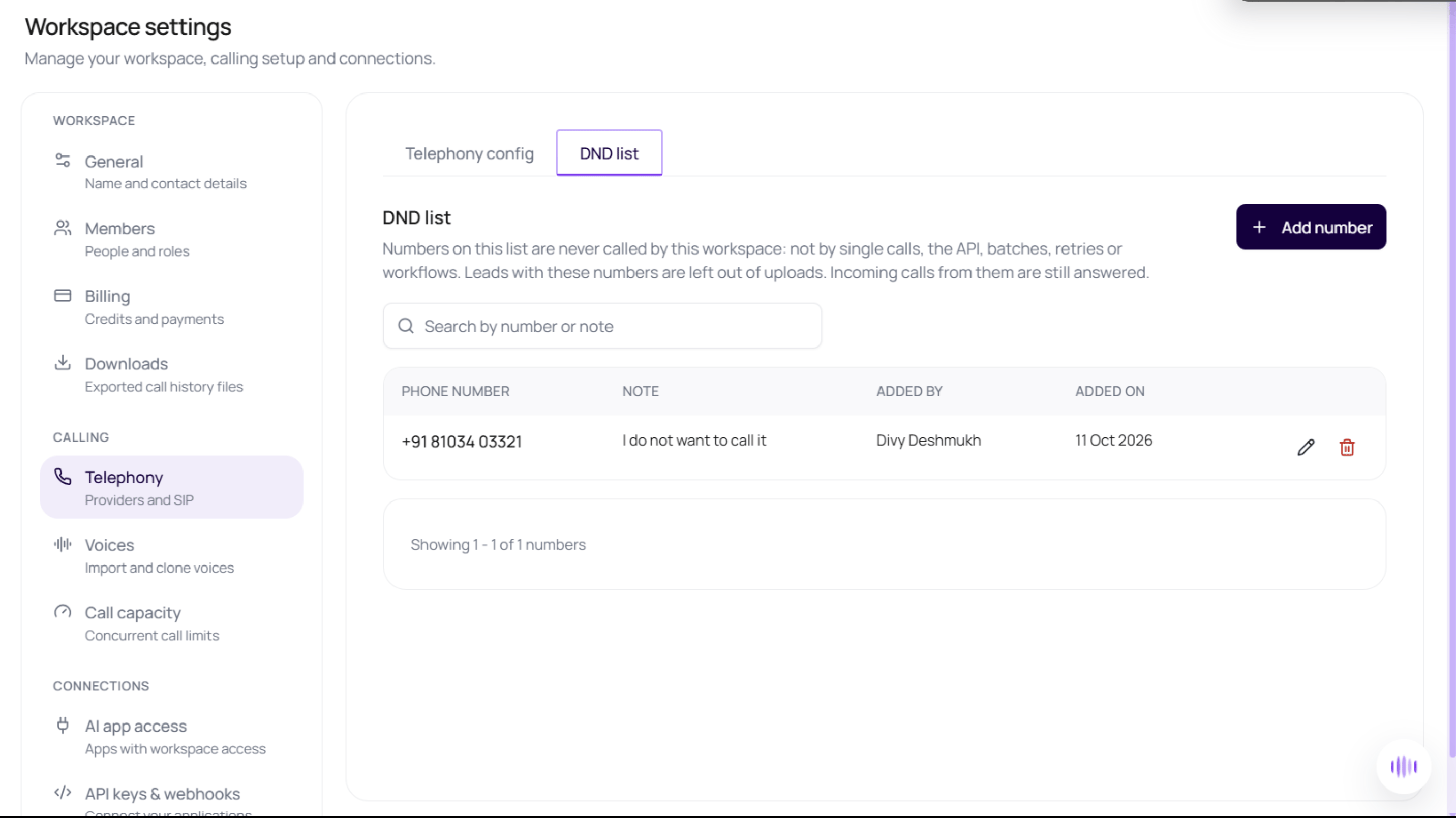
- Open Workspace settings > Telephony > DND list.
- Select Add number.
- Choose the country and enter the phone number. Check the country code so you block the intended number.
- Enter the note and save.
- Search for the number or note and confirm that the new row appears. The table shows the number, note, who added it, and when it was added.
What Blocking A Number Changes
Calls already in progress are not ended by adding a number. Check call end reasons and workflow lead history when investigating a stopped call or lead.