

When To Change Call Concurrency
Use concurrency settings when outbound activity must leave room for incoming calls, or when you need to control simultaneous call volume. A concurrency limit controls how many calls run together, not their duration or the total number of recipients in a batch.Before You Begin
Confirm the active workspace and review its current settings. For a purchase, check the wallet balance, price, available quantity, and renewal terms displayed by the dashboard. Rates and available capacity can change; use the live preview before confirming payment.Review Your DialNexa Call Concurrency
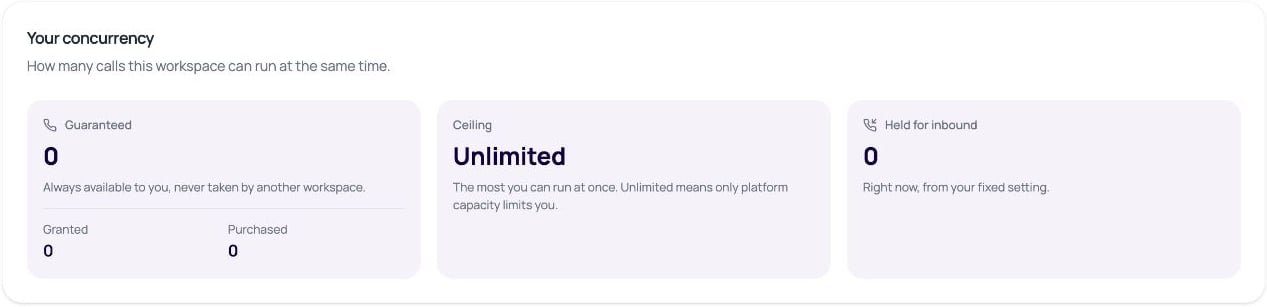
Reserve Inbound Capacity And Set A Ceiling
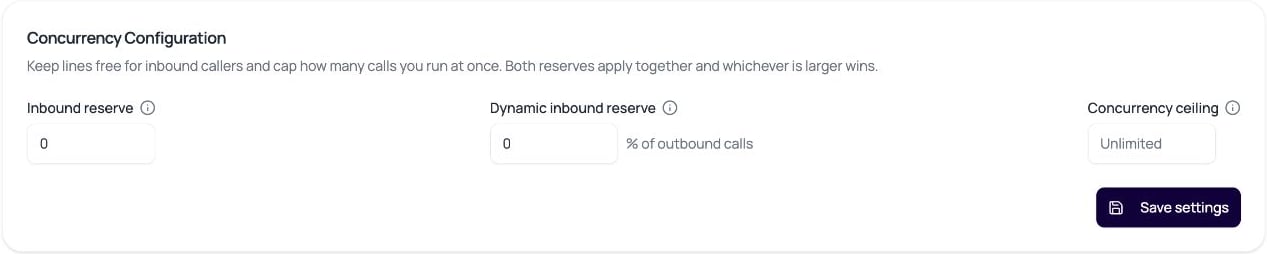
- Open Concurrency Configuration.
- Set Inbound reserve to the number of lines to hold for inbound callers at all times. This cannot exceed your guaranteed concurrency.
- Optionally set Dynamic inbound reserve as a percentage of running outbound calls. Leave it blank to turn it off. The dashboard accepts values from 0 to 100 percent.
- Set Concurrency ceiling to a positive whole number, or leave it blank for Unlimited.
- Click Save settings and wait for the success message.
Purchase Or Release Extra Concurrency
In Add more concurrency, use the plus or minus buttons to choose your target purchased quantity. This is the total quantity you want to retain, not just the number of new slots. For an increase, the preview shows Charged today for the remaining days of the current month and the recurring monthly total. Review both before clicking Pay. The payment comes from the workspace wallet, and renewal is billed on the first of the month.
The screenshot is an example preview, not a price guarantee or a completed purchase. Your live quantity, date, rate, and available capacity determine the displayed charge.