

- Primary: one goal sentence, for example “Book a product demo and confirm the customer’s email address”.
- Linear: steps that must happen in order, like a sales call that greets, qualifies, pitches and books.
- Non-linear: steps that can happen in any order, with your own rules for what counts as met.
Who Is This For
- Teams that want to know whether an agent achieves its purpose, not only whether calls connect.
- Campaign owners who compare batch calls by how many leads reached the goal, and where they dropped off.
- Anyone tuning a prompt who wants a before and after measure.
Before You Begin
- Agent Goal and Analytics must be enabled for your workspace. They are currently available to selected workspaces; if the section is absent, check availability with DialNexa.
- You need an agent with a draft version you can edit. Published versions are read-only.
- IVR agents can have a goal only when the IVR menu has a Connect to agent step. A call that stays in the menu has no conversation to check, and calls that never reach the voice agent are not judged.
- Know what a good outcome is for this agent, in terms you could hear in the call: an appointment confirmed, a payment date agreed, an interest question answered.
Choose A Goal Type
Each agent version has one goal of one type.
Existing goals created before goal types were added are Primary goals. They work exactly as before.
Set An Agent Goal
1
Open the agent's settings
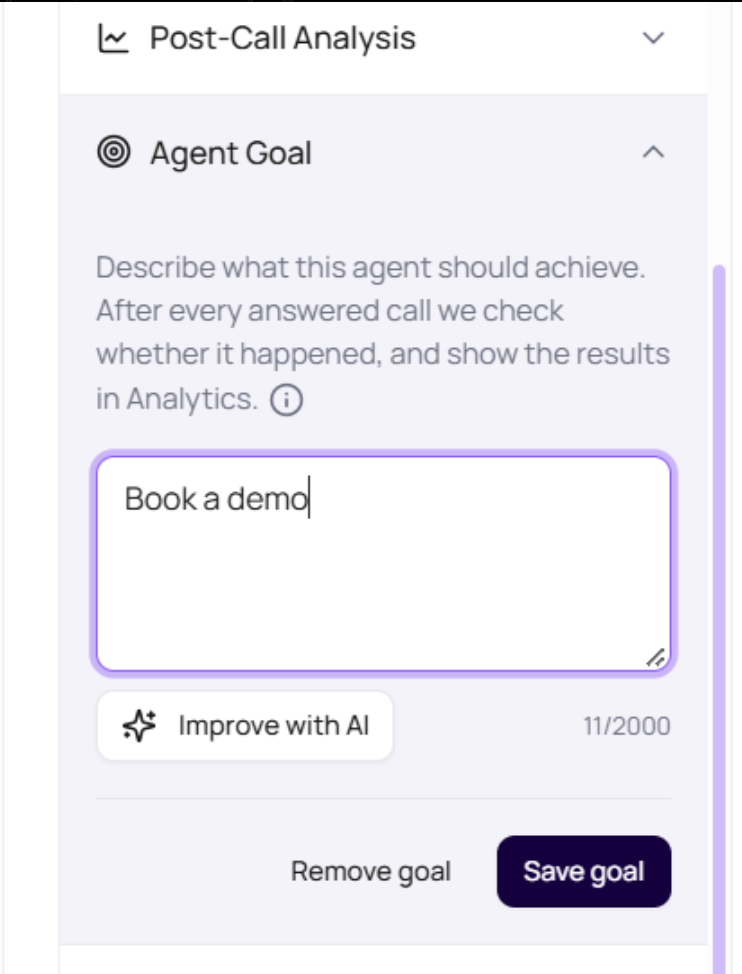
Open the agent, then open the Agent Goal section in the settings panel.
2
Click Enable agent goals
Three cards appear: Primary, Linear and Non-linear. Hover the info icon on a card to see how that type is scored.
3
Choose a type
Click a card to open its editor.
4
Describe the goal
For Primary, write what the agent should achieve, up to 2000 characters. For Linear and Non-linear, write a short goal line, then add the steps. For Non-linear, you can also write rules. See Write Good Steps and Write Rules For A Non-linear Goal.
5
Optional: click Improve with AI
DialNexa rewrites the goal, and for step goals each step and the rules, so each call can be judged more consistently. See Improve With AI.
6
Save the goal
Click Save goal. The goal is saved on this draft version, and a summary shows the type, the goal, the numbered steps and the rules.
7
Publish the agent
Live calls use the published version, so publish the agent for the goal to apply to them.
Write Good Steps
Linear and Non-linear goals have between 2 and 8 steps.- Add steps one at a time: type the step and press Enter, or click Add step.
- Drag a step by its handle to reorder it. Edit a step’s text in place, or delete it.
- Each step can be up to 200 characters, and no two steps can be the same.
- For a Linear goal, add the steps in the order they should happen. The order is part of the goal.
- Write each step as one thing you could hear or see in the call: “The agent confirms the customer’s email address”, not “The customer is happy”.
Write Rules For A Non-linear Goal
Rules are plain text, up to 1000 characters, that say how the steps decide the result. For example:How The Goal Follows Versions
The goal belongs to the agent version, like post-call analysis fields. The type, the steps and the rules always move together with it.
Results are never recalculated. Each call keeps the result it got against the goal its version had at the time.
Improve With AI
Short goals such as “Book a demo” leave room for interpretation. Is a customer who says “maybe next week” a success? Improve with AI rewrites your goal into a clearer form. Nothing is saved until you click Save goal, and Undo returns to your own words.Primary Goals
The rewrite becomes:- one sentence that states the goal,
- Goal met: what must happen in the call for the goal to be fully met,
- Partly met: what counts as progress without the goal being fully met,
- Not met: what it looks like when the goal was not achieved.
Linear And Non-linear Goals
One Improve with AI button, below the steps, rewrites the goal line, every step and, for a Non-linear goal, the rules, together:- You need a goal line and at least 2 steps first.
- The steps keep their number and their order. Each step is rewritten as one short sentence about the same thing, so step numbers in your rules still point at the same steps.
- Rules are rewritten only if you wrote some. Empty rules stay empty.
- If the rewrite would change the number of steps, leave a step blank or repeat one, DialNexa shows an error and keeps your own text.
How Each Call Is Judged
DialNexa judges a call as part of the agent’s existing post-call analysis, using the same model, after the call ends. Steps and rules do not add a separate call to the model.Which Calls Are Judged
Calls that are not judged never count against the agent. A batch dialled at a bad time does not make the agent look worse.
Primary Goals
For each answered call, the model works through three steps in order:- Find the proof. It copies, word for word, the line from the conversation that best shows whether the goal was met. The line can come from the customer, the agent, or a tool result such as a booking confirmation.
- Decide the result. It picks Goal met, Partly met or Not met, following your goal exactly as written, including any definitions of met and partly met.
- Explain why. It writes one short sentence about what was achieved and what was missed.
Linear And Non-linear Goals
For each step, the model copies the line from the conversation that shows the step happened, then answers done or not done. A step counts as done only when its line is really in the conversation. The model then writes one short sentence about which steps happened and which did not. Linear goals are scored strictly, in order:- DialNexa works out the order itself, from where each step’s line appears in the call. The model is never asked about the order.
- Progress counts the steps from step 1 onward, each happening at or after the step before it. Progress stops at the first step that was missed or happened too early.
- Steps done after a missed step are still shown on the call, marked as done after a missed step, but they do not add to the score.
For example, with 5 steps:
Non-linear goals are decided by your rules:
- With your own rules, the model checks the rules against the steps and picks Goal met, Partly met or Not met.
- With no rules, DialNexa applies the default rule itself, from the steps proved by the call: every step done = Goal met, some = Partly met, none = Not met.
- The steps done, for example 4 of 5, are shown separately from the result.
- If the model says Goal met but a step it counted as done cannot be found in the conversation, the call counts as Partly met, because your rules may need exactly that step.
- If the model says Goal met or Partly met but none of the steps’ lines can be found in the conversation, the call counts as Not met.
Rules That Keep Results Honest
- The proof must be in the call. If the model says Goal met or Partly met but the line it copied is not in the conversation, the call counts as Not met. For a step goal, a step whose line is not in the conversation counts as not done.
- The agent’s instructions are not proof. A line copied from the agent’s own prompt never counts.
- A failed action did not happen. If the agent says “your demo is booked” but the booking tool reported an error, the booking did not happen.
- No proof means Not met. If nothing in the conversation relates to the goal, the result is Not met.
What The Results Mean
The goal check is internal. It does not add fields to your post-call analysis results, webhooks, exports or workflows.
How Call Performance Is Calculated
Success Rate For Calls
Score For A Single Call
The score shows how much of the goal happened in that call. For example, take an agent whose Primary goal is “Book a product demo with the customer” and three of its calls:
The success rate for these three calls is 1 / 3 = 33%, because only Call 1 fully met the goal. Call 2 still shows its progress through its 50% score.
For a Linear goal, the score is the share of steps reached in order, so a call that got through 3 of 4 steps scores 75%.
Score Or Success Rate
The two numbers answer different questions.How Batch Call Performance Is Calculated
A batch call is measured by leads, not by calls. A lead that was called three times because of retries still counts once.Each Lead Counts Once
A batch retries a lead only when the call did not connect: no answer, busy, failed or voicemail. Once a lead answers, it is not called again in that batch. So a lead has at most one judged conversation per batch, and that conversation’s result is the lead’s result.
If a lead ever has more than one judged call in the same batch, its best call counts: the highest score, and the most recent call if two are tied. The same call is used for the lead’s steps.
Batch Numbers
For example, a batch of 100 leads where 62 answered and were judged, with 20 Goal met, 15 Partly met and 27 Not met, has a success rate of 20 / 62 = 32%.
Read Call Performance In Analytics
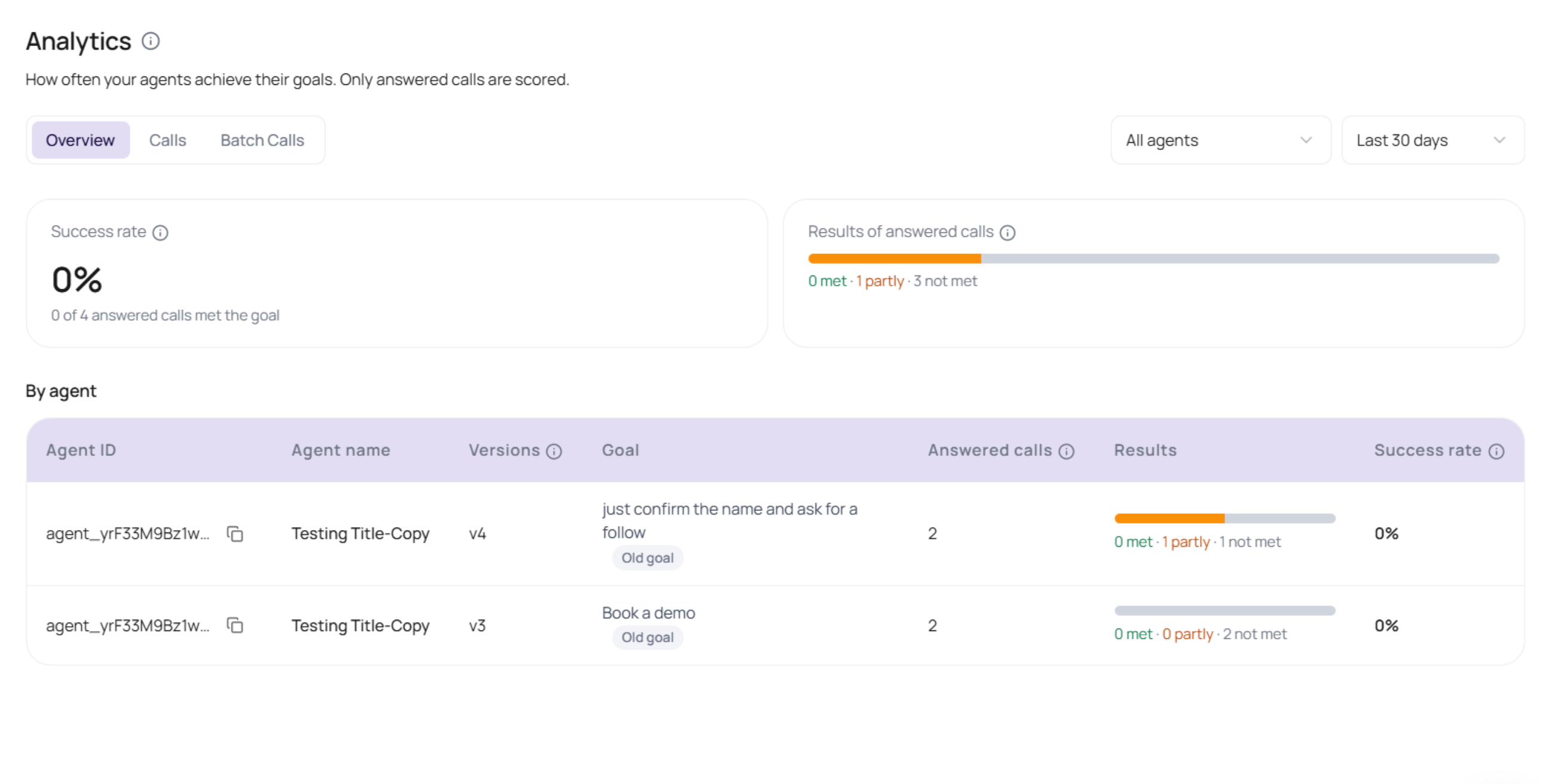
Open Analytics from the Data section of the sidebar. Only agents with a goal appear. The info icon next to the Analytics title links back to this page.Filters
Overview Tab
- Success rate: across all judged calls in the range.
- Results of answered calls: Goal met, Partly met and Not met as one bar, with counts.
- By agent: one row per agent per goal. If you changed an agent’s goal, including its type, steps or rules, the old and new goals get separate rows so their results never mix, marked Current or Old goal. Versions that kept the same goal share one row.
Step Counts
Rows for a Linear or Non-linear goal have a View steps link. It opens the goal’s steps in a window, with counts only:
Every row shows its count with its unit (for example 2 calls or 1 lead) and its share of the first row, so you never have to judge a bar by its length. On the Overview tab the counts are judged calls. On the Batch Calls tab they are leads with a result, each counted once by its best call; this can be fewer than the batch’s Answered column, because a lead that answered but got no result is not in the funnel.
For example, a Linear goal with 10 judged calls:
Most calls stop between step 1 and step 2, so qualifying is the step to work on.
Calls Tab
Every judged call, newest first.Batch Calls Tab
Every batch call whose agent version has a goal.Verify An Agent Goal
After saving and publishing, make an answered phone call with a conversation relevant to the goal. Open Analytics, select the agent and date range, and check its result on the Calls tab. For a step goal, click the Steps count and compare each step with the transcript in Call History. A browser test call does not appear in Analytics. For a Non-linear goal, make a few calls that do the steps in different orders and check that the results follow your rules.Privacy
- Deleted calls are removed from Analytics.
- For a call removed with sensitive deletion, the result and which steps were done stay, but the reason and every line copied from the call are hidden.
- Browser test calls (web calls) are not included in Analytics.
Troubleshooting
Recap
- The agent goal is optional and set per agent version, as Primary, Linear or Non-linear. Publish to apply it to live calls.
- Every answered call is judged once, backed by lines from the call: Goal met, Partly met or Not met.
- Linear goals score the steps reached in order; Non-linear goals follow your rules; steps are done or not done.
- Call success rate = Goal met calls / judged calls.
- Batch success rate = Goal met leads / leads with a result, with each lead counted once by its best call.
- Step counts show how many calls or leads reached each step and where they dropped off.
- Unanswered calls and voicemail never count against the agent.
Related Reading
Post-Call Analysis
Extract structured fields after every call.
Call History
Find a call and read its transcript.
Batch Call Retries And Statuses
How retries work in a batch call.
Agent Settings Overview
Every settings area for an agent version.