

Before You Begin
Finish the candidate prompt, provider stack, variables, functions, and settings. Run a draft or controlled test and record which live routes will need the new version.What DialNexa Agent Versions Contain
Publishing captures every layer of the agent at that moment in time.Draft vs. Published State
- Draft
- Published Version
- Historical Version
The working state of the agent. All configuration controls are enabled. Changes in draft are not served to callers. You can save and iterate on a draft as many times as needed without affecting live traffic.A draft becomes a published version when you click Publish. After publishing, the draft continues to exist as an editable state — you can immediately make more changes and publish again as a new version.
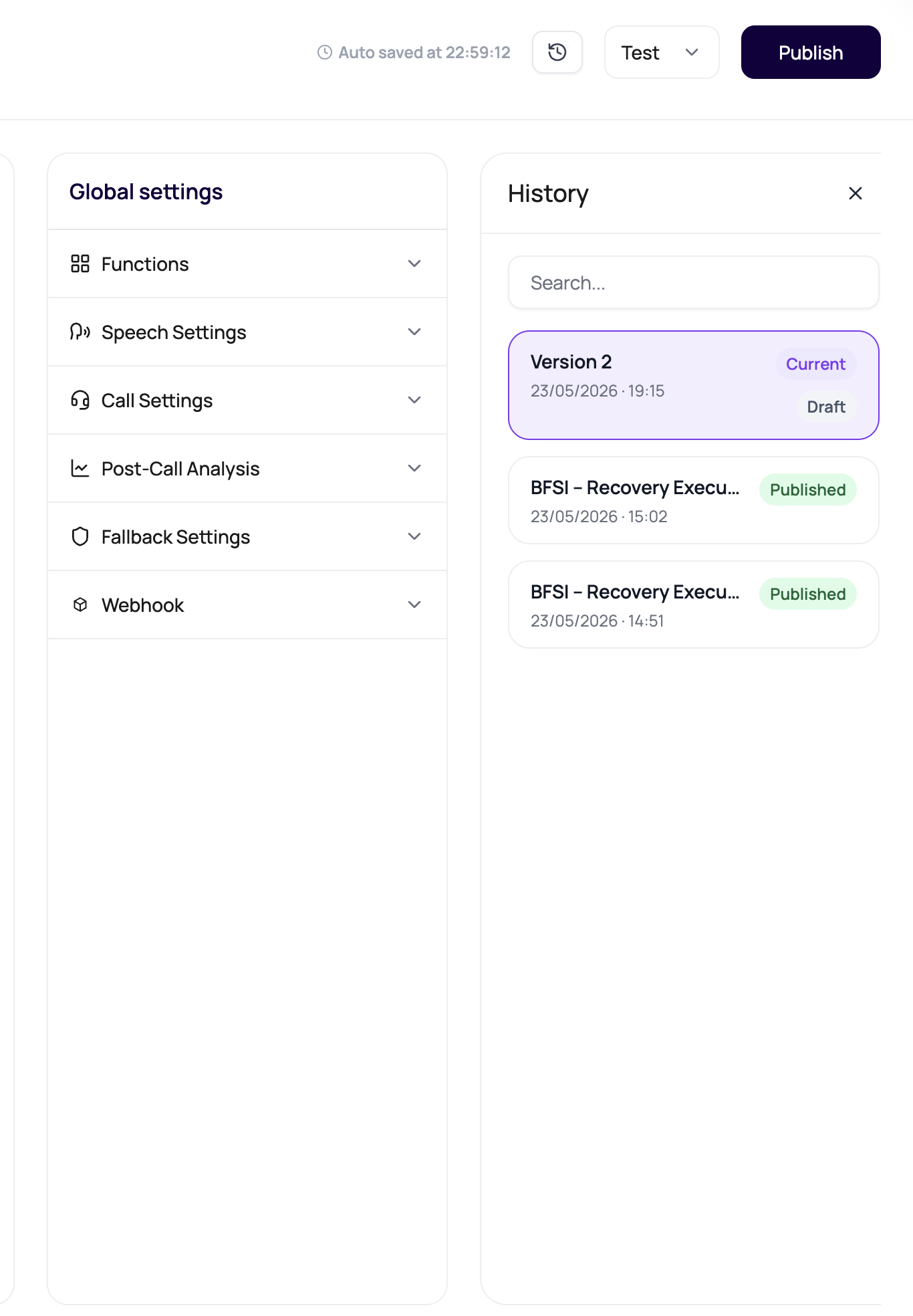
Read Agent Versions In The Editor Header
The header separates Live: vN from Editing: vN. Draft saved confirms persistence of the draft; it does not confirm deployment. Unpublished changes identifies changes awaiting publication, and Viewing published version identifies a published snapshot. Before testing, check both the header and the test action. A browser test can use the open draft, while a phone test requires a published version. See Testing agents.Why Versions Are Immutable
Immutability provides a reliable audit trail. When a call behaves unexpectedly, you can open the version that handled it and see exactly what prompt, voice, LLM settings, and functions were in place at that moment. If versions were mutable, retroactive edits could obscure what actually ran. This also means you can safely experiment in draft state without risk: no draft edit goes live until you explicitly publish.Verify And Publish An Agent Version
The Publish dialog can review the draft prompt before you create an immutable version. The review is optional, never publishes automatically, and does not block you from continuing after a warning.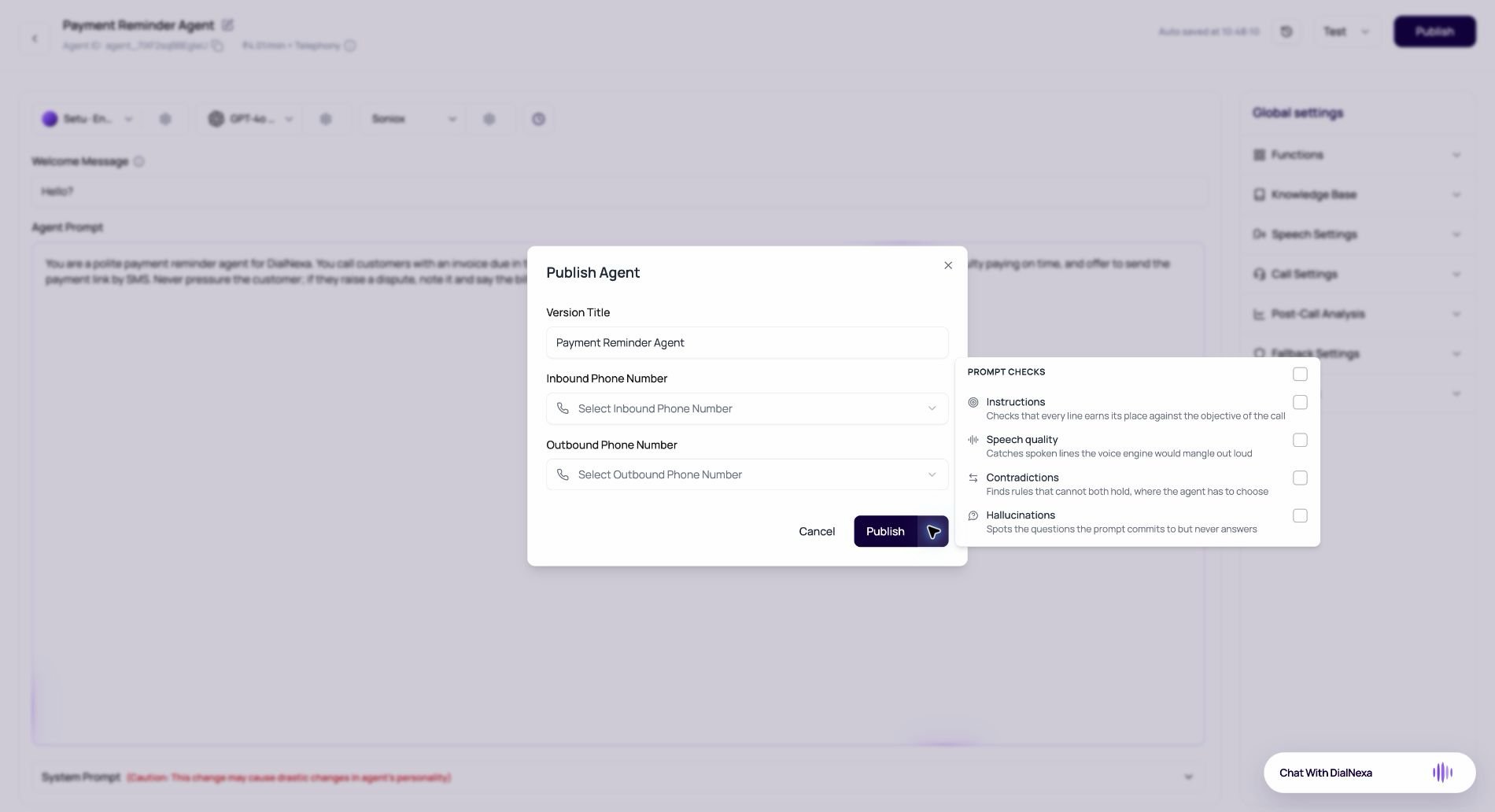
Your selected checks are remembered in the current browser. If no checks are selected, the main Publish action skips review and opens the normal publishing flow.
1
Complete your changes in draft
Edit the prompt, stack settings, functions, speech settings, call settings, and post-call analysis fields as needed. Save as you go.
2
Run a test call
Before publishing, use Test via web to test the open draft and supply any required dynamic variables. Test via call uses a published version, so it cannot verify unpublished prompt changes.
3
Open Publish
Click Publish in the agent builder top bar. Enter a descriptive version title.
4
Choose optional prompt checks
Open the arrow beside Publish, then select the checks you want to run. Select the checkbox at the top to choose every check.
5
Review the findings
Click the main Publish action. DialNexa runs the selected checks and shows progress. An all-clear result means the selected checks found no new warnings. A failed review still leaves publishing available.
6
Handle warnings
Review each finding. Accept or dismiss findings you have evaluated, or choose Fix all with the assistant to send the new warnings to the Agent Builder assistant. Accepted and dismissed findings stay hidden from future reviews of this agent for the workspace team.
7
Publish deliberately
If warnings remain, click Continue to publish only when you understand them. Confirm the version title, then publish. The version is now immutable and appears in version history.
The review checks the draft that is about to go live. Conversational Flow Agent reviews also consider the flow graph. A cached result can return quickly when the prompt, variables, selected checks, and review engine have not changed.
Phone numbers are linked to the agent, not to a version. After you publish, inbound calls and workflow calls on the agent’s numbers use the new version. A batch keeps the version it was pinned to when it left draft, so publishing does not change a batch that is already scheduled or running.
Assigning a Version to a Route
Phone numbers follow the agent’s latest published version. Batches and some other routes choose a version explicitly.The Phone Numbers table shows assigned agent context for each number. It does not rename agents or edit published versions from the table row itself.
Rolling Back to an Older Version
If a new published version causes call quality issues, compare it with the last known good version. For inbound and workflow calls, restore the intended settings in the current draft and publish a corrected version. Those routes do not offer an older-version assignment.1
Open version history
In the agent builder, open the version selector or click Version History in the agent settings. All published versions are listed with their titles and timestamps.
2
Identify the last known good version
Look at the version titles and timestamps. Identify the version that was live before the problematic publish.
3
Restore the intended behavior
Review the older version’s settings, apply the intended corrections to the current draft, test it, and publish. For a new outbound call or a draft batch, you can instead select an earlier published version explicitly.
4
Verify
Place a test call or monitor the next inbound call to confirm behavior has reverted. Open Call History and check that the transcript matches expected behavior.
Version Fields You Will See
Version Mistakes to Avoid
Publishing without testing
Publishing without testing
Prompt checks complement test calls. They cannot prove pronunciation, latency, transfers, functions, phone routing, or real caller behavior. Test in draft first, including edge cases and off-script caller behavior.
Using vague version titles
Using vague version titles
Version titles are your primary debugging tool when something goes wrong in a live call. “Final v2” tells you nothing. “v5 - switched to GPT-4o, added transfer function” tells you exactly what changed.
Forgetting to update routes after publishing
Forgetting to update routes after publishing
Publishing a new version and assuming routes switch automatically is the most common mistake. Routes retain their current version assignment until you manually change them.
Editing a published version
Editing a published version
You cannot edit a published version. If controls are grayed out, you are viewing a published version. Switch to the draft to make changes, then publish again.
Expecting a running batch to switch versions
Expecting a running batch to switch versions
A batch stays on the version it was pinned to when it left draft. After a major publish, check scheduled and running batches, and retrigger a batch if it should call with the new version.
Prompt review could not finish
Prompt review could not finish
The review service can fail or return a partial result when a model check times out. Publishing remains a user decision. Run your normal draft tests, retry the review later, or continue only after a manual prompt review.
A Safe Publish Routine
1
Name the version clearly
Use a title that tells future users what changed and why.
2
Run realistic tests in draft
Test the welcome message, variable rendering, each function call, any transfer behavior, post-call analysis fields, and the end-call path.
3
Run prompt checks and publish with confirmation
Choose the relevant prompt checks, review every new warning, and click Publish only when you are confident the draft is correct.
4
Update routes intentionally
Update phone number route configuration, batch calls, or workflows to the new version. Do not update all routes simultaneously on a large-scale deployment. Update one route, monitor a sample of calls, then expand.
5
Watch the first calls
Open Call History immediately after routing traffic. Check transcript quality, function call success, post-call field extraction, and call completion status.