
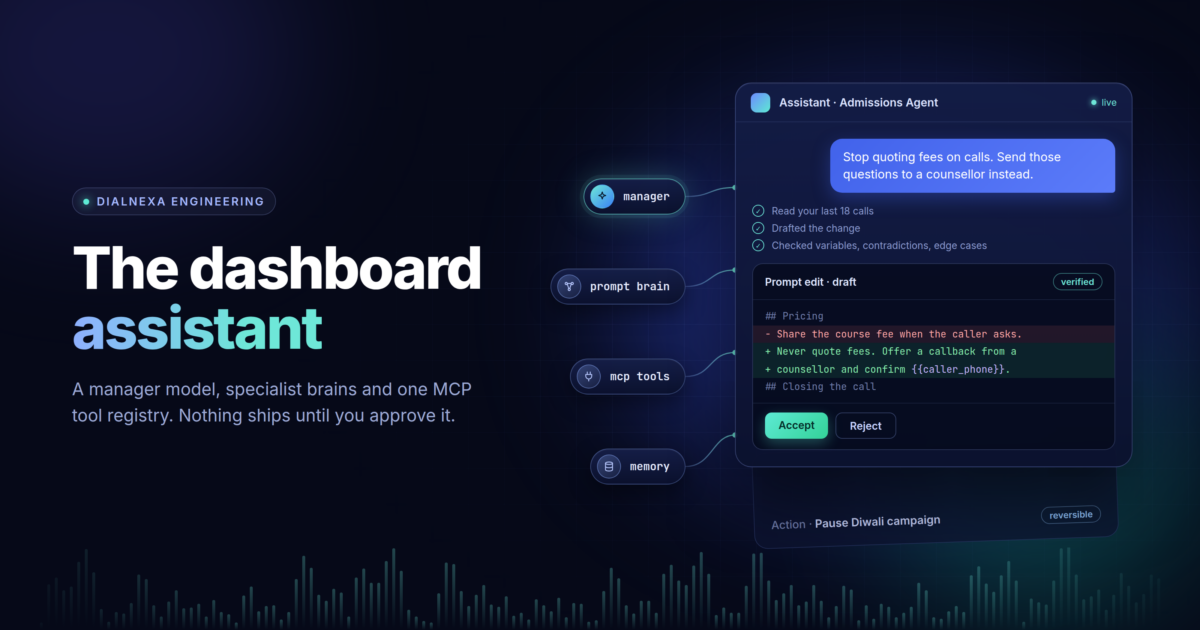
The Dashboard Assistant
One assistant that can edit your agents and run your workspace
DialNexa customers build voice agents. Each one has a prompt, a voice, a transcriber, a model, knowledge bases and a dozen call settings, and they sit alongside campaigns, phone numbers and workflows. Most of the people configuring them aren’t prompt engineers. They know what they want the agent to stop doing, not which of forty paragraphs to change.
The dashboard assistant is a chat panel available on every screen. You describe what you want in plain words, and it either answers, asks one clarifying question, or drafts the change for you to approve.
| You ask | You get |
|---|---|
| “Stop quoting fees, send them to the counsellor instead” | A diff of the prompt, with any risks it spotted |
| “Use a warmer female voice and switch to Hindi” | A before/after of the voice and language settings |
| “Callers keep hanging up at the price question” | A ranked proposal, grounded in your recent calls |
| “How did yesterday’s campaign do?” | An answer read from your live workspace data |
| “Pause the Diwali campaign” | An approval card that says exactly what will happen |
| “Write me an agent for my business” | A complete prompt, built from your saved business profile |
Under the hood, a manager model talks to you and hands work to specialists. A prompt brain drafts and checks edits. A tool registry, served over MCP, is the same one Claude and ChatGPT connect to. An event stream draws each turn as it happens. And a memory remembers what you’ve already decided. The rest of this post walks through each one.
Nothing ships without a card
One rule sits under the whole product: the assistant drafts, you approve, and you never approve something you can’t see. Every change reaches you as a card with Accept and Reject. Nothing is saved until you click.
- Each kind of change has its own card. A prompt edit is a diff. A config change is a before/after of the settings it touches. An optimisation is a ranked proposal. A workspace action is an approval card.
- Every action is tagged with its impact. The assistant can draft 37 workspace writes, from creating a campaign to buying a number or deleting a knowledge base. Each one is tagged in code as reversible (21), spends money (4) or destructive (11). Pausing a campaign is reversible, but cancelling it is destructive, so that one is tagged by its arguments. The tag sets the badge, the button colour and whether the card warns that it can’t be undone.
- The model never writes a word on the card. It chooses the action and its arguments. The title, the one-sentence consequence and the rows you check are generated by code from those arguments. A cancel card always reads “Stops this campaign for good. Calls already placed still happened and are still billed.” A hallucinated title on a delete button is the one failure this flow can’t afford.
- Your click is the confirmation. Tools that normally require
confirm: truereceive it when you approve, so there’s no second “are you sure?” after a card that already spelled out the consequence. - Navigation uses the same card. “Open this agent in the editor” and “go to the campaign page” are approval cards whose action runs in the browser. That gives us one pipeline, one card and one audit trail.
- You can steer. You can edit and retry a sent message, rate any answer with a thumbs up or down, and tell the assistant why you rejected a card. That reason goes into its memory.
The manager pattern: one voice, specialists behind it
The assistant is built like a small, well-run team. One manager talks to you. Behind it are specialists that each know one domain deeply. Underneath them, code does everything that has a single right answer.

Short reports travel up the tree; full drafts go straight to your card.
The manager is the workspace loop: one model with a tool belt, and the only part of the system that ever speaks to you. It reads your request and the page you’re on, and it calls whatever it needs: workspace tools over MCP, edit_prompt, the config tools, and search_memory. It can make up to 8 tool calls in a turn, which is enough to chain a list into a detail lookup without spiralling. Then it writes the reply.
The specialists are the prompt brain and the config brain. Each is a single model call that sees its whole domain at once and picks from its own tools: 11 for prompts, 10 for configuration. To the manager, the prompt specialist is just one tool on the belt. Asking for a prompt edit is one call to edit_prompt, and the manager never has to know that a brain, a writer and four inspectors sit behind it. Configuration is simpler, so the belt carries the config brain’s own 10 tools and the manager calls them directly. Both paths go through the same dispatch code, so a settings change behaves the same whichever one makes it.
The code at the bottom does the work once a decision is made. For prompts, that’s drafting, inspecting and repairing. For config, the finalizers resolve a voice name to an id, clamp values into range, apply cascading settings and validate the result. A specialist decides what should change. It never hand-writes the change.
A few rules keep the team honest:
- Reports go up; drafts go out. When
edit_promptfinishes, the manager gets a short report: what was done, what couldn’t be done, whether call data shaped it, and whether it passed inspection. It never gets the new prompt text itself. That text goes straight to your diff card. The manager can describe the change accurately, but it can’t rewrite it, and its context stays small. - The report says what’s true. The tool result spells it out: this is a draft awaiting approval, not an applied change. The manager can’t accidentally tell you your prompt has changed when it hasn’t.
- Judgment goes to models; certainty goes to code. Choosing which edits to make is judgment, so a specialist does it. Inspecting every draft, writing the card copy for a drafted change, and checking placeholders aren’t judgment calls, so code triggers them every time. The card summary is composed in a code-run step before the manager’s reply streams, so the chat bubble and the card are written knowing about each other.
- Specialists escalate only on failure. Inside the prompt specialist, the same pattern repeats one level down. The brain manages the drafting work, but it’s only consulted when an inspection fails. A clean draft never costs it another model call.
- Every loop has a budget in code. The manager gets 8 tool calls, grounding in call data gets 2 rounds, and repairs and escalation rounds are capped. When a budget runs out, the system ships the best attempt with its warnings rather than looping.
- The router decides whether, never what. A lightweight router at the front sends each request to the right domain. It never tells a specialist what kind of edit to make, because the specialist has far more context than the router does.
How an edit is made
A request first passes a router, which decides only the domain: a prompt edit, a config change, a question, or a clarifying question. It never decides what kind of edit to make. That belongs to the model with the most context.
That model is the prompt brain. Before it reads your request, it’s briefed on the agent’s configuration, its variables, its knowledge bases and the last six turns of conversation. Then it picks from 11 tools, and each tool’s arguments rule out a whole class of mistakes:
remove_sectiononly accepts sections that actually exist in this prompt, so it can’t delete one that isn’t there.inject_variableonly accepts variables defined on the agent. An invented placeholder, which a caller would hear read aloud, can’t be written.ground_in_call_datafetches insights from the agent’s recent calls. They come back to the brain before it decides, so an edit can be shaped by what callers actually said.search_memoryreads your saved business profile when the request depends on it.report_unresolvedlets the assistant say no. A contradictory or already-satisfied request comes back as a sentence, and a partly blocked one gets the doable part drafted and the rest explained.

Code inspects every draft the moment it exists. Four verifiers run in parallel:
- Fidelity checks that variables, sections and facts survived.
- Coherence checks for new contradictions.
- Hallucination checks for instructions that need information the agent won’t have at call time.
- Edge cases looks for caller situations the prompt will fumble. It never blocks a draft; its suggestions go to your card.
Next to them runs a plain check: every {{...}} in the draft must be a variable the agent actually defines. LLM verifiers check meaning, not syntax. A draft full of placeholders the engine would read aloud can sound perfectly fluent to them.
A clean draft goes straight to your card with no extra model calls. If a check fails, the brain is consulted with the findings in hand. It can repair the draft, which triggers a fresh inspection. It can accept it, and the findings travel to your card as warnings. Or it can discard the draft with a reason you’ll read. Code enforces the limits: a draft with a fidelity failure can’t be accepted, and repairs are capped. Warnings are never hidden. A risk that was already in your prompt is labelled that way, so the new edit doesn’t get the blame.
Built on MCP: one set of tools, two ways in
Everything the assistant can do in your workspace goes through our Model Context Protocol server. That’s the same server you can connect Claude or ChatGPT to. We didn’t build a private tool layer for our own assistant and a public one for everyone else. There is one registry of about 100 org-scoped tools covering agents, versions, calls, campaigns, workflows, knowledge bases, phone numbers, billing, templates and integrations.

Two ways in. Outside clients connect over HTTP at /v1/mcp with OAuth, asking for mcp:read, and mcp:write if they want to change things. Our own assistant uses an in-process bridge instead: for each request, it pairs an MCP server and client over an in-memory pipe. It discovers and calls the same tools with no network hop and no API key. A new tool in the registry is available to our assistant and to Claude at the same moment.
Reads run; writes are drafted. A tool whose name starts with list_ or get_ is read-only. The assistant runs those freely to answer questions, like “how did yesterday’s campaign do?” or “which agents use this knowledge base?”. The assistant’s session doesn’t execute writes at all. It only sees their schemas. When the model picks a write, it becomes an approval card (see above). When you approve, the server opens a fresh MCP server with only that one tool registered, runs it once with the exact arguments frozen on the card, logs who approved it, and shuts down. A write that isn’t in the registry can’t be drafted and can’t be executed, and both ends enforce that.
One organisation per call. An OAuth grant can cover several workspaces, so every tenant tool runs against exactly one. If a client doesn’t say which, it gets a tool error listing the options, not an HTTP 401. A 401 would make Claude or ChatGPT refresh its token and try again. A tool error lets the model ask you which workspace you meant.
Files go around the model. Uploading a document to a knowledge base from inside Claude or ChatGPT opens a small upload widget in the chat. It’s served both as an MCP App for Claude and through the Apps SDK for ChatGPT. The signed upload URL travels in the tool result’s metadata, never in the model’s text. Your browser sends the file straight to storage, and the model only finishes the upload with a normal, approved write.
Memory is a tool too. get_memory exposes the assistant’s memory (past decisions, conversation recaps, business profile) as a read tool. Claude can see what the dashboard assistant knows about your agents, and your business profile follows you from one client to another.
The event stream: watching a turn happen
A prompt edit takes several seconds and several model calls. You shouldn’t have to watch a spinner that whole time, or get a wall of text at the end. So each turn is one streamed response: newline-delimited JSON, one event per line. The panel draws the turn as the events arrive. You see which step is running, then the new prompt writing itself into the editor, then the card.

Every turn ends in exactly one complete event; any failure ends it with a single error event instead.
The contract is small, and a few rules keep it predictable:
- Exactly one ending. Every turn ends with one
completeor oneerror, never both. The panel always knows whether a turn finished and how. If a stream closes with neither, that’s a network failure, not a state the panel has to guess at. - Refusals come first. If the safety check rejects a request, you get an ordinary HTTP error before any stream opens. The panel never has to handle a stream that turns out to be forbidden halfway through.
- What streams live is a preview; the ending is the truth.
prompt_deltastreams the new prompt into the editor as it’s written, andprompt_resetclears it if a repair rewrites it.reply_deltastreams chat text.completecarries the saved messages exactly as they’re stored, and the panel swaps its preview for them. - Live and reloaded turns look identical. The messages in
completeare the same typed records that loading your history returns:prompt_proposal,config_change,optimization_proposalandaction_proposal. There’s one renderer per type, so a card looks the same the moment it’s drafted and a week later. - Progress lines come from the step that’s actually running. The activity feed (“Reading your last 18 calls…”) is built from
narrationevents sent from inside each step, not from a timer guessing what’s probably happening. - The conversation id travels in the payload.
completecarries the session id as well as sending it in a response header. Browsers hide custom headers unless the server says otherwise, so a header alone is too easy to lose.
Memory: it remembers what you decided
The assistant remembers across conversations. It won’t re-propose a change you rejected yesterday, it knows which version it last edited, and it knows your business without being told every time. Most of that memory is fetched only when a turn needs it, so it doesn’t bloat every prompt.
| Layer | What it holds | How the model sees it |
|---|---|---|
| Decision ledger | every Accept or Reject, with your reason if you gave one | always, for the agent you’re working on |
| Compaction | older turns folded into one note of at most 2,000 characters | always, once a conversation passes 8 turns |
| Recaps | a summary of each of your last 3 conversations about this agent | in full for the first 2 turns, then a one-line index and a tool |
| Business profile | confirmed facts and rules about your business | a one-line hint; the content only when search_memory is called |
- Your clicks are the review. There’s no separate queue for approving what the assistant learns. Accept and Reject already are the review, and each click becomes a decision record.
- Nothing enters your profile without you. Answers from the agent-creation wizard, and facts the assistant picks up in chat, arrive as pending suggestions (“Save to your business profile?”). Only the ones you confirm are used.
- Memory is evidence, not instructions. It sits in its own labelled section, above the real conversation, and the live prompt always wins over it.
- Memory knows which business it belongs to. A workspace can hold several businesses, and each fact is filed under one. When a request names a different business, the assistant ignores the saved profile. When it’s unclear which business you mean, it asks. That way an agency’s rules for one client never leak into another client’s agent.
Verify & Publish: a review before the agent goes live
Editing makes one change at a time. Publishing puts the whole prompt in front of real callers, so the publish dialog reviews the whole thing. One click runs code lints and up to four judge models in parallel, and returns findings grouped by check.
| Check | What it looks for |
|---|---|
| Coverage | the parts a working call needs, including how the call closes |
| Objective | whether the prompt actually drives toward the agent’s stated goal |
| Edge cases | callers this prompt will fumble: compound answers, re-ask loops, jumping ahead, interruptions, colliding rules, talking after the goodbye |
| Instructions | instructions that do no work, without flagging a rule that is quietly doing its job |
| Speech quality | lines that read well but sound wrong spoken, and language mix-ups |
| Flow (conversation-flow agents) | unreachable nodes, dead ends, broken links, and branches that don’t cover what callers say |
- Every finding has a fix button. The wand beside a finding hands it to the assistant as a prefilled request. You get a normal diff card for it, reviewed and approved like any other edit.
- Dismissed findings stay dismissed. Acknowledging a finding records it against the agent, not the version, so it doesn’t nag you again on the next publish. A prompt whose only findings are acknowledged publishes as clean.
- Results are cached and change with the rules. A review is keyed on the prompt, its variables, the checks and a hash of the judges’ own instructions. Re-opening the dialog costs nothing, and improving a judge automatically invalidates old results.
- Judges prove themselves here first. A new check starts in this dialog, where every finding is rated by the person reading it. It only moves into the edit loop, where it can trigger automatic repairs, once its precision holds up.
The same assistant on every screen
The assistant behaves the same everywhere. It has the same router, the same tools and the same understanding on the campaigns page as inside the agent editor. It never plays dumb about a request just because of where you typed it. The only thing that changes is where an edit lands:
- In the agent editor, you get the diff card and approve it right there.
- Anywhere else, you get a card saying Open Sales Agent in the editor. It takes you to the editor with your request already typed in.
The reason is the rule from the top of this post: you never approve a change you can’t see. The diff view lives in the editor, so that’s where edits get approved.
- The right agent, without guessing. A name in your request is matched in code against your agent list. With no name, the page you’re on decides. If neither works, the assistant asks. If two agents match, it asks which one rather than sending you to a guess.
- Links prefill and never send. The editor link fills in your request but doesn’t send it. A link can be shared, and opening one should never trigger an edit.
- Page context. Opened from a campaign or a call, the assistant knows which one you’re looking at, so “why did this one fail?” just works.

Leave a Reply