> ## Documentation Index
> Fetch the complete documentation index at: https://dialnexa.com/docs/llms.txt
> Use this file to discover all available pages before exploring further.
# DialNexa Workflow Time Nodes
> Configure DialNexa workflow Time nodes with fixed wait durations, DateTime post-call analysis fields, time holds, and follow-up routing.
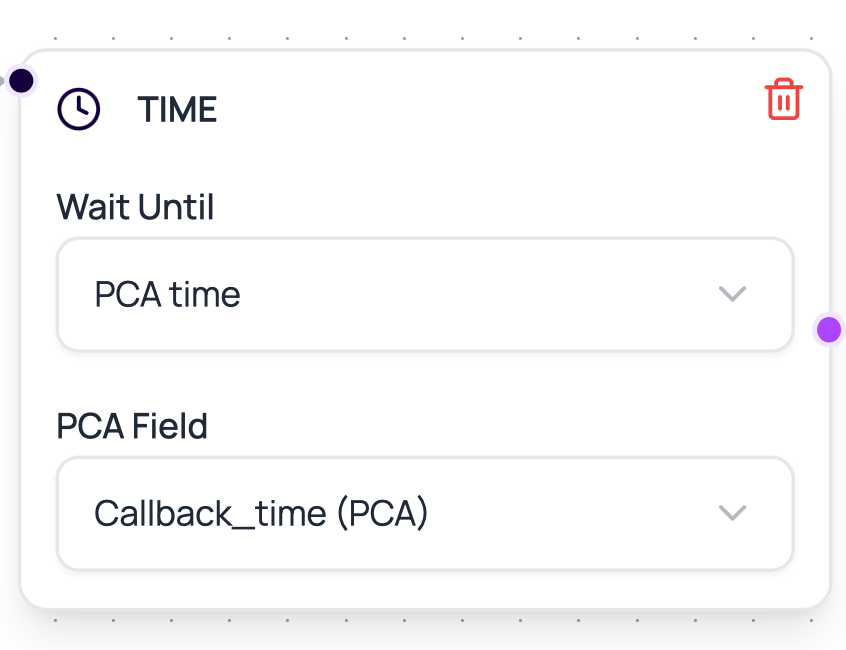
DialNexa workflow Time nodes hold a lead until a future time, then move it to the next node. A Time node can wait for a fixed duration, such as 30 minutes or 2 days, or it can read a DateTime post-call analysis field and schedule the closest future matching time.
Use DateTime post-call analysis fields when the caller chooses the follow-up time during the call.
 ## Time Node Config
Time nodes support two timing sources.
| Field | Meaning |
| -------------- | ----------------------------------------------------------------------------- |
| Time source | Fixed duration or post-call analysis. |
| Duration value | Number of units to wait when using fixed duration. |
| Duration unit | minutes, hours, or days when using fixed duration. |
| PCA field | DateTime post-call analysis field to read when using post-call analysis time. |
| Output | Next node after the time hold expires. |
| Time hold | Execution record used to resume the lead later. |
## Post-Call Analysis Time Fields
When `time_source` is `postcall_analysis`, the Time node reads `pca_field` or `postcall_analysis_field` from the most recent call log for the workflow lead. In the builder, the PCA field selector lists DateTime fields from the governing Voice Call node's current outbound agent. Field names can be written as the raw field name or with a `postcall_analysis.` prefix in stored config.
DialNexa schedules PCA times in the most specific timezone it can determine. It first checks timezone data stored with the call, then the agent timezone, then the phone number country timezone. If none of those are available, it falls back to the server's current timezone.
The parser accepts common spoken time formats:
| Caller or field value | How DialNexa schedules it |
| ----------------------- | ------------------------------------------------------------------------------------------ |
| `3 PM` | The next future 3 PM. If 3 PM already passed today, tomorrow at 3 PM. |
| `Tuesday 10:30 AM` | The next future Tuesday at 10:30 AM. |
| `next Tuesday 10:30 AM` | The next Tuesday after the current week when the named weekday is today. |
| `evening 7` | The next future 7 PM. |
| `9 o'clock` | The next future 9:00 or 21:00, whichever comes first. |
| `tomorrow 4 PM` | Tomorrow at 4 PM in the resolved business timezone. |
| `2026-06-05 16:30` | The explicit date and time. |
| `June 5, 2026 4:30 PM` | The explicit date and time, including comma-style month names. |
| `05/06/2026 16:30` | Slash dates are parsed as day/month/year unless the values clearly require month/day/year. |
If the field is empty or cannot be parsed, the workflow throws a configuration error for that Time node. Test this path with real post-call analysis output before using it for production follow-ups.
Workflow activation also validates PCA references. If the phone number assigned to an upstream Voice Call node now points at a different outbound agent, DialNexa warns about the agent change. If a Time node points at a PCA field that no longer exists for the current agent, activation is blocked until you edit the node and pick a valid field.
## When To Use Time Nodes
Waiting is useful when timing changes outcomes.
Wait before a second call attempt in a custom workflow.
Send a message or call later after a completed conversation.
Use a post-call analysis field such as `callback_time` to wait until the next requested callback time.
Design waits that align with team availability.
## Time Node Mistakes
The lead has nowhere to go after waiting.
A follow-up may feel like duplicate contact.
The lead may forget the previous conversation.
Paused workflows affect active lead execution. Check workflow status.
## Related Reading
Understand pause and resume.
See when a lead entered and exited nodes.
Follow waits with messages or actions.
## Time Node Config
Time nodes support two timing sources.
| Field | Meaning |
| -------------- | ----------------------------------------------------------------------------- |
| Time source | Fixed duration or post-call analysis. |
| Duration value | Number of units to wait when using fixed duration. |
| Duration unit | minutes, hours, or days when using fixed duration. |
| PCA field | DateTime post-call analysis field to read when using post-call analysis time. |
| Output | Next node after the time hold expires. |
| Time hold | Execution record used to resume the lead later. |
## Post-Call Analysis Time Fields
When `time_source` is `postcall_analysis`, the Time node reads `pca_field` or `postcall_analysis_field` from the most recent call log for the workflow lead. In the builder, the PCA field selector lists DateTime fields from the governing Voice Call node's current outbound agent. Field names can be written as the raw field name or with a `postcall_analysis.` prefix in stored config.
DialNexa schedules PCA times in the most specific timezone it can determine. It first checks timezone data stored with the call, then the agent timezone, then the phone number country timezone. If none of those are available, it falls back to the server's current timezone.
The parser accepts common spoken time formats:
| Caller or field value | How DialNexa schedules it |
| ----------------------- | ------------------------------------------------------------------------------------------ |
| `3 PM` | The next future 3 PM. If 3 PM already passed today, tomorrow at 3 PM. |
| `Tuesday 10:30 AM` | The next future Tuesday at 10:30 AM. |
| `next Tuesday 10:30 AM` | The next Tuesday after the current week when the named weekday is today. |
| `evening 7` | The next future 7 PM. |
| `9 o'clock` | The next future 9:00 or 21:00, whichever comes first. |
| `tomorrow 4 PM` | Tomorrow at 4 PM in the resolved business timezone. |
| `2026-06-05 16:30` | The explicit date and time. |
| `June 5, 2026 4:30 PM` | The explicit date and time, including comma-style month names. |
| `05/06/2026 16:30` | Slash dates are parsed as day/month/year unless the values clearly require month/day/year. |
If the field is empty or cannot be parsed, the workflow throws a configuration error for that Time node. Test this path with real post-call analysis output before using it for production follow-ups.
Workflow activation also validates PCA references. If the phone number assigned to an upstream Voice Call node now points at a different outbound agent, DialNexa warns about the agent change. If a Time node points at a PCA field that no longer exists for the current agent, activation is blocked until you edit the node and pick a valid field.
## When To Use Time Nodes
Waiting is useful when timing changes outcomes.
Wait before a second call attempt in a custom workflow.
Send a message or call later after a completed conversation.
Use a post-call analysis field such as `callback_time` to wait until the next requested callback time.
Design waits that align with team availability.
## Time Node Mistakes
The lead has nowhere to go after waiting.
A follow-up may feel like duplicate contact.
The lead may forget the previous conversation.
Paused workflows affect active lead execution. Check workflow status.
## Related Reading
Understand pause and resume.
See when a lead entered and exited nodes.
Follow waits with messages or actions.