> ## Documentation Index
> Fetch the complete documentation index at: https://dialnexa.com/docs/llms.txt
> Use this file to discover all available pages before exploring further.
# DialNexa Workflows Overview
> Understand DialNexa workflows, node-based automation, leads, statuses, call nodes, condition nodes, time nodes, application nodes, and lead history.
DialNexa workflows automate lead movement across nodes. A workflow can call a lead, branch based on call outcomes or conditions, wait for time, run application actions, and store lead history so users can debug the exact path each lead followed.
Not sure whether you need a workflow or a batch call? Read [Workflow Vs Batch Call](/workflows/workflow-vs-batch-call) first. And a note on words: a workflow **lead**, a batch call **recipient**, and a **contact** are the same thing - the person being called; each surface just uses its own term.
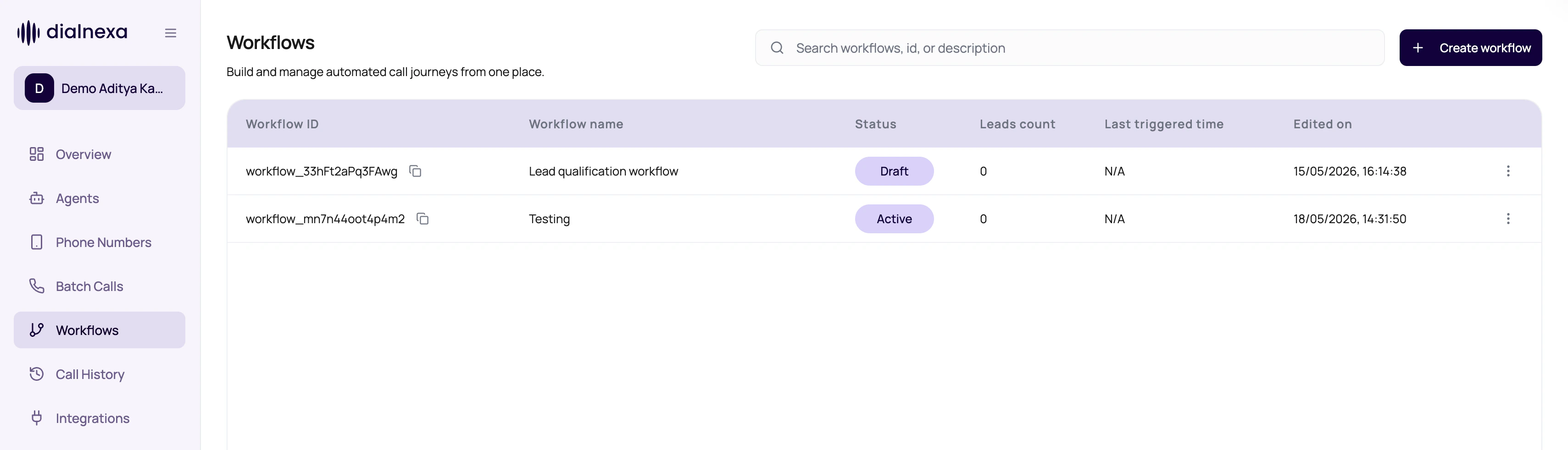
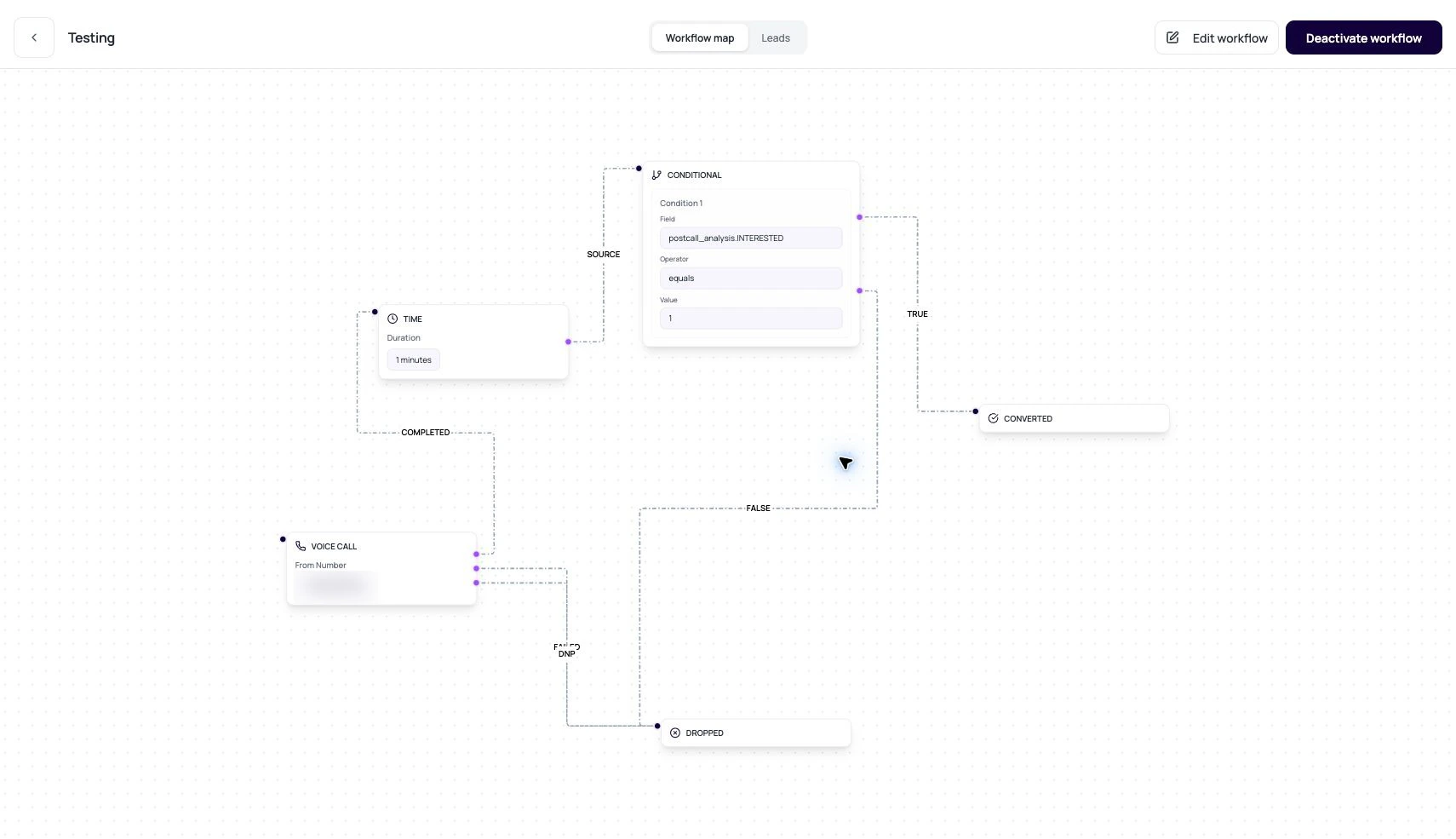 A workflow is not a bigger batch call. It is a route map with memory.
## Build Your First Workflow
On the **Workflows** tab, click create, name the workflow, and open the builder canvas.
Pick a phone number that has an outbound agent version attached. This node places the call when a lead reaches it. See [Call Nodes](/workflows/call-nodes).
Connect the call node's outcome edges: route `completed` toward a [Conditional node](/workflows/condition-nodes) (for example, interest captured by post-call analysis), and `did_not_pick` toward a [Time node](/workflows/time-nodes) that waits before retrying.
Terminate each branch in a Converted or Dropped node so no lead is left in limbo. Optionally add an [Application node](/workflows/application-nodes) (WhatsApp or email follow-up) before the terminal.
Upload or add leads, activate the workflow, then watch the first few leads move in [Lead History](/workflows/lead-history-and-debugging).
## Workflow Objects
These objects explain how workflow execution works. The [builder concepts page](/workflows/builder-concepts) covers the canvas and data model in depth.
| Object | Meaning |
| ------------ | ------------------------------------------------------------------------------------------------- |
| Workflow | Container with title, description, organization, and status. |
| Node | A step in the automation such as voice call, condition, time, application, converted, or dropped. |
| Edge | Connection from one node to another, often labeled by outcome. |
| Lead | Person or phone number moving through the workflow with variables and call attributes. |
| Execution | Current state of one lead in one workflow. |
| Lead history | Ordered transitions showing where the lead went and why. |
## Workflow Node Families
The builder uses these node types as building blocks.
Calls a lead through an active phone number with outbound agent configured.
Routes based on fields, operators, values, and AND or OR logic.
Waits for minutes, hours, or days before moving forward.
Runs an external action such as WhatsApp or email through connected integrations.
Marks a lead as successfully completed.
Marks a lead as no longer continuing.
## Lead Readiness For Voice Call Workflows
When a workflow includes Voice Call nodes, uploaded leads are checked before enrollment. The lead phone number must be valid and must be reachable through at least one active Voice Call phone number in that workflow.
For non-SIP routes, the destination country and network-group prefix must be enabled in **Workspace Settings > Telephony Config**. If the file contains unsupported numbers, DialNexa groups the failed rows by validation reason so users can fix the upload and retry.
## Read A Workflow Like An Operator
Draft, active, paused, completed, and cancelled mean different launch states.
Confirm the phone number has an outbound agent version.
Follow completed, failed, did-not-pick, true, false, success, and failure paths.
Use the history graph to see actual visited nodes and traversed edges.
## Workflow List Actions
The workflow list includes row actions for routine lifecycle work.
| Action | Use it when |
| -------------------- | ----------------------------------------------------------------------------------------------------------- |
| Rename | Change the workflow title without rebuilding nodes or leads. The Rename Workflow modal saves the new title. |
| Duplicate | Start a similar workflow from an existing structure. |
| Delete | Remove a workflow after confirming it is no longer needed. |
| Open builder or view | Inspect nodes, lead history, and execution behavior. |
## Related Reading
Understand lifecycle states.
Debug one lead path.
Choose the right automation shape.
A workflow is not a bigger batch call. It is a route map with memory.
## Build Your First Workflow
On the **Workflows** tab, click create, name the workflow, and open the builder canvas.
Pick a phone number that has an outbound agent version attached. This node places the call when a lead reaches it. See [Call Nodes](/workflows/call-nodes).
Connect the call node's outcome edges: route `completed` toward a [Conditional node](/workflows/condition-nodes) (for example, interest captured by post-call analysis), and `did_not_pick` toward a [Time node](/workflows/time-nodes) that waits before retrying.
Terminate each branch in a Converted or Dropped node so no lead is left in limbo. Optionally add an [Application node](/workflows/application-nodes) (WhatsApp or email follow-up) before the terminal.
Upload or add leads, activate the workflow, then watch the first few leads move in [Lead History](/workflows/lead-history-and-debugging).
## Workflow Objects
These objects explain how workflow execution works. The [builder concepts page](/workflows/builder-concepts) covers the canvas and data model in depth.
| Object | Meaning |
| ------------ | ------------------------------------------------------------------------------------------------- |
| Workflow | Container with title, description, organization, and status. |
| Node | A step in the automation such as voice call, condition, time, application, converted, or dropped. |
| Edge | Connection from one node to another, often labeled by outcome. |
| Lead | Person or phone number moving through the workflow with variables and call attributes. |
| Execution | Current state of one lead in one workflow. |
| Lead history | Ordered transitions showing where the lead went and why. |
## Workflow Node Families
The builder uses these node types as building blocks.
Calls a lead through an active phone number with outbound agent configured.
Routes based on fields, operators, values, and AND or OR logic.
Waits for minutes, hours, or days before moving forward.
Runs an external action such as WhatsApp or email through connected integrations.
Marks a lead as successfully completed.
Marks a lead as no longer continuing.
## Lead Readiness For Voice Call Workflows
When a workflow includes Voice Call nodes, uploaded leads are checked before enrollment. The lead phone number must be valid and must be reachable through at least one active Voice Call phone number in that workflow.
For non-SIP routes, the destination country and network-group prefix must be enabled in **Workspace Settings > Telephony Config**. If the file contains unsupported numbers, DialNexa groups the failed rows by validation reason so users can fix the upload and retry.
## Read A Workflow Like An Operator
Draft, active, paused, completed, and cancelled mean different launch states.
Confirm the phone number has an outbound agent version.
Follow completed, failed, did-not-pick, true, false, success, and failure paths.
Use the history graph to see actual visited nodes and traversed edges.
## Workflow List Actions
The workflow list includes row actions for routine lifecycle work.
| Action | Use it when |
| -------------------- | ----------------------------------------------------------------------------------------------------------- |
| Rename | Change the workflow title without rebuilding nodes or leads. The Rename Workflow modal saves the new title. |
| Duplicate | Start a similar workflow from an existing structure. |
| Delete | Remove a workflow after confirming it is no longer needed. |
| Open builder or view | Inspect nodes, lead history, and execution behavior. |
## Related Reading
Understand lifecycle states.
Debug one lead path.
Choose the right automation shape.