> ## Documentation Index
> Fetch the complete documentation index at: https://dialnexa.com/docs/llms.txt
> Use this file to discover all available pages before exploring further.
# DialNexa Workflow Application Nodes
> Configure DialNexa workflow Application nodes for cloud integration actions, Wati WhatsApp templates, variable mapping, success and failure outputs, billing, and invocation review.
DialNexa workflow Application nodes run external actions after a workflow reaches a decision point. Use them when a call result should create a follow-up message, notify a team, update a review queue, or hand work to another system after the live conversation has moved on.
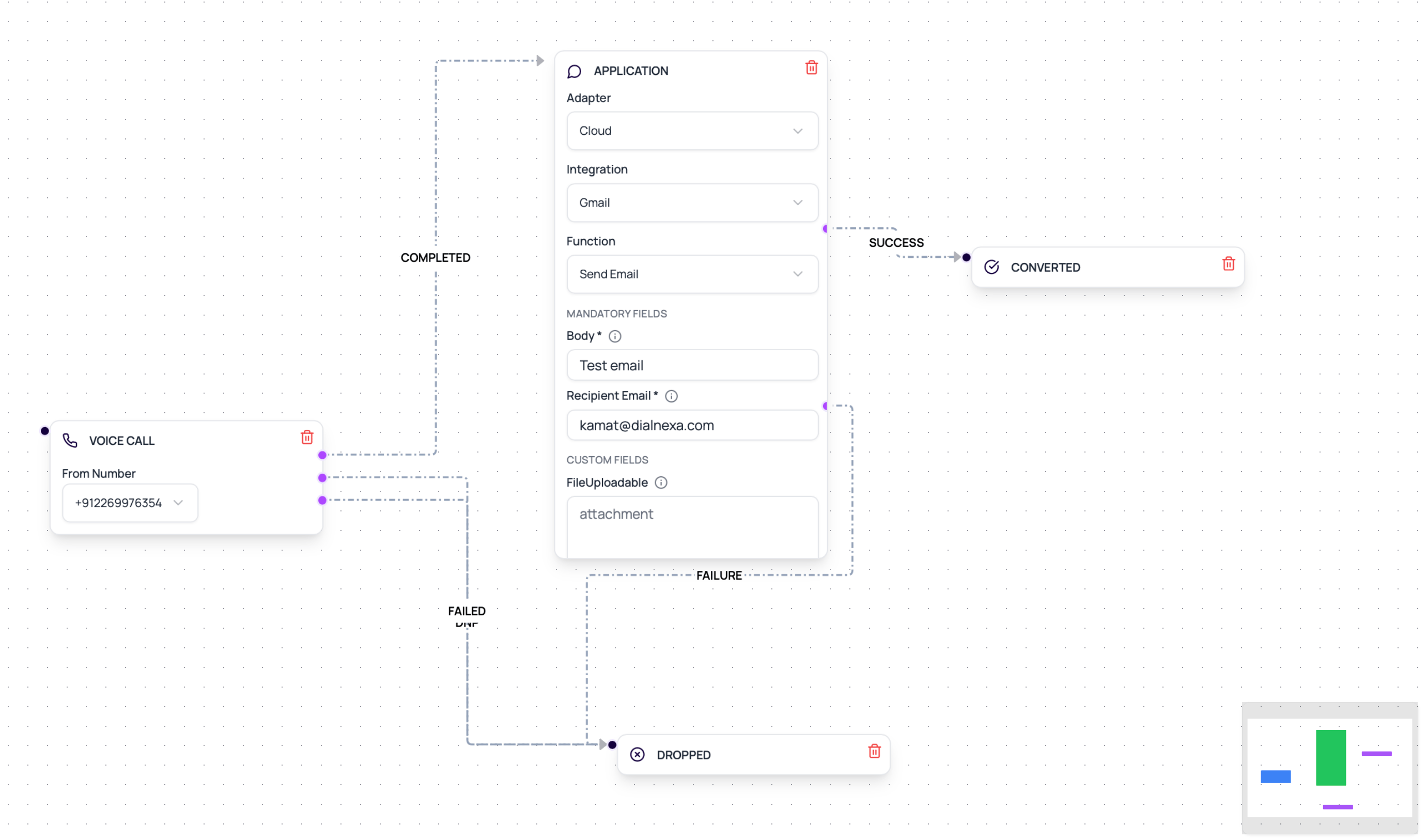 An Application node can fail for ordinary reasons like a missing credential or template parameter. Ordinary reasons still stop leads.
## Application Node Fields
These are the stored configuration keys - what the API returns for the node. In the builder you do not type them; they are filled in automatically when you pick the integration, action, and template from the node's dropdowns.
| Field | Purpose |
| -------------------------- | --------------------------------------------------------------------------------------- |
| application\_adapter\_mode | `cloud` for connected hosted integrations or `native` for native actions where enabled. |
| provider\_key | Integration provider such as Wati, Resend, or another connected cloud provider. |
| adapter\_key | Connection adapter used for the provider, such as `composio` for cloud actions. |
| action\_key | Specific action to run. |
| function\_key | Function-level key for catalog actions when provided. |
| template\_name | Wati template name or action-specific template. |
| parameters | Values passed into the template or action. |
| outputs.success | Next node after successful action. |
| outputs.failure | Next node after failed action. |
The workflow editor now shows Application nodes in the node palette for all organizations. In cloud mode, the node loads connected integrations, then loads the provider's workflow-safe functions. For text-like fields, use the variable picker to insert lead variables, post-call analysis fields from the workflow's call agent, and runtime call attributes.
## Variable Sources
Use the picker rather than typing placeholders from memory when possible.
| Source | Example values | Notes |
| ------------------ | ----------------------------------------------------------------------------------------------- | ------------------------------------------------------------------------------------------ |
| Lead Variables | `{{first_name}}`, `{{plan_name}}` | Must have workflow fallback values before activation when used by templates or conditions. |
| Post Call Analysis | `{{callback_datetime}}`, `{{call_outcome}}` | Scoped to the current outbound agent for the workflow Voice Call node. |
| Call Attributes | `{{call_id}}`, `{{call_status}}`, `{{call_duration}}`, `{{call_sentiment}}`, `{{call_summary}}` | Injected at runtime and not treated as uploaded lead columns. |
## Common Application Actions
Use actions that fit the workflow moment.
Send a WhatsApp template with named parameters and broadcast name.
Send a WhatsApp session message where the provider supports it.
Send email with from address, recipient, subject, and text body.
Run an available integration action through its configured connection.
## Prepare An Application Node
Set credentials or hosted connection before using the action.
Use **Cloud** for connected integration functions. Use **Native** only for native actions enabled in your workspace.
Use validation so obvious credential issues surface early.
Use the variable picker for lead variables, post-call analysis fields, and runtime call attributes.
Connect both success and failure outputs. Generic integration nodes require both paths before execution.
Use lead history and integration results when troubleshooting.
## Billing For Cloud Integration Actions
Composio-backed Application node executions are counted for billing whether the provider action succeeds or fails, because DialNexa still sends an integration execution request. Billing is batched in groups of `100` executions at approximately `INR 1.79` per batch. The wallet deduction is recorded after a batch is reached and does not block workflow execution.
Review wallet transactions and integration invocation evidence together when reconciling workflow automation costs.
## Related Reading
Connect workflow actions.
Map data into templates.
Understand action catalog behavior.
Choose the call stack before automating the follow-up path.
An Application node can fail for ordinary reasons like a missing credential or template parameter. Ordinary reasons still stop leads.
## Application Node Fields
These are the stored configuration keys - what the API returns for the node. In the builder you do not type them; they are filled in automatically when you pick the integration, action, and template from the node's dropdowns.
| Field | Purpose |
| -------------------------- | --------------------------------------------------------------------------------------- |
| application\_adapter\_mode | `cloud` for connected hosted integrations or `native` for native actions where enabled. |
| provider\_key | Integration provider such as Wati, Resend, or another connected cloud provider. |
| adapter\_key | Connection adapter used for the provider, such as `composio` for cloud actions. |
| action\_key | Specific action to run. |
| function\_key | Function-level key for catalog actions when provided. |
| template\_name | Wati template name or action-specific template. |
| parameters | Values passed into the template or action. |
| outputs.success | Next node after successful action. |
| outputs.failure | Next node after failed action. |
The workflow editor now shows Application nodes in the node palette for all organizations. In cloud mode, the node loads connected integrations, then loads the provider's workflow-safe functions. For text-like fields, use the variable picker to insert lead variables, post-call analysis fields from the workflow's call agent, and runtime call attributes.
## Variable Sources
Use the picker rather than typing placeholders from memory when possible.
| Source | Example values | Notes |
| ------------------ | ----------------------------------------------------------------------------------------------- | ------------------------------------------------------------------------------------------ |
| Lead Variables | `{{first_name}}`, `{{plan_name}}` | Must have workflow fallback values before activation when used by templates or conditions. |
| Post Call Analysis | `{{callback_datetime}}`, `{{call_outcome}}` | Scoped to the current outbound agent for the workflow Voice Call node. |
| Call Attributes | `{{call_id}}`, `{{call_status}}`, `{{call_duration}}`, `{{call_sentiment}}`, `{{call_summary}}` | Injected at runtime and not treated as uploaded lead columns. |
## Common Application Actions
Use actions that fit the workflow moment.
Send a WhatsApp template with named parameters and broadcast name.
Send a WhatsApp session message where the provider supports it.
Send email with from address, recipient, subject, and text body.
Run an available integration action through its configured connection.
## Prepare An Application Node
Set credentials or hosted connection before using the action.
Use **Cloud** for connected integration functions. Use **Native** only for native actions enabled in your workspace.
Use validation so obvious credential issues surface early.
Use the variable picker for lead variables, post-call analysis fields, and runtime call attributes.
Connect both success and failure outputs. Generic integration nodes require both paths before execution.
Use lead history and integration results when troubleshooting.
## Billing For Cloud Integration Actions
Composio-backed Application node executions are counted for billing whether the provider action succeeds or fails, because DialNexa still sends an integration execution request. Billing is batched in groups of `100` executions at approximately `INR 1.79` per batch. The wallet deduction is recorded after a batch is reached and does not block workflow execution.
Review wallet transactions and integration invocation evidence together when reconciling workflow automation costs.
## Related Reading
Connect workflow actions.
Map data into templates.
Understand action catalog behavior.
Choose the call stack before automating the follow-up path.