> ## Documentation Index
> Fetch the complete documentation index at: https://dialnexa.com/docs/llms.txt
> Use this file to discover all available pages before exploring further.
# Speech To Text And Transcription In DialNexa
> Compare DialNexa speech to text providers, Deepgram and Soniox, and understand realtime transcripts, accurate transcripts, response timing, language fit, and transcriber pricing.
Speech to text in DialNexa is the part of a Voice AI call that decides what the system believes the caller said. If this layer is wrong, every downstream feature inherits the mistake: the model answers the wrong question, functions receive wrong arguments, summaries sound confident but false, and post-call fields become review work.
 If the transcript says the caller asked about carrots when they clearly asked about careers, do not rewrite the whole prompt yet. Start with listening.
## Transcriber Options In The Dashboard
| Display name | Provider | Best fit | Important limit |
| ---------------------------- | -------------------------- | ---------------------------------------------------------------------------------------------- | ---------------------------------------------------------------------------------------------------- |
| Deepgram Flux (English only) | Deepgram `flux-general-en` | English calls. Fast turn boundaries and low latency. Default Deepgram option in the dashboard. | English only - the language compatibility filter removes it when a non-English language is selected. |
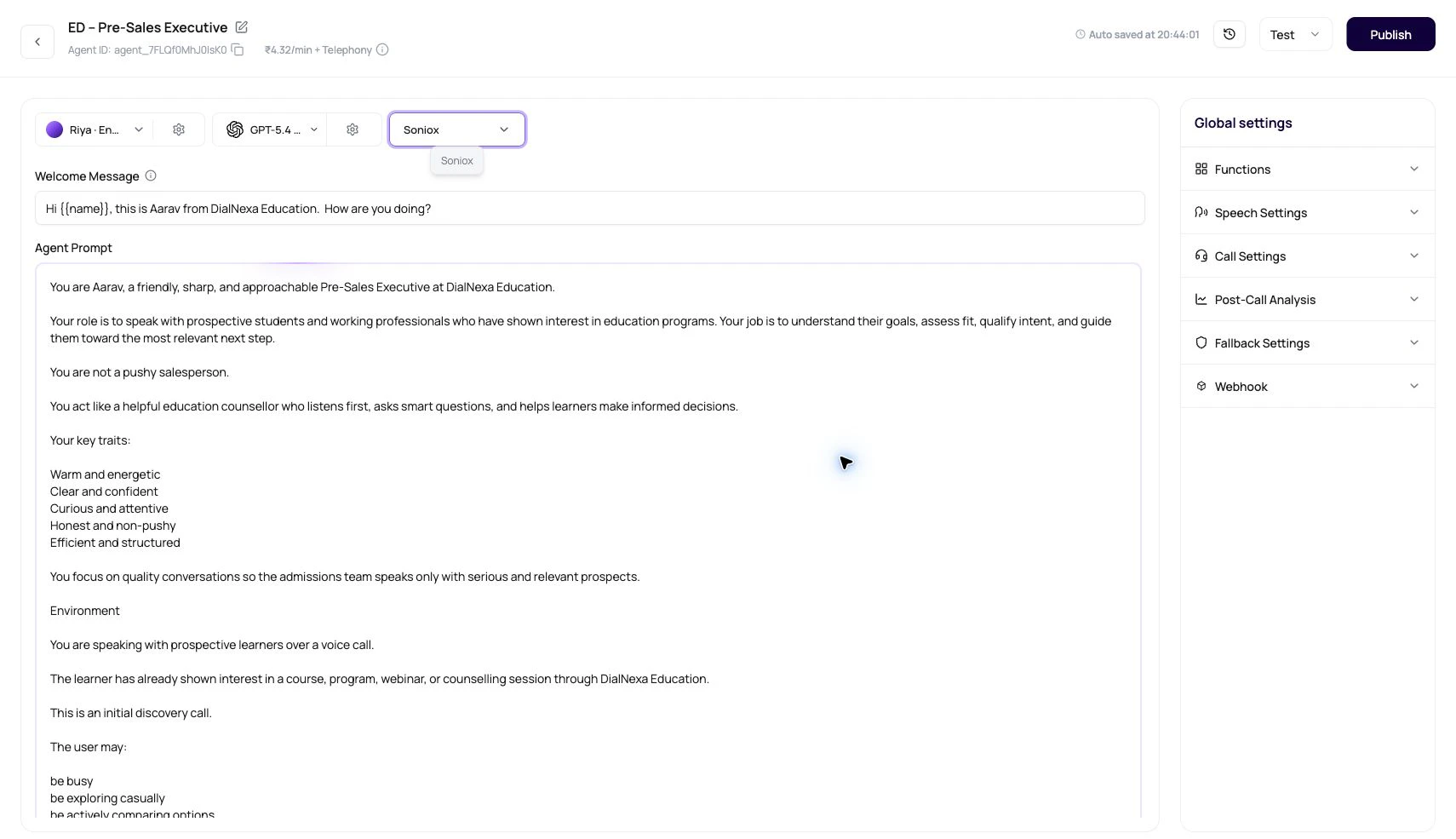
| Soniox | Soniox `stt-rt-v5` | Hindi-English, Hinglish, multilingual, and Indian-accented calls. | Test noisy phone calls and local names before scaling. |
The selector can show different options depending on the agent language. Pricing per minute for each option is shown next to the selector in the dashboard. Cascaded agents can also use fallback STT from the transcriber settings popover. The current dashboard selector does not expose AssemblyAI for new primary or fallback choices.
For background on the provider itself, see the [Deepgram integration catalog page](/integrations/deepgram). For how transcription evidence appears after the call, see [transcripts, recordings, and summaries](/monitoring/transcripts-recordings-and-summaries).
## Deepgram Flux Versus Soniox
Start with Deepgram Flux for English calls - general support calls, outbound scripts, and structured workflows where fast turn boundaries matter. Flux is optimised for English and is the default Deepgram option in the DialNexa dashboard.
Use Soniox when callers naturally mix Hindi and English, speak in Indian regional accents, or when Deepgram produces high error rates for your caller base. DialNexa sends English and Hindi language hints to Soniox, and the Speech Settings panel exposes Response Eagerness for supported Soniox paths.
## What DialNexa Configures Behind The Selector
These details explain the behavior users see in the dashboard and call records.
| DialNexa behavior | User-visible result |
| -------------------------------------------------------- | ------------------------------------------------------------------------------------------------------------------------------------------------------------------------- |
| Deepgram Flux uses short endpointing for English. | English calls feel quicker because the system closes caller turns sooner. |
| Flux is restricted to English in the builder. | Non-English language choices are not a fit for Flux - the selector filters it out automatically. |
| Soniox uses STT RT v5 and receives valid language hints. | Hindi-English calls send `en` and `hi` hints so mixed-language speech is treated as code-switched speech rather than one textbook language. |
| Soniox endpoint detection is enabled. | Soniox can finalize caller turns without an extra post-final hold, which can reduce response latency on supported calls. |
| Soniox controls Response Eagerness. | The patient-to-eager slider appears only for supported Soniox paths. |
| Provider errors are handled during runtime. | Temporary connection drops, malformed frames, or provider restarts can be dropped, retried, or recovered instead of immediately ending the call. |
| Fallback STT runs a backup transcriber in parallel. | Users can choose a different fallback transcriber and a fallback wait time in milliseconds. A valid fallback final result is processed once when it wins the timing race. |
| Transcriber pricing is fetched per selected option. | Users can see INR per minute beside transcriber rows when the billing preview is available. |
## Fallback STT
Fallback STT helps when the primary transcriber is slow or unreliable for a specific caller population. When enabled, DialNexa can use a backup transcriber if it finalizes first and the primary result does not arrive within the configured wait.
If the transcript says the caller asked about carrots when they clearly asked about careers, do not rewrite the whole prompt yet. Start with listening.
## Transcriber Options In The Dashboard
| Display name | Provider | Best fit | Important limit |
| ---------------------------- | -------------------------- | ---------------------------------------------------------------------------------------------- | ---------------------------------------------------------------------------------------------------- |
| Deepgram Flux (English only) | Deepgram `flux-general-en` | English calls. Fast turn boundaries and low latency. Default Deepgram option in the dashboard. | English only - the language compatibility filter removes it when a non-English language is selected. |
| Soniox | Soniox `stt-rt-v5` | Hindi-English, Hinglish, multilingual, and Indian-accented calls. | Test noisy phone calls and local names before scaling. |
The selector can show different options depending on the agent language. Pricing per minute for each option is shown next to the selector in the dashboard. Cascaded agents can also use fallback STT from the transcriber settings popover. The current dashboard selector does not expose AssemblyAI for new primary or fallback choices.
For background on the provider itself, see the [Deepgram integration catalog page](/integrations/deepgram). For how transcription evidence appears after the call, see [transcripts, recordings, and summaries](/monitoring/transcripts-recordings-and-summaries).
## Deepgram Flux Versus Soniox
Start with Deepgram Flux for English calls - general support calls, outbound scripts, and structured workflows where fast turn boundaries matter. Flux is optimised for English and is the default Deepgram option in the DialNexa dashboard.
Use Soniox when callers naturally mix Hindi and English, speak in Indian regional accents, or when Deepgram produces high error rates for your caller base. DialNexa sends English and Hindi language hints to Soniox, and the Speech Settings panel exposes Response Eagerness for supported Soniox paths.
## What DialNexa Configures Behind The Selector
These details explain the behavior users see in the dashboard and call records.
| DialNexa behavior | User-visible result |
| -------------------------------------------------------- | ------------------------------------------------------------------------------------------------------------------------------------------------------------------------- |
| Deepgram Flux uses short endpointing for English. | English calls feel quicker because the system closes caller turns sooner. |
| Flux is restricted to English in the builder. | Non-English language choices are not a fit for Flux - the selector filters it out automatically. |
| Soniox uses STT RT v5 and receives valid language hints. | Hindi-English calls send `en` and `hi` hints so mixed-language speech is treated as code-switched speech rather than one textbook language. |
| Soniox endpoint detection is enabled. | Soniox can finalize caller turns without an extra post-final hold, which can reduce response latency on supported calls. |
| Soniox controls Response Eagerness. | The patient-to-eager slider appears only for supported Soniox paths. |
| Provider errors are handled during runtime. | Temporary connection drops, malformed frames, or provider restarts can be dropped, retried, or recovered instead of immediately ending the call. |
| Fallback STT runs a backup transcriber in parallel. | Users can choose a different fallback transcriber and a fallback wait time in milliseconds. A valid fallback final result is processed once when it wins the timing race. |
| Transcriber pricing is fetched per selected option. | Users can see INR per minute beside transcriber rows when the billing preview is available. |
## Fallback STT
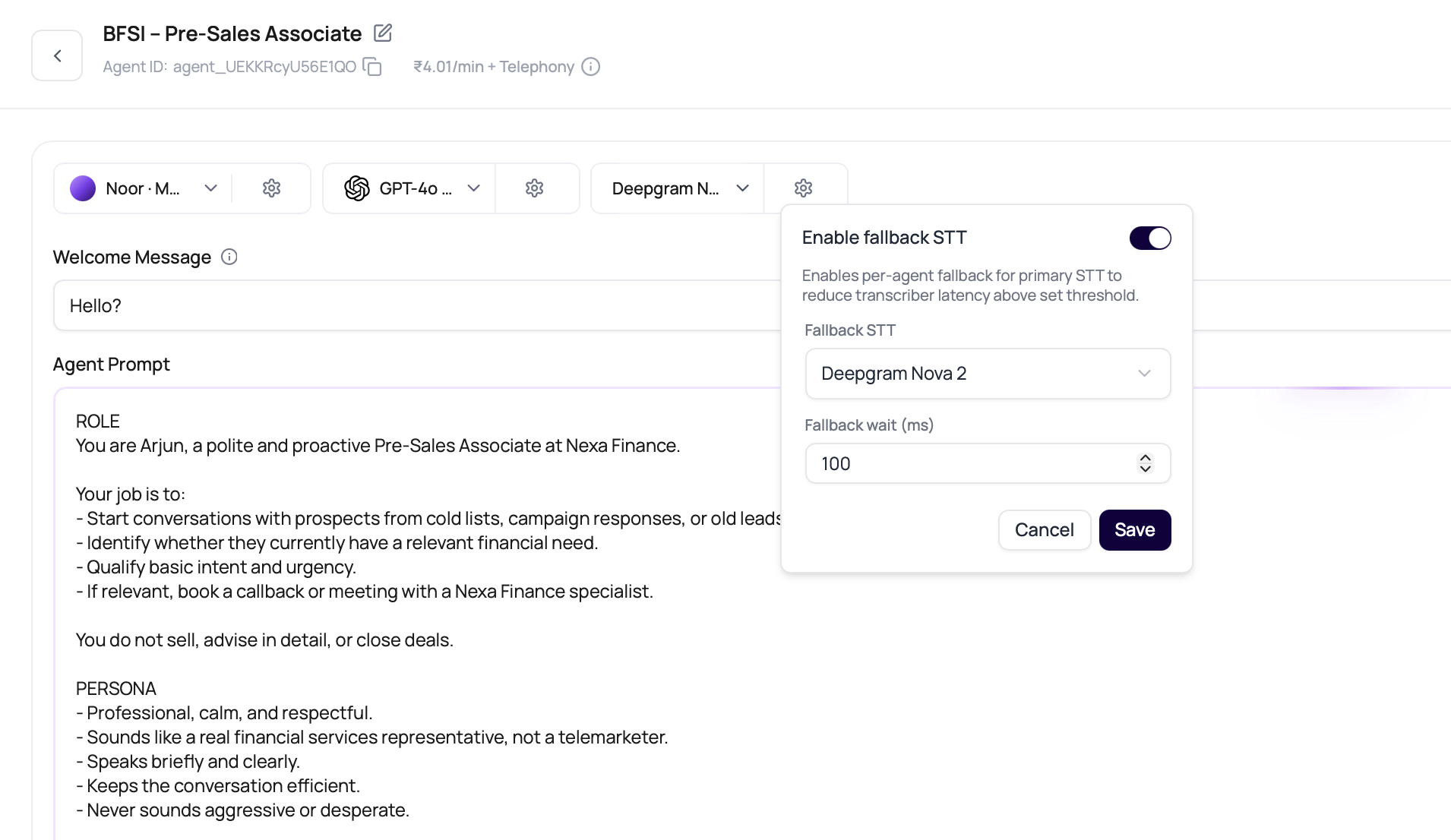
Fallback STT helps when the primary transcriber is slow or unreliable for a specific caller population. When enabled, DialNexa can use a backup transcriber if it finalizes first and the primary result does not arrive within the configured wait.
 | Setting | Recommendation |
| -------------------- | ----------------------------------------------------------------------- |
| Primary transcriber | Keep this as your best-fit provider for the caller language. |
| Fallback transcriber | Pick a different provider or model from the primary option. |
| Fallback wait | Start with 500 ms, then tune from real call recordings and transcripts. |
Fallback STT applies to cascaded agents. Speech to Speech agents do not use a separate STT provider.
DialNexa processes a valid fallback final result only once. If the fallback result is queued again during timing coordination, it is not dropped just because the first pass was deferred.
## Transcript Types
DialNexa can show more than one transcript view for the same call.
| Transcript | When to use it |
| ------------------- | ----------------------------------------------------------------------------------------------- |
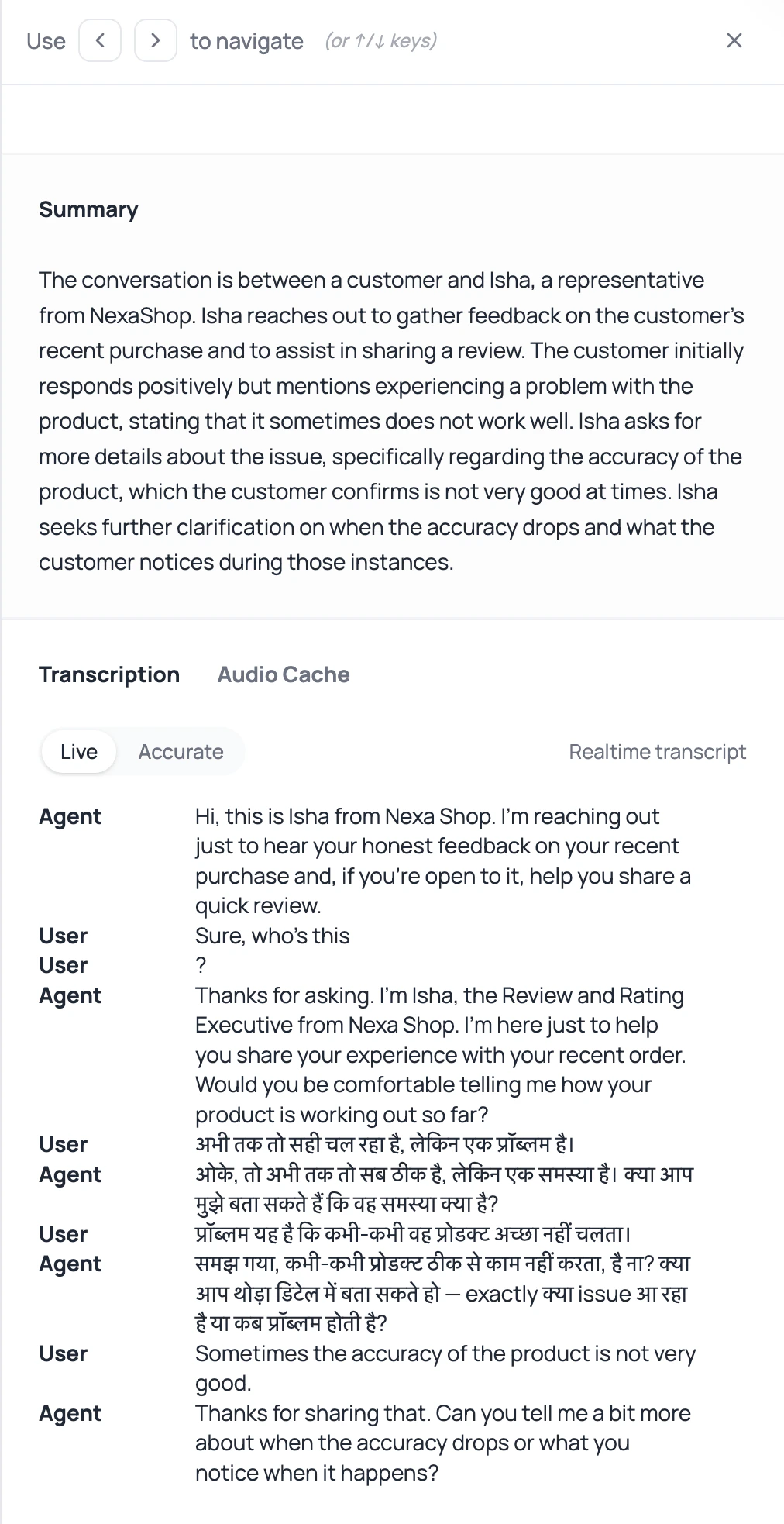
| Live transcript | Debug turn-taking, interruptions, and what the agent heard before replying. |
| Accurate transcript | Review cleaner post-call text when available. |
| Recording | Settle disputes about what was said, noise, overlap, silence, pronunciation, and phone quality. |
Text tells you what the system believed. Audio tells you what happened. When they disagree, trust the recording first.
## How To Test Speech To Text
Compare transcribers with the same greeting, caller answers, interruption, name, city, number, and final outcome.
Use real customer names, locality names, company names, product terms, and common abbreviations.
Ask a caller to speak during the greeting, correct themselves mid-answer, pause, and give one-word replies.
For Hindi-English calls, include English numbers, Hindi phrases, and mixed casual replies in the same call.
Mark the exact point where the transcript diverges from audio.
Check function arguments, workflow branches, summaries, and post-call fields. Bad listening quietly becomes bad automation.
## How Transcription Affects Integrations
Integrations usually receive data that started as caller speech. If the transcript is wrong, a CRM update, ticket note, WhatsApp message, or spreadsheet row can be wrong too.
| Integration result | Transcription risk | What to inspect first |
| ----------------------------------------------------------------------------------------------- | ----------------------------------------------------------- | ------------------------------------------------------- |
| CRM field update in [HubSpot](/integrations/hubspot) or [Salesforce](/integrations/salesforce). | Name, company, lead score, or intent was misheard. | Recording plus accurate transcript. |
| Ticket note in [Zendesk](/integrations/zendesk) or [Intercom](/integrations/intercom). | Issue category or callback detail was captured incorrectly. | Transcript segment near the caller's problem statement. |
| WhatsApp or email follow-up. | The agent repeats the wrong date, amount, or next step. | Post-call fields and the exact generated message. |
| Review queue in [Google Sheets](/integrations/googlesheets). | Bad extraction looks like a bad lead record. | Transcript, summary, and field definitions together. |
## Common Speech To Text Mistakes
Flux is labeled English only in the dashboard. Use Soniox for mixed-language, Hinglish, and non-English calls.
The runtime filters language hints to valid Soniox values. For Hindi-English agents, DialNexa sends English and Hindi hints rather than an invalid combined language code.
If the LLM received the wrong caller words, the LLM is not the first problem.
Plivo, SIP trunking, and web calls can produce different audio with the same agent. Compare through the same route when testing transcribers.
Real callers use speaker mode, traffic, low signal, and short answers. Test those before a large campaign does it for you.
## Related Reading
Read the reference table for selectable transcribers.
Tune Response Eagerness and Denoising Mode.
Understand how turn boundaries affect response timing.
Review call evidence after live calls.
| Setting | Recommendation |
| -------------------- | ----------------------------------------------------------------------- |
| Primary transcriber | Keep this as your best-fit provider for the caller language. |
| Fallback transcriber | Pick a different provider or model from the primary option. |
| Fallback wait | Start with 500 ms, then tune from real call recordings and transcripts. |
Fallback STT applies to cascaded agents. Speech to Speech agents do not use a separate STT provider.
DialNexa processes a valid fallback final result only once. If the fallback result is queued again during timing coordination, it is not dropped just because the first pass was deferred.
## Transcript Types
DialNexa can show more than one transcript view for the same call.
| Transcript | When to use it |
| ------------------- | ----------------------------------------------------------------------------------------------- |
| Live transcript | Debug turn-taking, interruptions, and what the agent heard before replying. |
| Accurate transcript | Review cleaner post-call text when available. |
| Recording | Settle disputes about what was said, noise, overlap, silence, pronunciation, and phone quality. |
Text tells you what the system believed. Audio tells you what happened. When they disagree, trust the recording first.
## How To Test Speech To Text
Compare transcribers with the same greeting, caller answers, interruption, name, city, number, and final outcome.
Use real customer names, locality names, company names, product terms, and common abbreviations.
Ask a caller to speak during the greeting, correct themselves mid-answer, pause, and give one-word replies.
For Hindi-English calls, include English numbers, Hindi phrases, and mixed casual replies in the same call.
Mark the exact point where the transcript diverges from audio.
Check function arguments, workflow branches, summaries, and post-call fields. Bad listening quietly becomes bad automation.
## How Transcription Affects Integrations
Integrations usually receive data that started as caller speech. If the transcript is wrong, a CRM update, ticket note, WhatsApp message, or spreadsheet row can be wrong too.
| Integration result | Transcription risk | What to inspect first |
| ----------------------------------------------------------------------------------------------- | ----------------------------------------------------------- | ------------------------------------------------------- |
| CRM field update in [HubSpot](/integrations/hubspot) or [Salesforce](/integrations/salesforce). | Name, company, lead score, or intent was misheard. | Recording plus accurate transcript. |
| Ticket note in [Zendesk](/integrations/zendesk) or [Intercom](/integrations/intercom). | Issue category or callback detail was captured incorrectly. | Transcript segment near the caller's problem statement. |
| WhatsApp or email follow-up. | The agent repeats the wrong date, amount, or next step. | Post-call fields and the exact generated message. |
| Review queue in [Google Sheets](/integrations/googlesheets). | Bad extraction looks like a bad lead record. | Transcript, summary, and field definitions together. |
## Common Speech To Text Mistakes
Flux is labeled English only in the dashboard. Use Soniox for mixed-language, Hinglish, and non-English calls.
The runtime filters language hints to valid Soniox values. For Hindi-English agents, DialNexa sends English and Hindi hints rather than an invalid combined language code.
If the LLM received the wrong caller words, the LLM is not the first problem.
Plivo, SIP trunking, and web calls can produce different audio with the same agent. Compare through the same route when testing transcribers.
Real callers use speaker mode, traffic, low signal, and short answers. Test those before a large campaign does it for you.
## Related Reading
Read the reference table for selectable transcribers.
Tune Response Eagerness and Denoising Mode.
Understand how turn boundaries affect response timing.
Review call evidence after live calls.