> ## Documentation Index
> Fetch the complete documentation index at: https://dialnexa.com/docs/llms.txt
> Use this file to discover all available pages before exploring further.
# DialNexa Workspaces
> Understand DialNexa workspaces, organization switching, workspace settings, account context, wallet context, and how workspace selection affects dashboard data.
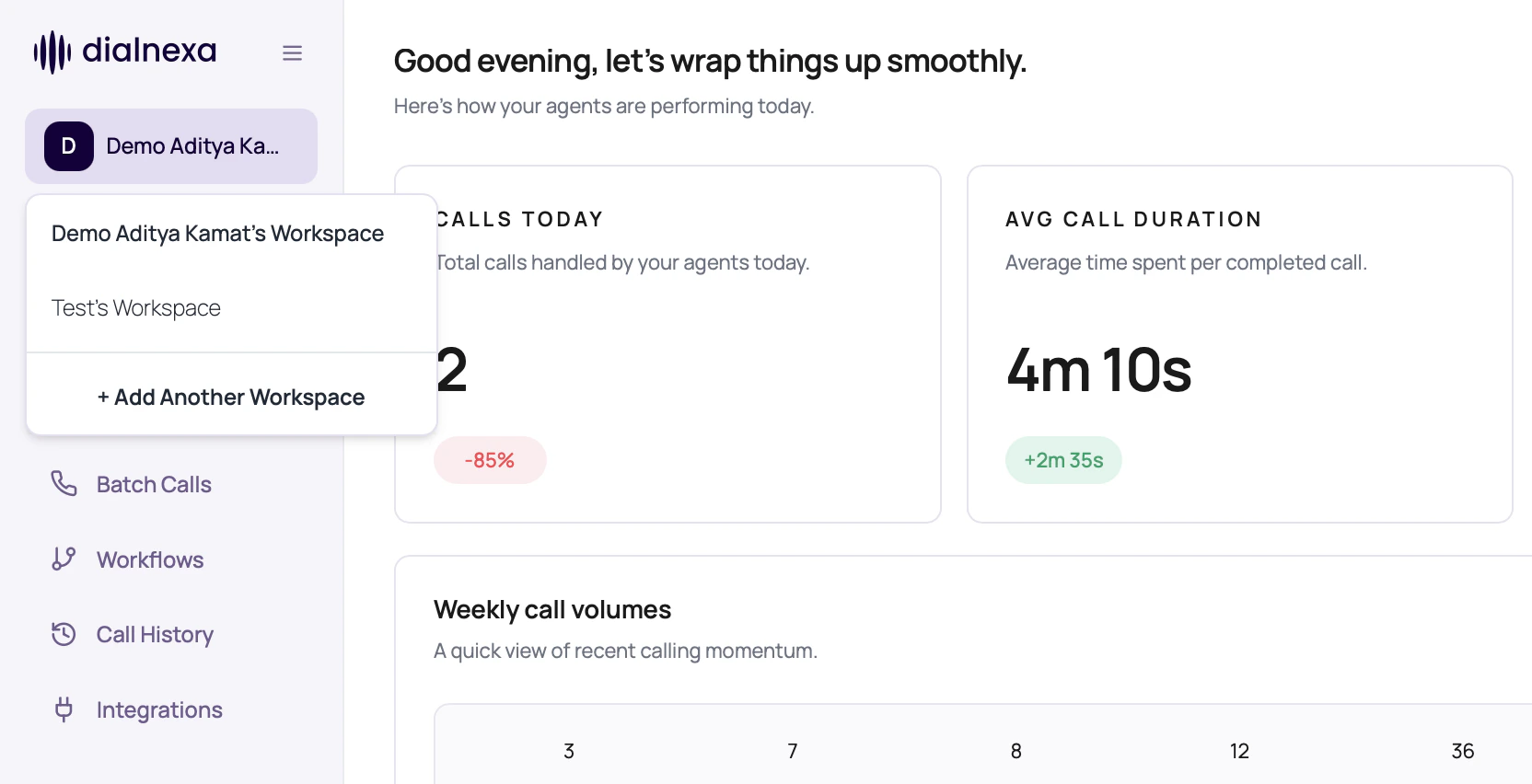
A DialNexa workspace represents the organization context for agents, phone numbers, campaigns, workflows, integrations, keys, webhooks, wallet balance, and call history. Switching workspaces changes the data and controls you see.
 Before editing anything expensive or live, look at the workspace name. This tiny habit prevents impressively avoidable confusion.
## What Belongs To A Workspace
Workspace context scopes most operational objects.
Agent lists, folders, templates, and versions are loaded for the selected organization.
Phone numbers, outbound assignments, batch campaigns, and call logs are workspace-specific.
Workflow lists, leads, node history, and execution status are tied to the workspace.
API keys, webhook secrets, and external webhook endpoints belong to the organization context.
## Workspace Actions Users Commonly Need
Use workspace controls when the account context, not the agent, is the issue.
Before editing anything expensive or live, look at the workspace name. This tiny habit prevents impressively avoidable confusion.
## What Belongs To A Workspace
Workspace context scopes most operational objects.
Agent lists, folders, templates, and versions are loaded for the selected organization.
Phone numbers, outbound assignments, batch campaigns, and call logs are workspace-specific.
Workflow lists, leads, node history, and execution status are tied to the workspace.
API keys, webhook secrets, and external webhook endpoints belong to the organization context.
## Workspace Actions Users Commonly Need
Use workspace controls when the account context, not the agent, is the issue.
 | Action | Why it matters |
| ----------------------- | ----------------------------------------------------------------------------------- |
| Switch organization | Move between companies, teams, or environments you can access. |
| Open workspace settings | Review workspace name, description, and account-level details exposed to your role. |
| Check wallet area | Confirm balance and recharge access before outbound activity. |
| Check KYC state | Outbound scale features can depend on verified account readiness. |
## Workspace Settings Tabs
Workspace settings are split into focused tabs so account, routing, team, and developer work do not share one long page.
| Tab | Dashboard path | Use it for |
| ---------------- | -------------------------------- | -------------------------------------------------------------------------------------------------------- |
| General | `/dashboard/workspace/general` | Workspace name, description, and account contact details shown to your role. |
| Telephony Config | `/dashboard/workspace/telephony` | Provider routes, country groups, destination network group status, telephony rates, and SIP/BYOC status. |
| Members | `/dashboard/workspace/members` | Workspace member review, invite management, roles, and access cleanup. |
| Developer | `/dashboard/workspace/developer` | API keys, webhook secrets, and external webhook settings. |
| Billing | `/dashboard/workspace/billing` | Recharge wallet credits, export transactions, and save billing name, address, and GST Number. |
If you land on `/dashboard/workspace`, the dashboard redirects into the tabbed settings area. Use the left settings navigation to switch between tabs without changing the active workspace.
## Developer Webhook Settings
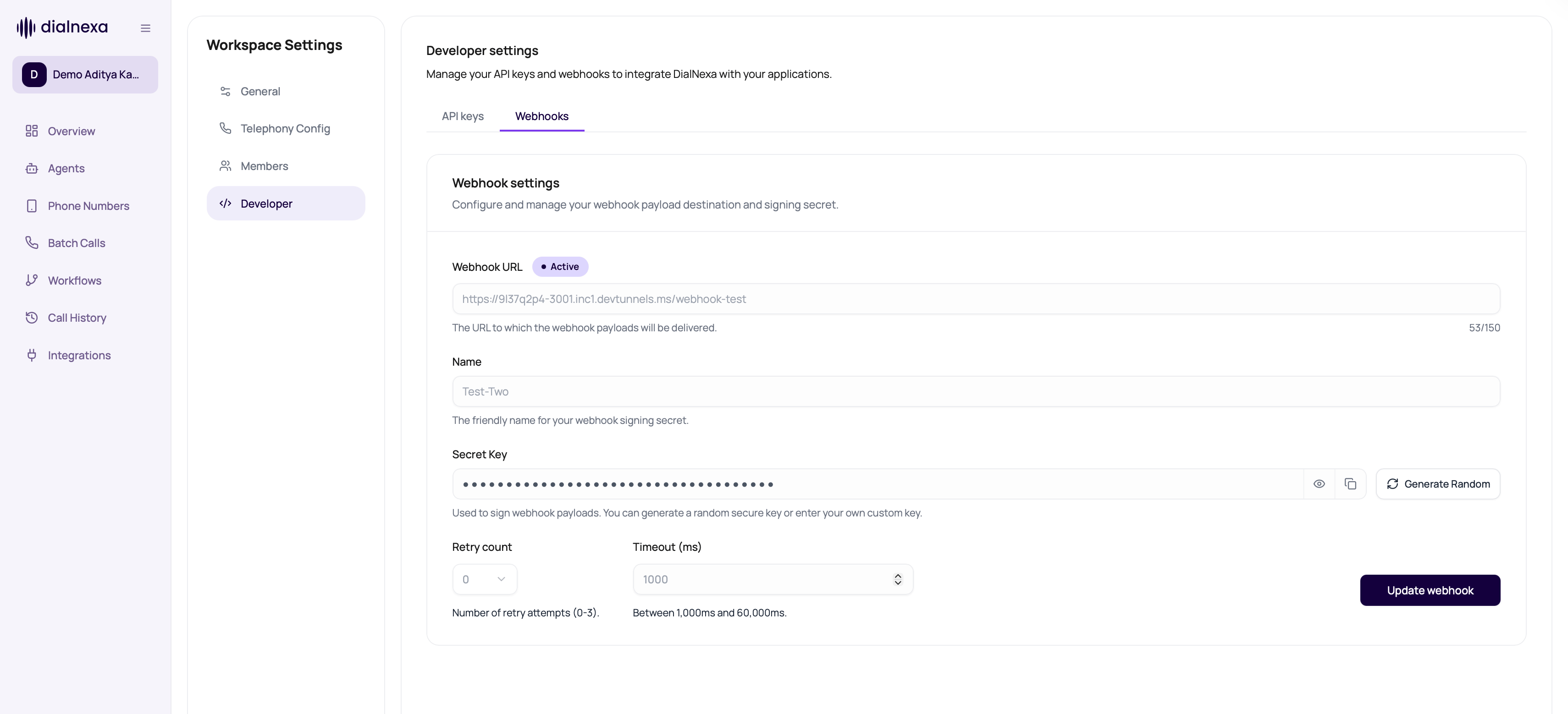
The Developer tab includes **API keys** and **Webhooks**. Use the Webhooks tab to send workspace-level webhook payloads to your own endpoint.
| Action | Why it matters |
| ----------------------- | ----------------------------------------------------------------------------------- |
| Switch organization | Move between companies, teams, or environments you can access. |
| Open workspace settings | Review workspace name, description, and account-level details exposed to your role. |
| Check wallet area | Confirm balance and recharge access before outbound activity. |
| Check KYC state | Outbound scale features can depend on verified account readiness. |
## Workspace Settings Tabs
Workspace settings are split into focused tabs so account, routing, team, and developer work do not share one long page.
| Tab | Dashboard path | Use it for |
| ---------------- | -------------------------------- | -------------------------------------------------------------------------------------------------------- |
| General | `/dashboard/workspace/general` | Workspace name, description, and account contact details shown to your role. |
| Telephony Config | `/dashboard/workspace/telephony` | Provider routes, country groups, destination network group status, telephony rates, and SIP/BYOC status. |
| Members | `/dashboard/workspace/members` | Workspace member review, invite management, roles, and access cleanup. |
| Developer | `/dashboard/workspace/developer` | API keys, webhook secrets, and external webhook settings. |
| Billing | `/dashboard/workspace/billing` | Recharge wallet credits, export transactions, and save billing name, address, and GST Number. |
If you land on `/dashboard/workspace`, the dashboard redirects into the tabbed settings area. Use the left settings navigation to switch between tabs without changing the active workspace.
## Developer Webhook Settings
The Developer tab includes **API keys** and **Webhooks**. Use the Webhooks tab to send workspace-level webhook payloads to your own endpoint.
 | Webhook field | What to configure |
| -------------- | ------------------------------------------------------------------------------------------------------------------------------ |
| Webhook URL | The HTTPS endpoint where DialNexa should deliver webhook payloads. The dashboard shows whether the destination is active. |
| Name | A friendly label for the webhook signing secret. Use a name that identifies the environment or receiving system. |
| Secret Key | The signing secret used to verify webhook payloads. You can reveal, copy, or generate a random secret from the field controls. |
| Retry count | The number of retry attempts, from 0 to 3, after an initial delivery failure. |
| Timeout | Request timeout in milliseconds. The dashboard accepts values between 1,000 ms and 60,000 ms. |
| Update webhook | Saves the URL, name, secret, retry count, and timeout for the active workspace. |
## Avoid Cross-Workspace Mistakes
Confirm the sidebar workspace before creating agents, keys, numbers, or workflows.
Some pages reload data based on organization. Wait for the new workspace data before acting.
Use agent, batch, and workflow names that reveal workspace or campaign purpose when needed.
Call History only helps when you are in the workspace where the call was created.
## Workspace Confusions
You may be in a different workspace, folder, or organization context.
Keys are organization scoped. Confirm the key belongs to the workspace your integration is calling.
Check KYC readiness for the workspace.
Confirm date range, filters, and workspace selection.
## Related Reading
Understand the sidebar.
Prepare for outbound scale.
Review spend context.
| Webhook field | What to configure |
| -------------- | ------------------------------------------------------------------------------------------------------------------------------ |
| Webhook URL | The HTTPS endpoint where DialNexa should deliver webhook payloads. The dashboard shows whether the destination is active. |
| Name | A friendly label for the webhook signing secret. Use a name that identifies the environment or receiving system. |
| Secret Key | The signing secret used to verify webhook payloads. You can reveal, copy, or generate a random secret from the field controls. |
| Retry count | The number of retry attempts, from 0 to 3, after an initial delivery failure. |
| Timeout | Request timeout in milliseconds. The dashboard accepts values between 1,000 ms and 60,000 ms. |
| Update webhook | Saves the URL, name, secret, retry count, and timeout for the active workspace. |
## Avoid Cross-Workspace Mistakes
Confirm the sidebar workspace before creating agents, keys, numbers, or workflows.
Some pages reload data based on organization. Wait for the new workspace data before acting.
Use agent, batch, and workflow names that reveal workspace or campaign purpose when needed.
Call History only helps when you are in the workspace where the call was created.
## Workspace Confusions
You may be in a different workspace, folder, or organization context.
Keys are organization scoped. Confirm the key belongs to the workspace your integration is calling.
Check KYC readiness for the workspace.
Confirm date range, filters, and workspace selection.
## Related Reading
Understand the sidebar.
Prepare for outbound scale.
Review spend context.