> ## Documentation Index
> Fetch the complete documentation index at: https://dialnexa.com/docs/llms.txt
> Use this file to discover all available pages before exploring further.
# Import Voices Into Your DialNexa Workspace
> Import voices from ElevenLabs and Cartesia into your DialNexa workspace, filter by supported languages, and manage imported voices.
Import voices through **Workspace Settings > Voice Config** to make additional ElevenLabs and Cartesia voices available to agents in the selected workspace. Imported voices are workspace-specific. Importing a voice does not select it for an agent automatically.
## When To Import Voices
Use this workflow when you need a provider voice that is not already available in the agent voice picker. You can search and preview before importing. The **Clone voices** tab is marked **Coming soon**; it is not an available voice-cloning workflow.
## Before You Begin
* Confirm the active workspace in the sidebar.
* Open your profile menu, choose **Workspace Settings**, then **Voice Config**.
* Know the languages the agent must speak. Multiple selected languages narrow the results to voices that support all of them.
## Import Voices Into Your Workspace
1. Open **Import voices**.
2. Search by voice name. Optionally select languages, gender, or a provider.
3. Review the provider and supported languages in each result. A `+N` indicator means the voice has additional languages beyond those displayed in the row.
4. Use the preview control to listen to the sample when available.
5. Click **Import** beside the desired voice. Wait for the row to show **Imported**. A row marked **Already available** is already in the shared catalogue and does not need another import.
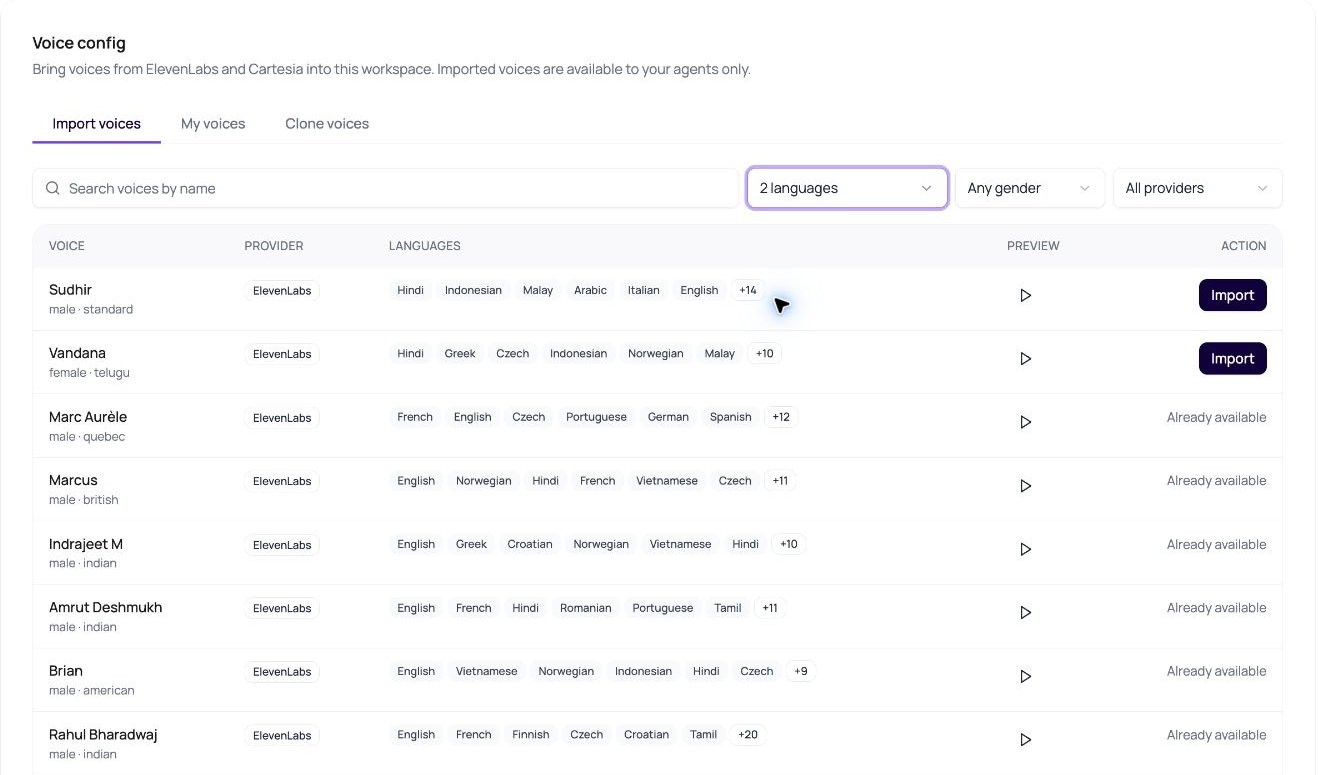 The search language options use individual languages. **Hinglish** and **Multilingual** are not provider-catalogue search filters. Select the underlying languages, such as Hindi and English, to find a compatible voice.
## Verify The Imported Voice
Open **My voices** to see voices imported into this workspace and their DialNexa voice IDs. Then open a draft agent in the same workspace, choose its languages, and find the imported voice in the [agent voice picker](/docs/agents/languages-voices-models-and-transcribers#select-languages-for-a-cascaded-agent).
The search language options use individual languages. **Hinglish** and **Multilingual** are not provider-catalogue search filters. Select the underlying languages, such as Hindi and English, to find a compatible voice.
## Verify The Imported Voice
Open **My voices** to see voices imported into this workspace and their DialNexa voice IDs. Then open a draft agent in the same workspace, choose its languages, and find the imported voice in the [agent voice picker](/docs/agents/languages-voices-models-and-transcribers#select-languages-for-a-cascaded-agent).
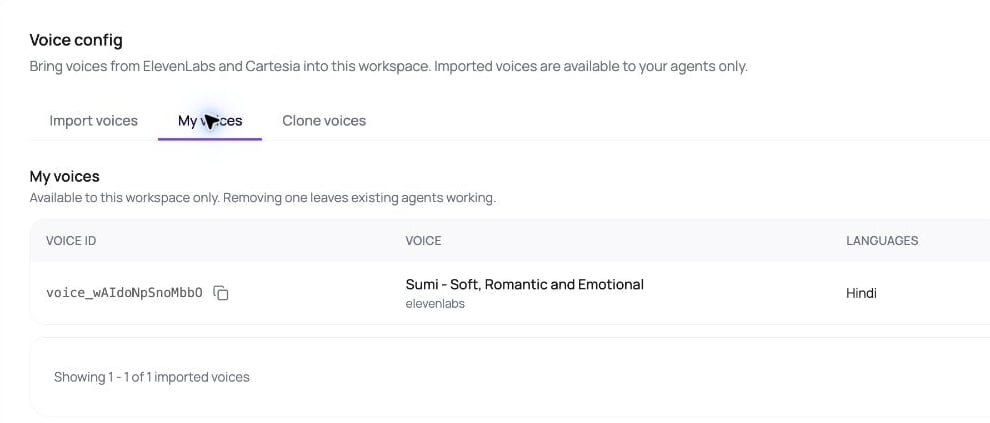 Previewing a sample helps compare voices, but does not verify your prompt or telephone audio. Before publishing an agent, test its expected phrases, names, numbers, and language changes.
## Remove An Imported Voice
In **My voices**, open the removal control for the voice. Review the confirmation before choosing **Remove**. If an agent still uses the voice, removal is blocked and the dialog identifies the affected agents. Switch those agents to another voice before trying again.
Removing an import changes the workspace's available voice list. Confirm that you no longer need it before proceeding. After removal, verify that it no longer appears in **My voices**.
## Troubleshooting Voice Imports
| Problem | What to check |
| --------------------------------------- | ------------------------------------------------------------------------------------------------------------------------------ |
| No voices match | Clear the search or remove a language filter. A voice must support every selected language. Try a different provider. |
| Search fails | Retry after checking the displayed error. If it persists, contact support with the provider and filters used. |
| No preview is available | Some provider voices have no usable sample. This is different from an empty search result. |
| Import fails | Read the error beside the voice, then retry that row if appropriate. Check **My voices** before repeating an uncertain import. |
| Imported voice is missing from an agent | Confirm the same workspace is selected and that the voice supports all selected agent languages. |
| Remove is disabled | Review the agents listed in the removal dialog and change their voice first. |
## Related Pages
* [Choose agent languages, voices, models, and transcribers](/docs/agents/languages-voices-models-and-transcribers)
* [Text to speech and voices](/docs/voice-ai/text-to-speech-and-voices)
* [Workspace settings](/docs/platform/workspaces#dialnexa-workspaces-and-settings-tabs)
Previewing a sample helps compare voices, but does not verify your prompt or telephone audio. Before publishing an agent, test its expected phrases, names, numbers, and language changes.
## Remove An Imported Voice
In **My voices**, open the removal control for the voice. Review the confirmation before choosing **Remove**. If an agent still uses the voice, removal is blocked and the dialog identifies the affected agents. Switch those agents to another voice before trying again.
Removing an import changes the workspace's available voice list. Confirm that you no longer need it before proceeding. After removal, verify that it no longer appears in **My voices**.
## Troubleshooting Voice Imports
| Problem | What to check |
| --------------------------------------- | ------------------------------------------------------------------------------------------------------------------------------ |
| No voices match | Clear the search or remove a language filter. A voice must support every selected language. Try a different provider. |
| Search fails | Retry after checking the displayed error. If it persists, contact support with the provider and filters used. |
| No preview is available | Some provider voices have no usable sample. This is different from an empty search result. |
| Import fails | Read the error beside the voice, then retry that row if appropriate. Check **My voices** before repeating an uncertain import. |
| Imported voice is missing from an agent | Confirm the same workspace is selected and that the voice supports all selected agent languages. |
| Remove is disabled | Review the agents listed in the removal dialog and change their voice first. |
## Related Pages
* [Choose agent languages, voices, models, and transcribers](/docs/agents/languages-voices-models-and-transcribers)
* [Text to speech and voices](/docs/voice-ai/text-to-speech-and-voices)
* [Workspace settings](/docs/platform/workspaces#dialnexa-workspaces-and-settings-tabs)