> ## Documentation Index
> Fetch the complete documentation index at: https://dialnexa.com/docs/llms.txt
> Use this file to discover all available pages before exploring further.
# DialNexa Navigation Reference
> Use the DialNexa navigation reference to understand sidebar behavior, active routes, workspace switching, collapsed navigation, profile actions, and account readiness states.
The DialNexa navigation reference explains how users move through the dashboard. The left sidebar contains the primary product areas, the workspace switcher controls organization context, and readiness states can affect which actions are available.
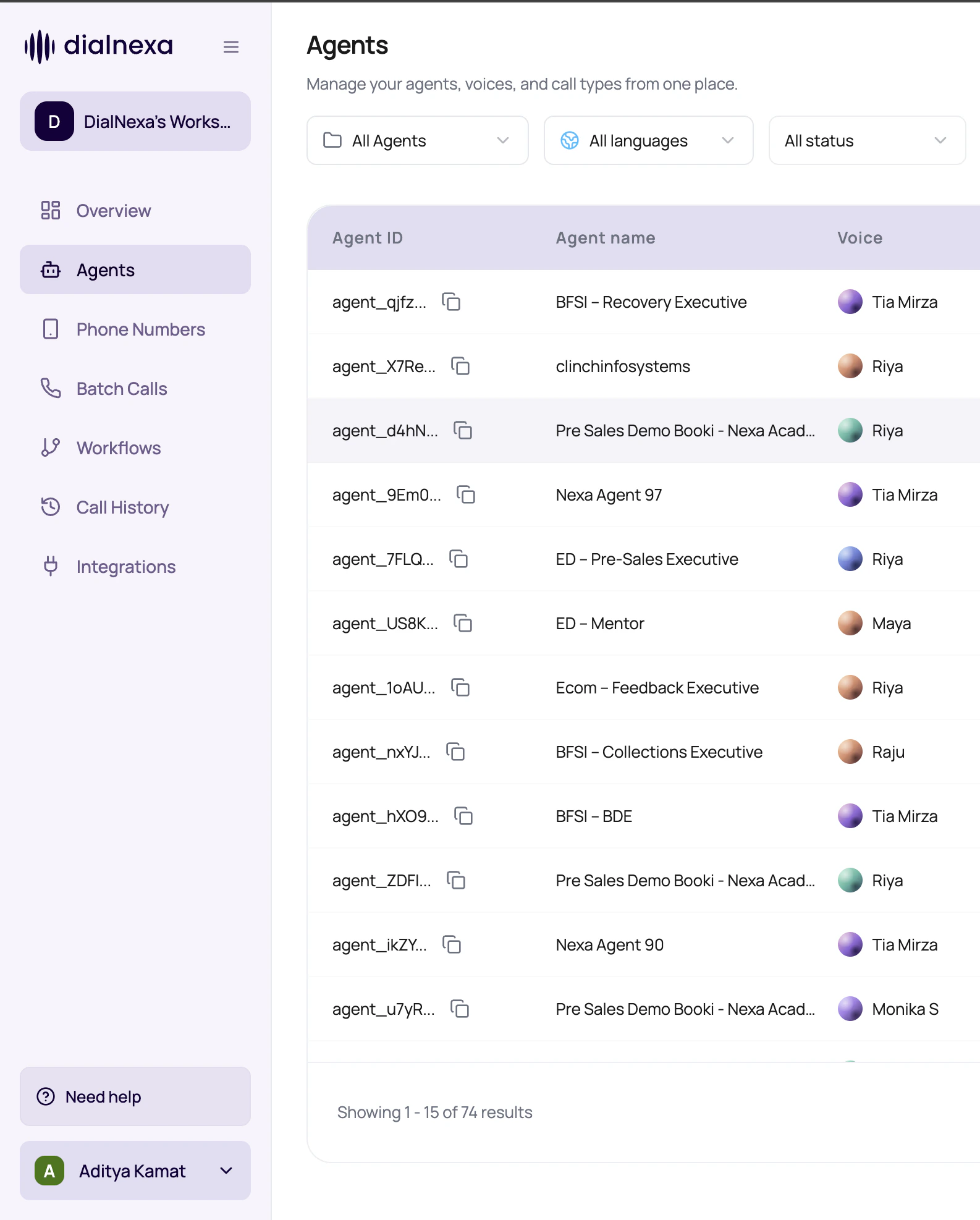 The sidebar is not just decoration. It is the fastest way to understand what part of the product owns the thing you are about to change.
## Primary Navigation Items
The sidebar tabs are Agents, Phone Numbers, Batch Calls, Workflows, Integrations, Call History, Keys, and Webhooks. This page covers how the sidebar itself behaves - for what each tab owns and which docs section covers it, see the [Platform Map](/platform-map).
## Navigation Areas Besides The Tab List
Several controls live around the main tab list.
Changes organization context and the data loaded by dashboard pages.
Shows balance and recharge action where enabled.
Opens account actions and workspace-related settings available to the user.
Shows the current product area based on the active dashboard route.
## Navigate With Less Guesswork
Use the tab whose name matches the object: agent, number, batch, workflow, integration, key, webhook, or log.
Switching workspaces changes visible data.
A disabled item usually points to readiness, permissions, or missing configuration.
After configuration changes, review actual calls in Call History.
## Navigation Questions
The workspace may need KYC verification before batch calling is enabled.
Some specialized workspace layouts can route key management through workspace settings.
Check workspace, filters, date range, and whether the object has been created yet.
Expand it if labels are easier than icons while learning the platform.
## Related Reading
Use the full dashboard map.
Understand organization context.
Interpret locked outbound features.
The sidebar is not just decoration. It is the fastest way to understand what part of the product owns the thing you are about to change.
## Primary Navigation Items
The sidebar tabs are Agents, Phone Numbers, Batch Calls, Workflows, Integrations, Call History, Keys, and Webhooks. This page covers how the sidebar itself behaves - for what each tab owns and which docs section covers it, see the [Platform Map](/platform-map).
## Navigation Areas Besides The Tab List
Several controls live around the main tab list.
Changes organization context and the data loaded by dashboard pages.
Shows balance and recharge action where enabled.
Opens account actions and workspace-related settings available to the user.
Shows the current product area based on the active dashboard route.
## Navigate With Less Guesswork
Use the tab whose name matches the object: agent, number, batch, workflow, integration, key, webhook, or log.
Switching workspaces changes visible data.
A disabled item usually points to readiness, permissions, or missing configuration.
After configuration changes, review actual calls in Call History.
## Navigation Questions
The workspace may need KYC verification before batch calling is enabled.
Some specialized workspace layouts can route key management through workspace settings.
Check workspace, filters, date range, and whether the object has been created yet.
Expand it if labels are easier than icons while learning the platform.
## Related Reading
Use the full dashboard map.
Understand organization context.
Interpret locked outbound features.