> ## Documentation Index
> Fetch the complete documentation index at: https://dialnexa.com/docs/llms.txt
> Use this file to discover all available pages before exploring further.
# DialNexa KYC And Outbound Readiness
> Understand DialNexa KYC and outbound readiness, including why Batch Calls may be locked and how KYC affects recipient entry and campaign launch.
DialNexa KYC and outbound readiness determine whether a workspace can use outbound calling features such as Batch Calls, outbound recipient entry, and phone number purchase flows. The Phone Numbers page shows the workspace owner the current KYC state and the action needed to submit, resubmit, or request reuse of an existing verified compliance.
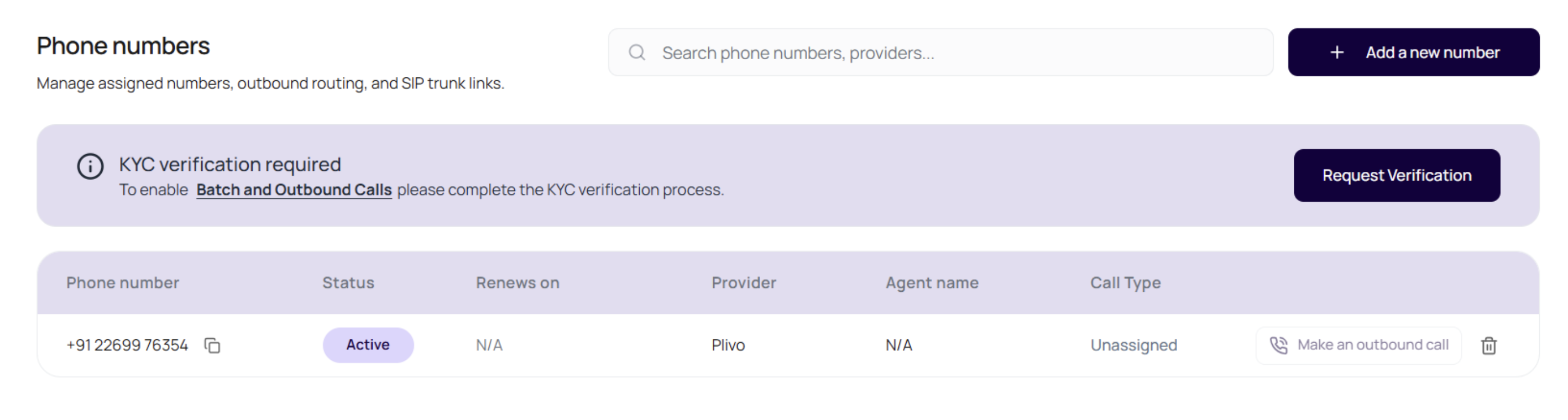 If Batch Calls are locked, changing the CSV will not help. The gate is workspace verification, not comma placement.
## Where KYC Shows Up
KYC state appears where outbound activity could create risk or spend.
| Surface | Behavior |
| ------------------------- | -------------------------------------------------------------------------------------------------------------------------------------------------------- |
| Phone Numbers page | Workspace owners see a KYC banner with the current state: not requested, pending review, or rejected. |
| KYC modal | Owners can enter the company legal name, upload required documents, accept the terms, and submit for review. |
| Batch Calls | Batch Calls can be disabled until KYC is verified for the workspace. |
| Outbound recipient entry | If the workspace owner is not verified and the selected outbound number is not SIP, the dashboard can limit calls to the registered verification number. |
| Phone number purchase | US number purchase requires completed KYC. India number purchase requires completed KYC plus submitted compliance documentation. |
| Existing compliance reuse | If the owner already has a verified compliance in another workspace, the modal can request manual attachment by the DialNexa team. |
## Complete KYC Verification
Go to Phone Numbers and use the KYC banner action. Owners see **Start Verification** when KYC has not been requested and **Resubmit Documents** when a previous submission was rejected.
Use the legal company name that matches the documents you are uploading.
Upload the registration certificate, such as COI or Udyam, as a PDF, PNG, or JPG file up to 5 MB.
Upload the tax proof requested in the form, such as GST certificate or Business PAN, as a PDF, PNG, or JPG file up to 5 MB.
Read the **Terms & Compliance Requirements** block, accept the checkbox, and submit. After submission, the status moves to pending review. DialNexa emails the owner when review is approved or rejected.
Pending review usually completes within 1 business day. While review is pending, the banner explains that the team is verifying the documents and that the owner will receive an email after approval.
## Terms And Compliance Requirements
The KYC modal includes a scrollable **Terms & Compliance Requirements** block before submission. The owner must confirm that they have read and agree to those requirements before the request can be submitted.
The block explains that the workspace must follow applicable telecom rules, including TRAI and DoT requirements where relevant. It also reminds the owner that outbound calling must be lawful, recipient consent must be handled where required, opt-out requests must be honored, and misuse or non-compliance can lead to suspension or termination of telephony services.
## Use Existing Compliance
If the owner already has a verified compliance on another workspace, the KYC modal can show an option to use that existing compliance. Select that option, enter the company legal name, accept the terms, and submit the request.
This does not instantly verify the current workspace. It creates a pending request so the DialNexa team can manually attach the existing verified compliance.
## Resubmit After Rejection
When KYC is rejected, the Phone Numbers page shows the rejection reason where available. Use **Resubmit Documents** to upload corrected files. Resubmission creates a fresh review request and moves the workspace back to pending status.
## Outbound Behavior Before Verification
Unverified workspaces can still have limited testing behavior, but production outbound readiness is restricted.
| Route or feature | What to expect before verification |
| --------------------------- | -------------------------------------------------------------------------------------------------------------------------------------------------------------- |
| Batch Calls | The feature can stay locked until KYC is verified. |
| Non-SIP outbound number | A workspace owner who is not verified can be limited to the registered verification number in recipient entry. |
| SIP outbound number | SIP-linked outbound numbers do not use the same unverified-owner recipient input lock, but teams should still test routing and follow compliance requirements. |
| US phone number purchase | The country option is blocked until KYC verification is complete. |
| India phone number purchase | The country option is blocked until KYC verification is complete and compliance documentation is submitted. |
## Phone Number Purchase Compliance
The Buy Phone Number modal can disable country choices when the workspace is not ready for that region. Hovering a disabled country explains the missing requirement, and the search button stays disabled until the selected country is purchase-ready. The modal also shows an inline warning for the selected country when search is blocked.
| Country | Requirement before search |
| ------------- | ------------------------------------------------------------------------ |
| United States | Complete workspace KYC verification. |
| India | Submit compliance documentation and complete workspace KYC verification. |
If a user cannot search for numbers, check the selected country first. A blocked US search usually means KYC is not complete. A blocked India search can mean KYC is incomplete, compliance documentation is missing, or both.
## Prepare For Outbound Calls
Complete KYC before preparing production campaigns or buying new outbound numbers.
Open Phone Numbers and attach a published agent version to the outbound number.
Use the phone number or agent test call before launching a batch.
Upload a small CSV, confirm results in Call History, then scale.
## Readiness Problems And Meaning
The workspace is not verified for Batch Calls yet. Complete KYC before retrying the campaign upload.
The workspace may not have an active number with an outbound agent assigned.
Check the outbound phone number and published agent version.
Check whether KYC is verified and whether the selected number is a non-SIP outbound number.
Read the rejection reason, correct the documents, and resubmit from the Phone Numbers page.
## Related Reading
Assign outbound routing.
Place individual outbound calls.
Launch campaigns when ready.
If Batch Calls are locked, changing the CSV will not help. The gate is workspace verification, not comma placement.
## Where KYC Shows Up
KYC state appears where outbound activity could create risk or spend.
| Surface | Behavior |
| ------------------------- | -------------------------------------------------------------------------------------------------------------------------------------------------------- |
| Phone Numbers page | Workspace owners see a KYC banner with the current state: not requested, pending review, or rejected. |
| KYC modal | Owners can enter the company legal name, upload required documents, accept the terms, and submit for review. |
| Batch Calls | Batch Calls can be disabled until KYC is verified for the workspace. |
| Outbound recipient entry | If the workspace owner is not verified and the selected outbound number is not SIP, the dashboard can limit calls to the registered verification number. |
| Phone number purchase | US number purchase requires completed KYC. India number purchase requires completed KYC plus submitted compliance documentation. |
| Existing compliance reuse | If the owner already has a verified compliance in another workspace, the modal can request manual attachment by the DialNexa team. |
## Complete KYC Verification
Go to Phone Numbers and use the KYC banner action. Owners see **Start Verification** when KYC has not been requested and **Resubmit Documents** when a previous submission was rejected.
Use the legal company name that matches the documents you are uploading.
Upload the registration certificate, such as COI or Udyam, as a PDF, PNG, or JPG file up to 5 MB.
Upload the tax proof requested in the form, such as GST certificate or Business PAN, as a PDF, PNG, or JPG file up to 5 MB.
Read the **Terms & Compliance Requirements** block, accept the checkbox, and submit. After submission, the status moves to pending review. DialNexa emails the owner when review is approved or rejected.
Pending review usually completes within 1 business day. While review is pending, the banner explains that the team is verifying the documents and that the owner will receive an email after approval.
## Terms And Compliance Requirements
The KYC modal includes a scrollable **Terms & Compliance Requirements** block before submission. The owner must confirm that they have read and agree to those requirements before the request can be submitted.
The block explains that the workspace must follow applicable telecom rules, including TRAI and DoT requirements where relevant. It also reminds the owner that outbound calling must be lawful, recipient consent must be handled where required, opt-out requests must be honored, and misuse or non-compliance can lead to suspension or termination of telephony services.
## Use Existing Compliance
If the owner already has a verified compliance on another workspace, the KYC modal can show an option to use that existing compliance. Select that option, enter the company legal name, accept the terms, and submit the request.
This does not instantly verify the current workspace. It creates a pending request so the DialNexa team can manually attach the existing verified compliance.
## Resubmit After Rejection
When KYC is rejected, the Phone Numbers page shows the rejection reason where available. Use **Resubmit Documents** to upload corrected files. Resubmission creates a fresh review request and moves the workspace back to pending status.
## Outbound Behavior Before Verification
Unverified workspaces can still have limited testing behavior, but production outbound readiness is restricted.
| Route or feature | What to expect before verification |
| --------------------------- | -------------------------------------------------------------------------------------------------------------------------------------------------------------- |
| Batch Calls | The feature can stay locked until KYC is verified. |
| Non-SIP outbound number | A workspace owner who is not verified can be limited to the registered verification number in recipient entry. |
| SIP outbound number | SIP-linked outbound numbers do not use the same unverified-owner recipient input lock, but teams should still test routing and follow compliance requirements. |
| US phone number purchase | The country option is blocked until KYC verification is complete. |
| India phone number purchase | The country option is blocked until KYC verification is complete and compliance documentation is submitted. |
## Phone Number Purchase Compliance
The Buy Phone Number modal can disable country choices when the workspace is not ready for that region. Hovering a disabled country explains the missing requirement, and the search button stays disabled until the selected country is purchase-ready. The modal also shows an inline warning for the selected country when search is blocked.
| Country | Requirement before search |
| ------------- | ------------------------------------------------------------------------ |
| United States | Complete workspace KYC verification. |
| India | Submit compliance documentation and complete workspace KYC verification. |
If a user cannot search for numbers, check the selected country first. A blocked US search usually means KYC is not complete. A blocked India search can mean KYC is incomplete, compliance documentation is missing, or both.
## Prepare For Outbound Calls
Complete KYC before preparing production campaigns or buying new outbound numbers.
Open Phone Numbers and attach a published agent version to the outbound number.
Use the phone number or agent test call before launching a batch.
Upload a small CSV, confirm results in Call History, then scale.
## Readiness Problems And Meaning
The workspace is not verified for Batch Calls yet. Complete KYC before retrying the campaign upload.
The workspace may not have an active number with an outbound agent assigned.
Check the outbound phone number and published agent version.
Check whether KYC is verified and whether the selected number is a non-SIP outbound number.
Read the rejection reason, correct the documents, and resubmit from the Phone Numbers page.
## Related Reading
Assign outbound routing.
Place individual outbound calls.
Launch campaigns when ready.