> ## Documentation Index
> Fetch the complete documentation index at: https://dialnexa.com/docs/llms.txt
> Use this file to discover all available pages before exploring further.
# Manage DialNexa Call Concurrency
> Manage DialNexa call concurrency, reserve inbound capacity, set a simultaneous-call ceiling, and review extra concurrency purchases.
DialNexa call concurrency is the number of calls your workspace can run at the same time. Open **Workspace Settings > Concurrency** to review guaranteed capacity, reserve lines for inbound calls, limit total simultaneous calls, or purchase additional capacity.
## When To Change Call Concurrency
Use concurrency settings when outbound activity must leave room for incoming calls, or when you need to control simultaneous call volume. A concurrency limit controls how many calls run together, not their duration or the total number of recipients in a batch.
## Before You Begin
Confirm the active workspace and review its current settings. For a purchase, check the wallet balance, price, available quantity, and renewal terms displayed by the dashboard. Rates and available capacity can change; use the live preview before confirming payment.
## Review Your DialNexa Call Concurrency
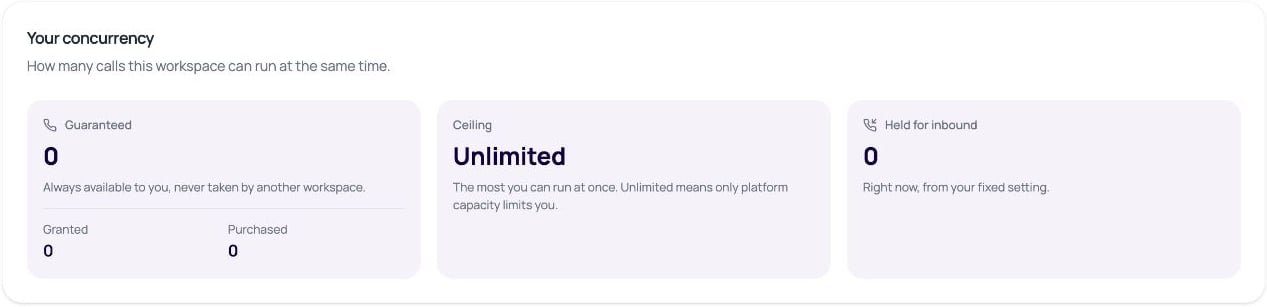 | Value | Meaning |
| ---------------- | -------------------------------------------------------------------------------------------------------------------- |
| Guaranteed | Capacity reserved for your workspace, made up of granted and purchased concurrency. |
| Granted | Guaranteed capacity assigned to the workspace. |
| Purchased | Additional guaranteed capacity purchased through the workspace. |
| Ceiling | The maximum simultaneous calls you allow. **Unlimited** means no workspace ceiling; platform capacity still applies. |
| Held for inbound | Capacity currently reserved for incoming calls by the inbound reserve settings. |
## Reserve Inbound Capacity And Set A Ceiling
1. Open **Concurrency Configuration**.
2. Set **Inbound reserve** to the number of lines to hold for inbound callers at all times. This cannot exceed your guaranteed concurrency.
3. Optionally set **Dynamic inbound reserve** as a percentage of running outbound calls. Leave it blank to turn it off. The dashboard accepts values from 0 to 100 percent.
4. Set **Concurrency ceiling** to a positive whole number, or leave it blank for **Unlimited**.
5. Click **Save settings** and wait for the success message.
| Value | Meaning |
| ---------------- | -------------------------------------------------------------------------------------------------------------------- |
| Guaranteed | Capacity reserved for your workspace, made up of granted and purchased concurrency. |
| Granted | Guaranteed capacity assigned to the workspace. |
| Purchased | Additional guaranteed capacity purchased through the workspace. |
| Ceiling | The maximum simultaneous calls you allow. **Unlimited** means no workspace ceiling; platform capacity still applies. |
| Held for inbound | Capacity currently reserved for incoming calls by the inbound reserve settings. |
## Reserve Inbound Capacity And Set A Ceiling
1. Open **Concurrency Configuration**.
2. Set **Inbound reserve** to the number of lines to hold for inbound callers at all times. This cannot exceed your guaranteed concurrency.
3. Optionally set **Dynamic inbound reserve** as a percentage of running outbound calls. Leave it blank to turn it off. The dashboard accepts values from 0 to 100 percent.
4. Set **Concurrency ceiling** to a positive whole number, or leave it blank for **Unlimited**.
5. Click **Save settings** and wait for the success message.
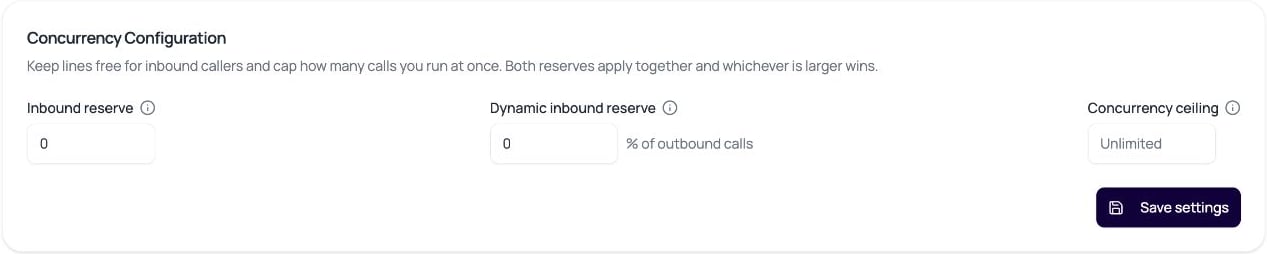 The fixed and dynamic reserves apply together, with the larger reserve taking effect. They are not added together. Outbound campaigns cannot use the reserved inbound capacity. Review any warning that a fixed reserve makes the dynamic setting ineffective at your chosen ceiling.
## Purchase Or Release Extra Concurrency
In **Add more concurrency**, use the plus or minus buttons to choose your target purchased quantity. This is the total quantity you want to retain, not just the number of new slots.
For an increase, the preview shows **Charged today** for the remaining days of the current month and the recurring monthly total. Review both before clicking **Pay**. The payment comes from the workspace wallet, and renewal is billed on the first of the month.
The fixed and dynamic reserves apply together, with the larger reserve taking effect. They are not added together. Outbound campaigns cannot use the reserved inbound capacity. Review any warning that a fixed reserve makes the dynamic setting ineffective at your chosen ceiling.
## Purchase Or Release Extra Concurrency
In **Add more concurrency**, use the plus or minus buttons to choose your target purchased quantity. This is the total quantity you want to retain, not just the number of new slots.
For an increase, the preview shows **Charged today** for the remaining days of the current month and the recurring monthly total. Review both before clicking **Pay**. The payment comes from the workspace wallet, and renewal is billed on the first of the month.
 The screenshot is an example preview, not a price guarantee or a completed purchase. Your live quantity, date, rate, and available capacity determine the displayed charge.
Reducing the target quantity releases the difference immediately when you confirm **Release concurrency**. The dashboard states that the current month is not refunded; the reduced monthly amount applies from the next renewal. Review the impact on capacity before confirming a reduction.
## Verify The Result
After saving settings or completing a purchase, check **Your concurrency** and the configuration fields again. Reload the page to confirm the saved values. For a purchase, also review the [wallet transaction history](/docs/platform/billing-and-wallet) before retrying an uncertain payment.
## Troubleshooting Call Concurrency
| Problem | What to do |
| ------------------------------------------------ | -------------------------------------------------------------------------------------------------------------------------- |
| Inbound reserve exceeds guaranteed capacity | Reduce the reserve or review whether more guaranteed capacity is needed. |
| No guaranteed capacity | A positive fixed reserve is unavailable. Review dynamic reserve or additional capacity instead. |
| Not enough wallet balance | Use **Recharge wallet**, then return and review the updated purchase preview. |
| Self-service maximum reached | Contact the sales team for higher concurrency. |
| No extra capacity available | Contact the sales team; available platform capacity can limit purchases. |
| Calls do not start despite available concurrency | Check batch status, scheduling, outbound number assignment, and workspace readiness. Concurrency is only one prerequisite. |
## Related Pages
* [Workspaces](/docs/platform/workspaces)
* [Billing and wallet](/docs/platform/billing-and-wallet)
* [Batch call retries and statuses](/docs/batch-calls/retries-and-statuses)
The screenshot is an example preview, not a price guarantee or a completed purchase. Your live quantity, date, rate, and available capacity determine the displayed charge.
Reducing the target quantity releases the difference immediately when you confirm **Release concurrency**. The dashboard states that the current month is not refunded; the reduced monthly amount applies from the next renewal. Review the impact on capacity before confirming a reduction.
## Verify The Result
After saving settings or completing a purchase, check **Your concurrency** and the configuration fields again. Reload the page to confirm the saved values. For a purchase, also review the [wallet transaction history](/docs/platform/billing-and-wallet) before retrying an uncertain payment.
## Troubleshooting Call Concurrency
| Problem | What to do |
| ------------------------------------------------ | -------------------------------------------------------------------------------------------------------------------------- |
| Inbound reserve exceeds guaranteed capacity | Reduce the reserve or review whether more guaranteed capacity is needed. |
| No guaranteed capacity | A positive fixed reserve is unavailable. Review dynamic reserve or additional capacity instead. |
| Not enough wallet balance | Use **Recharge wallet**, then return and review the updated purchase preview. |
| Self-service maximum reached | Contact the sales team for higher concurrency. |
| No extra capacity available | Contact the sales team; available platform capacity can limit purchases. |
| Calls do not start despite available concurrency | Check batch status, scheduling, outbound number assignment, and workspace readiness. Concurrency is only one prerequisite. |
## Related Pages
* [Workspaces](/docs/platform/workspaces)
* [Billing and wallet](/docs/platform/billing-and-wallet)
* [Batch call retries and statuses](/docs/batch-calls/retries-and-statuses)