> ## Documentation Index
> Fetch the complete documentation index at: https://dialnexa.com/docs/llms.txt
> Use this file to discover all available pages before exploring further.
# DialNexa Dashboard Platform Map
> Use the DialNexa dashboard platform map to understand Agents, Phone Numbers, Batch Calls, Workflows, Integrations, Call History, Keys, and Webhooks.
The DialNexa dashboard platform map shows which tab owns each part of Voice AI operations. Agents design caller behavior, Phone Numbers route traffic, Batch Calls launch campaigns, Workflows automate lead paths, Integrations connect tools, Call History audits calls, Keys protects access, and Webhooks sends events.
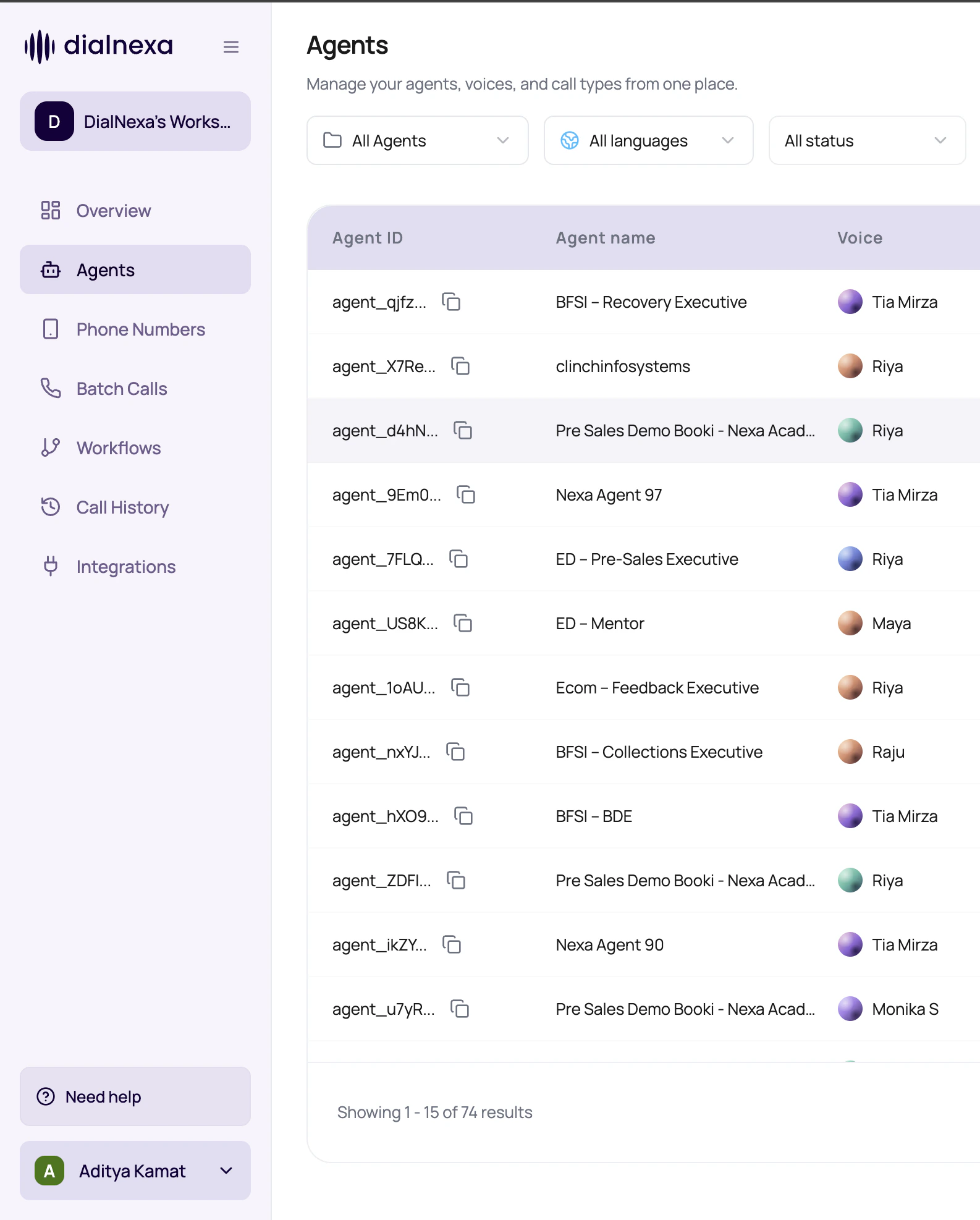 This page is the map you open before clicking randomly. Random clicking is a traditional debugging method, but it does not deserve documentation glory.
## What Each Main Tab Owns
Use this as the first routing table for the dashboard.
Create, import, organize, edit, test, publish, duplicate, export, move, and delete Voice AI agents.
Buy or link numbers, assign inbound and outbound agent versions, manage SIP trunks, and place single outbound calls.
Upload recipient CSVs, choose an outbound number, set schedule and retries, save drafts, and start campaigns.
Build node-based automation with voice calls, conditions, wait times, application actions, leads, and lead history.
Connect available providers, validate connections, inspect actions, and request new integration coverage when enabled.
Filter calls, open details, play recordings, read transcripts, review extracted fields, inspect transfers, and export data.
Create API keys, rotate access, create webhook secrets, and copy credentials that are shown once.
Configure the workspace HTTPS endpoint that receives call events, retries, and delivery results.
## Sidebar Behaviors Worth Knowing
The left navigation changes state based on workspace context and account readiness.
| Behavior | What users should expect |
| ----------------------- | ------------------------------------------------------------------------------------------------------------------- |
| Workspace switcher | Switching workspace changes the agents, numbers, campaigns, workflows, integrations, keys, and logs you can access. |
| Collapsed sidebar | The sidebar can collapse to icons, but active routes still highlight the current product area. |
| Batch Calls readiness | Batch Calls can be disabled until KYC is verified. If the tab is blocked, complete account readiness first. |
| Wallet and profile area | The lower sidebar area exposes balance, recharge access, profile actions, and workspace settings where available. |
## Move Through The Platform Without Losing Context
Open the tab that owns the object you need to change: agent, number, campaign, workflow, integration, key, or webhook.
For agent behavior, publish the version before assigning it to numbers, batch campaigns, or workflows.
Start one call, a batch, or a workflow from the page designed for that launch mode.
Use Call History as the common proof layer after any live or test action.
## Navigation Confusions To Avoid
Use Webhooks for the workspace event endpoint. Use Agent Webhooks from agent settings when you only need to enable or disable webhook events for that agent.
A test call can prove the agent talks. Phone number assignment proves the right published version is routed for live inbound or outbound traffic.
Workflow status describes the automation. Call status describes one call inside that automation.
Connection stores credentials. Actions are the actual things an agent function or workflow application node can perform.
## Related Reading
Understand overview behavior.
Read the navigation details.
Route live traffic correctly.
Audit what happened.
This page is the map you open before clicking randomly. Random clicking is a traditional debugging method, but it does not deserve documentation glory.
## What Each Main Tab Owns
Use this as the first routing table for the dashboard.
Create, import, organize, edit, test, publish, duplicate, export, move, and delete Voice AI agents.
Buy or link numbers, assign inbound and outbound agent versions, manage SIP trunks, and place single outbound calls.
Upload recipient CSVs, choose an outbound number, set schedule and retries, save drafts, and start campaigns.
Build node-based automation with voice calls, conditions, wait times, application actions, leads, and lead history.
Connect available providers, validate connections, inspect actions, and request new integration coverage when enabled.
Filter calls, open details, play recordings, read transcripts, review extracted fields, inspect transfers, and export data.
Create API keys, rotate access, create webhook secrets, and copy credentials that are shown once.
Configure the workspace HTTPS endpoint that receives call events, retries, and delivery results.
## Sidebar Behaviors Worth Knowing
The left navigation changes state based on workspace context and account readiness.
| Behavior | What users should expect |
| ----------------------- | ------------------------------------------------------------------------------------------------------------------- |
| Workspace switcher | Switching workspace changes the agents, numbers, campaigns, workflows, integrations, keys, and logs you can access. |
| Collapsed sidebar | The sidebar can collapse to icons, but active routes still highlight the current product area. |
| Batch Calls readiness | Batch Calls can be disabled until KYC is verified. If the tab is blocked, complete account readiness first. |
| Wallet and profile area | The lower sidebar area exposes balance, recharge access, profile actions, and workspace settings where available. |
## Move Through The Platform Without Losing Context
Open the tab that owns the object you need to change: agent, number, campaign, workflow, integration, key, or webhook.
For agent behavior, publish the version before assigning it to numbers, batch campaigns, or workflows.
Start one call, a batch, or a workflow from the page designed for that launch mode.
Use Call History as the common proof layer after any live or test action.
## Navigation Confusions To Avoid
Use Webhooks for the workspace event endpoint. Use Agent Webhooks from agent settings when you only need to enable or disable webhook events for that agent.
A test call can prove the agent talks. Phone number assignment proves the right published version is routed for live inbound or outbound traffic.
Workflow status describes the automation. Call status describes one call inside that automation.
Connection stores credentials. Actions are the actual things an agent function or workflow application node can perform.
## Related Reading
Understand overview behavior.
Read the navigation details.
Route live traffic correctly.
Audit what happened.