> ## Documentation Index
> Fetch the complete documentation index at: https://dialnexa.com/docs/llms.txt
> Use this file to discover all available pages before exploring further.
# DialNexa Call Detail Page
> Understand the DialNexa call detail page with recording playback, download, transcript tabs, summary, custom fields, transfers, audio cache, and annotations.
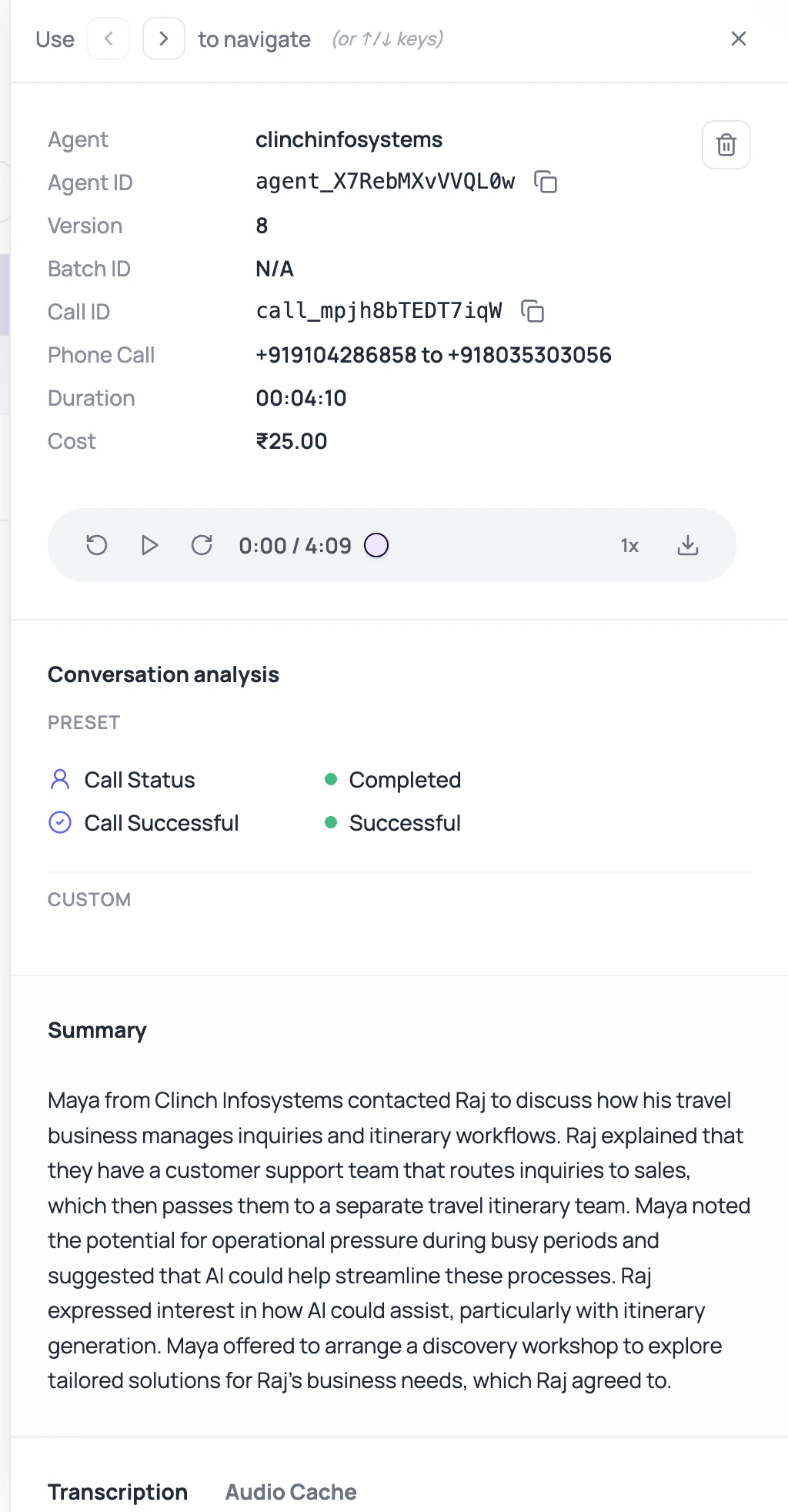
The DialNexa call detail page is the review surface for one call. It can show playback controls, recording download, transcript copy, live and accurate transcript tabs, summary, status, duration, cost, custom extracted fields, transfer details, Audio Cache data, and annotations.
 Do not debug only from the summary. Summaries are useful. Recordings are witnesses.
## What Each Section Answers
| Section | Question it answers |
| ------------------- | -------------------------------------------------------------------------------------------------- |
| Header and metadata | Which call, agent, status, duration, and cost are we reviewing? |
| Audio player | What did the caller and agent actually sound like? |
| Summary | What was the short outcome of the call? |
| Custom fields | What did post-call analysis extract from the call, including typed fields such as DateTime values? |
| Transcription tab | What did the live or accurate transcript say? |
| Transfers tab | Did the agent attempt a human handoff and what happened? |
| Audio Cache tab | Did repeated speech use cached audio or create new entries? |
## Transcript Tabs
| Tab | Use it when |
| ------------------- | ---------------------------------------------------------------------------------------- |
| Live Transcript | Debug what the agent heard before replying. Best for interruptions and timing issues. |
| Accurate Transcript | Review cleaner post-call transcript text where available. Best for audits and summaries. |
## Useful Actions
Download audio when available and allowed.
Copy transcript text for review.
Create prompt improvement notes from a specific transcript turn.
## Review One Call Thoroughly
Check whether the call completed, failed, ended early, or hit voicemail.
Listen before judging prompt behavior.
Spot transcription errors, interruptions, overlap, noise, or silence.
Confirm structured outputs match what happened in the call. DateTime fields can be shown as readable dates and times while keeping ISO 8601 values for exports.
Use Transfers and Audio Cache when those features were involved.
## Related Reading
Review audio and text.
Read extracted values.
Inspect special call behavior.
Do not debug only from the summary. Summaries are useful. Recordings are witnesses.
## What Each Section Answers
| Section | Question it answers |
| ------------------- | -------------------------------------------------------------------------------------------------- |
| Header and metadata | Which call, agent, status, duration, and cost are we reviewing? |
| Audio player | What did the caller and agent actually sound like? |
| Summary | What was the short outcome of the call? |
| Custom fields | What did post-call analysis extract from the call, including typed fields such as DateTime values? |
| Transcription tab | What did the live or accurate transcript say? |
| Transfers tab | Did the agent attempt a human handoff and what happened? |
| Audio Cache tab | Did repeated speech use cached audio or create new entries? |
## Transcript Tabs
| Tab | Use it when |
| ------------------- | ---------------------------------------------------------------------------------------- |
| Live Transcript | Debug what the agent heard before replying. Best for interruptions and timing issues. |
| Accurate Transcript | Review cleaner post-call transcript text where available. Best for audits and summaries. |
## Useful Actions
Download audio when available and allowed.
Copy transcript text for review.
Create prompt improvement notes from a specific transcript turn.
## Review One Call Thoroughly
Check whether the call completed, failed, ended early, or hit voicemail.
Listen before judging prompt behavior.
Spot transcription errors, interruptions, overlap, noise, or silence.
Confirm structured outputs match what happened in the call. DateTime fields can be shown as readable dates and times while keeping ISO 8601 values for exports.
Use Transfers and Audio Cache when those features were involved.
## Related Reading
Review audio and text.
Read extracted values.
Inspect special call behavior.