> ## Documentation Index
> Fetch the complete documentation index at: https://dialnexa.com/docs/llms.txt
> Use this file to discover all available pages before exploring further.
# Import Agents
> Import a DialNexa agent JSON configuration into your workspace. Understand what transfers on import, what does not, and how to handle common import errors.
DialNexa agents can be exported as JSON and imported into any workspace. Importing is the fastest way to replicate an agent configuration across workspaces, onboard a new customer with a pre-built setup, or restore an agent from a backup.
## Before You Begin
Use an exported DialNexa agent JSON file from a trusted workspace. Keep the original agent available until the imported configuration has been reviewed and tested.
## Where to Find the Import Action
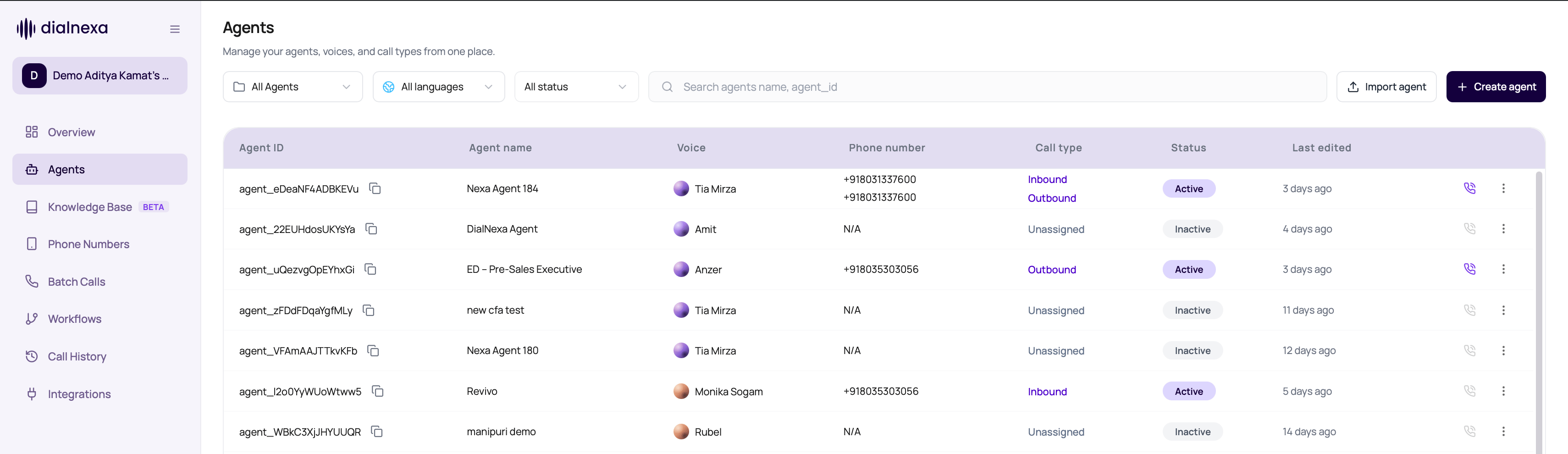
On the **Agents** tab, click the **Import Agent** button in the top right area of the page (next to **Create agent**). A file picker opens. Select the JSON file exported from DialNexa.
Alternatively, if you are in a folder view, the import button is available at the folder level and will place the imported agent into that folder.
 ## What the JSON Contains
A DialNexa agent export is a JSON object that captures the full configuration of a specific agent version. The structure includes:
| Section | What it stores |
| ------------------------- | --------------------------------------------------------------------------------------------------- |
| Agent metadata | Name, description, and agent type, such as single prompt, conversational flow, or speech to speech. |
| Conversation stack | Language, voice provider, voice ID, voice model, LLM provider, model, temperature, transcriber |
| Prompt | System prompt text, including any `{{variable}}` placeholders |
| Welcome message | The first thing the agent says when a call connects |
| Voicemail message | The message left if voicemail is detected |
| Functions | HTTP function definitions with endpoint, method, headers, and parameter mappings |
| Speech settings | Response eagerness, audio cache, denoising mode, Hinglish map |
| Call settings | Voicemail detection, end call on silence, max call duration |
| Post-call analysis | Extracted field definitions (intent, sentiment, custom fields) |
| Dynamic variable defaults | Fallback values for variables used in the prompt |
| Routing IDs | Inbound and outbound phone number IDs where the export includes them |
| Agent webhooks | Per-agent webhook endpoint configurations |
## What Does Not Transfer on Import
Some configuration is workspace-specific and cannot be transferred via JSON.
| What is excluded | Why |
| --------------------------------- | -------------------------------------------------------------------------------------------------------------------------------------------------------------------------- |
| Portable phone number assignments | Phone numbers are provisioned per workspace. If the JSON contains phone number IDs, they must belong to the destination workspace and still need review before publishing. |
| Published version state | The import creates a draft. You must publish explicitly in the new workspace. |
| Workflow connections | Workflow routing is configured in the destination workspace separately. |
| Batch call associations | Batch calls reference the imported agent only after you set them up in the new workspace. |
| Knowledge base attachments | Document files are not embedded in the export JSON. Re-attach files after import. |
Importing an agent always creates a draft version. The imported agent will not receive any live traffic until you publish it and assign it to a phone number, workflow, or batch call in the destination workspace.
## How to Import
In the source workspace, open the agent, click the row action menu or the agent settings menu, and select **Export**. DialNexa downloads a `.json` file to your computer.
Switch to the workspace where you want to import the agent. If you manage multiple workspaces, use the workspace selector in the top navigation.
On the Agents tab, click **Import Agent**. Select the `.json` file from your computer.
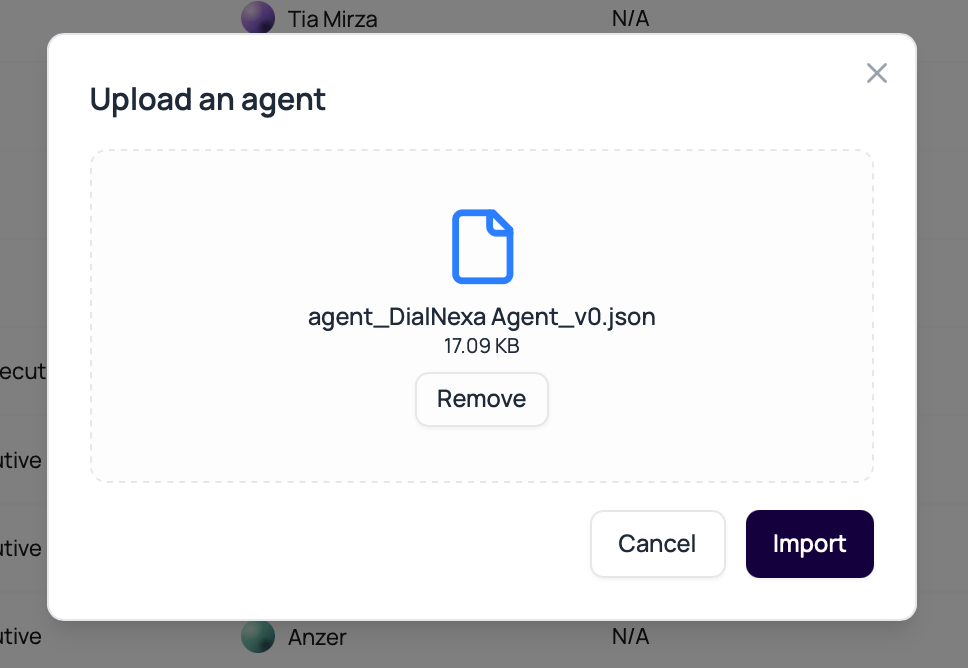
DialNexa validates the file and shows a preview of the agent name and configuration. Click **Import** to confirm. The button shows an importing state while the draft is being created.
The imported agent opens as a draft. Review the stack settings, prompt, and functions. Update anything that needs to differ in the new workspace (for example, API endpoints that point to a different environment).
When the agent is ready, publish it and assign it to the appropriate phone number, workflow, or batch call in this workspace.
## What the JSON Contains
A DialNexa agent export is a JSON object that captures the full configuration of a specific agent version. The structure includes:
| Section | What it stores |
| ------------------------- | --------------------------------------------------------------------------------------------------- |
| Agent metadata | Name, description, and agent type, such as single prompt, conversational flow, or speech to speech. |
| Conversation stack | Language, voice provider, voice ID, voice model, LLM provider, model, temperature, transcriber |
| Prompt | System prompt text, including any `{{variable}}` placeholders |
| Welcome message | The first thing the agent says when a call connects |
| Voicemail message | The message left if voicemail is detected |
| Functions | HTTP function definitions with endpoint, method, headers, and parameter mappings |
| Speech settings | Response eagerness, audio cache, denoising mode, Hinglish map |
| Call settings | Voicemail detection, end call on silence, max call duration |
| Post-call analysis | Extracted field definitions (intent, sentiment, custom fields) |
| Dynamic variable defaults | Fallback values for variables used in the prompt |
| Routing IDs | Inbound and outbound phone number IDs where the export includes them |
| Agent webhooks | Per-agent webhook endpoint configurations |
## What Does Not Transfer on Import
Some configuration is workspace-specific and cannot be transferred via JSON.
| What is excluded | Why |
| --------------------------------- | -------------------------------------------------------------------------------------------------------------------------------------------------------------------------- |
| Portable phone number assignments | Phone numbers are provisioned per workspace. If the JSON contains phone number IDs, they must belong to the destination workspace and still need review before publishing. |
| Published version state | The import creates a draft. You must publish explicitly in the new workspace. |
| Workflow connections | Workflow routing is configured in the destination workspace separately. |
| Batch call associations | Batch calls reference the imported agent only after you set them up in the new workspace. |
| Knowledge base attachments | Document files are not embedded in the export JSON. Re-attach files after import. |
Importing an agent always creates a draft version. The imported agent will not receive any live traffic until you publish it and assign it to a phone number, workflow, or batch call in the destination workspace.
## How to Import
In the source workspace, open the agent, click the row action menu or the agent settings menu, and select **Export**. DialNexa downloads a `.json` file to your computer.
Switch to the workspace where you want to import the agent. If you manage multiple workspaces, use the workspace selector in the top navigation.
On the Agents tab, click **Import Agent**. Select the `.json` file from your computer.
DialNexa validates the file and shows a preview of the agent name and configuration. Click **Import** to confirm. The button shows an importing state while the draft is being created.
The imported agent opens as a draft. Review the stack settings, prompt, and functions. Update anything that needs to differ in the new workspace (for example, API endpoints that point to a different environment).
When the agent is ready, publish it and assign it to the appropriate phone number, workflow, or batch call in this workspace.
 ## Supported JSON Format
The import endpoint accepts only JSON files exported by DialNexa. Manually authored JSON or files exported from third-party voice AI platforms are not supported.
The expected top-level structure is:
```json theme={null}
{
"agent_name": "...",
"agent_type": "single_prompt",
"language": "en",
"voice": { ... },
"llm": { ... },
"transcriber": { ... },
"prompt": "...",
"welcome_message": "...",
"functions": [ ... ],
"settings": { ... }
}
```
Fields that are missing from the JSON are set to their workspace defaults on import. Extra unrecognized fields are ignored. DialNexa also strips database-only post-call analysis fields from exports before they are imported again, so exported analysis definitions can be reused without carrying internal row IDs into the destination draft.
## Common Import Errors
The file could not be parsed. This happens if the file was manually edited and introduced a syntax error. Open the file in a JSON validator and fix the structure before retrying.
The agent type value in the JSON is not recognized. This can occur if the file was exported from a newer version of DialNexa than the destination workspace supports. Contact support if this occurs.
A voice ID or transcriber referenced in the JSON is not available in the destination workspace's region or plan. The import succeeds but that specific setting is reset to the workspace default. Review the stack after import.
Functions are imported as-is but the destination workspace cannot validate endpoints at import time. The function will appear in the agent settings. Test it with a test call after import.
Import files have a size limit. If the file exceeds the limit (typically caused by a malformed export), re-export from the source agent and retry.
## Verify The Imported Agent
Open the imported draft and review its prompt, provider stack, variables, functions, settings, and missing connections. Publish a test version, run a controlled call, and confirm the result in Call History.
## Related Reading
Choose the right agent type before building or importing.
Start from a pre-built template instead of an export.
Publish the imported draft to make it live.
Organize imported agents into the right folder.
## Supported JSON Format
The import endpoint accepts only JSON files exported by DialNexa. Manually authored JSON or files exported from third-party voice AI platforms are not supported.
The expected top-level structure is:
```json theme={null}
{
"agent_name": "...",
"agent_type": "single_prompt",
"language": "en",
"voice": { ... },
"llm": { ... },
"transcriber": { ... },
"prompt": "...",
"welcome_message": "...",
"functions": [ ... ],
"settings": { ... }
}
```
Fields that are missing from the JSON are set to their workspace defaults on import. Extra unrecognized fields are ignored. DialNexa also strips database-only post-call analysis fields from exports before they are imported again, so exported analysis definitions can be reused without carrying internal row IDs into the destination draft.
## Common Import Errors
The file could not be parsed. This happens if the file was manually edited and introduced a syntax error. Open the file in a JSON validator and fix the structure before retrying.
The agent type value in the JSON is not recognized. This can occur if the file was exported from a newer version of DialNexa than the destination workspace supports. Contact support if this occurs.
A voice ID or transcriber referenced in the JSON is not available in the destination workspace's region or plan. The import succeeds but that specific setting is reset to the workspace default. Review the stack after import.
Functions are imported as-is but the destination workspace cannot validate endpoints at import time. The function will appear in the agent settings. Test it with a test call after import.
Import files have a size limit. If the file exceeds the limit (typically caused by a malformed export), re-export from the source agent and retry.
## Verify The Imported Agent
Open the imported draft and review its prompt, provider stack, variables, functions, settings, and missing connections. Publish a test version, run a controlled call, and confirm the result in Call History.
## Related Reading
Choose the right agent type before building or importing.
Start from a pre-built template instead of an export.
Publish the imported draft to make it live.
Organize imported agents into the right folder.