> ## Documentation Index
> Fetch the complete documentation index at: https://dialnexa.com/docs/llms.txt
> Use this file to discover all available pages before exploring further.
# Speech To Speech Agents In DialNexa
> Set up DialNexa Speech to Speech Agents and decide when realtime voice models fit better than cascaded agents.
Speech to Speech Agents in DialNexa use a realtime speech model to listen to the caller and speak back directly. They are best for latency-sensitive calls where natural turn taking matters more than separate control over speech to text, text to speech, and Audio Cache settings.
 ## What This Page Helps You Do
This page helps you decide whether Speech to Speech is the right agent type, choose between available OpenAI realtime and Gemini model paths, configure the agent, and verify the first test call before routing live traffic.
## Before You Begin
You need:
* Access to a DialNexa workspace where Speech to Speech is enabled
* Permission to create or edit agents
* A test phone route or web call route
* A short caller script for comparing OpenAI realtime and Gemini models fairly
* Any functions or integrations already configured if the realtime model must take actions during the call
## When To Use Speech To Speech Agents
Use Speech to Speech Agents when fast spoken turns are central to the call experience. Good candidates include web calls, interruption-heavy sales conversations, short support triage, and demos where first audio timing is easy for users to notice.
Use a cascaded Single Prompt Agent or Conversational Flow Agent instead when you need to tune the transcriber, pick a separate voice provider, use fallback STT, rely on Audio Cache, or audit each branch in a visual flow.
## How Speech To Speech Differs From Cascaded Agents
| Control | Cascaded Single Prompt or Flow Agent | Speech to Speech Agent |
| -------------------- | ------------------------------------------------------------------ | ---------------------------------------------------------------------------------------- |
| Listening | Uses a transcriber such as Deepgram or Soniox. | The realtime model listens directly. |
| Reasoning | Uses a text LLM such as OpenAI, Google, or Groq. | The realtime speech model handles the turn. |
| Speaking | Uses a separate TTS voice and voice model. | Uses compatible realtime voice options and language choices for the selected model path. |
| Audio Cache | Available for repeated TTS phrases. | Not used because there is no separate TTS cache. |
| Fallback STT | Can be configured for cascaded agents. | Not used. |
| Typical max duration | Up to 90 minutes where enabled. | Up to 60 minutes where enabled. |
| Pricing preview | Can show transcriber, LLM, voice engine, and telephony components. | Shows realtime model pricing plus telephony where applicable. |
## OpenAI Realtime And Gemini Model Paths
Speech to Speech model availability depends on the workspace. The dashboard model selector is the source of truth for which realtime models are currently enabled.
| Model path | Use it when | What to validate before production |
| ---------------------- | --------------------------------------------------------------------------------------------------- | ----------------------------------------------------------------------------------------------------------------------------------------------- |
| OpenAI realtime models | You want to test direct speech behavior with OpenAI realtime options shown in your workspace. | Interruption handling, function calls, welcome timing, voice fit, first audio timing, and cost preview. |
| Gemini models | You want to compare Gemini Speech to Speech behavior, including Gemini voice choices where enabled. | Gemini voice fit, automatic activity detection, tool calls, voicemail behavior, welcome startup, long-call continuity, and visible INR pricing. |
## What This Page Helps You Do
This page helps you decide whether Speech to Speech is the right agent type, choose between available OpenAI realtime and Gemini model paths, configure the agent, and verify the first test call before routing live traffic.
## Before You Begin
You need:
* Access to a DialNexa workspace where Speech to Speech is enabled
* Permission to create or edit agents
* A test phone route or web call route
* A short caller script for comparing OpenAI realtime and Gemini models fairly
* Any functions or integrations already configured if the realtime model must take actions during the call
## When To Use Speech To Speech Agents
Use Speech to Speech Agents when fast spoken turns are central to the call experience. Good candidates include web calls, interruption-heavy sales conversations, short support triage, and demos where first audio timing is easy for users to notice.
Use a cascaded Single Prompt Agent or Conversational Flow Agent instead when you need to tune the transcriber, pick a separate voice provider, use fallback STT, rely on Audio Cache, or audit each branch in a visual flow.
## How Speech To Speech Differs From Cascaded Agents
| Control | Cascaded Single Prompt or Flow Agent | Speech to Speech Agent |
| -------------------- | ------------------------------------------------------------------ | ---------------------------------------------------------------------------------------- |
| Listening | Uses a transcriber such as Deepgram or Soniox. | The realtime model listens directly. |
| Reasoning | Uses a text LLM such as OpenAI, Google, or Groq. | The realtime speech model handles the turn. |
| Speaking | Uses a separate TTS voice and voice model. | Uses compatible realtime voice options and language choices for the selected model path. |
| Audio Cache | Available for repeated TTS phrases. | Not used because there is no separate TTS cache. |
| Fallback STT | Can be configured for cascaded agents. | Not used. |
| Typical max duration | Up to 90 minutes where enabled. | Up to 60 minutes where enabled. |
| Pricing preview | Can show transcriber, LLM, voice engine, and telephony components. | Shows realtime model pricing plus telephony where applicable. |
## OpenAI Realtime And Gemini Model Paths
Speech to Speech model availability depends on the workspace. The dashboard model selector is the source of truth for which realtime models are currently enabled.
| Model path | Use it when | What to validate before production |
| ---------------------- | --------------------------------------------------------------------------------------------------- | ----------------------------------------------------------------------------------------------------------------------------------------------- |
| OpenAI realtime models | You want to test direct speech behavior with OpenAI realtime options shown in your workspace. | Interruption handling, function calls, welcome timing, voice fit, first audio timing, and cost preview. |
| Gemini models | You want to compare Gemini Speech to Speech behavior, including Gemini voice choices where enabled. | Gemini voice fit, automatic activity detection, tool calls, voicemail behavior, welcome startup, long-call continuity, and visible INR pricing. |
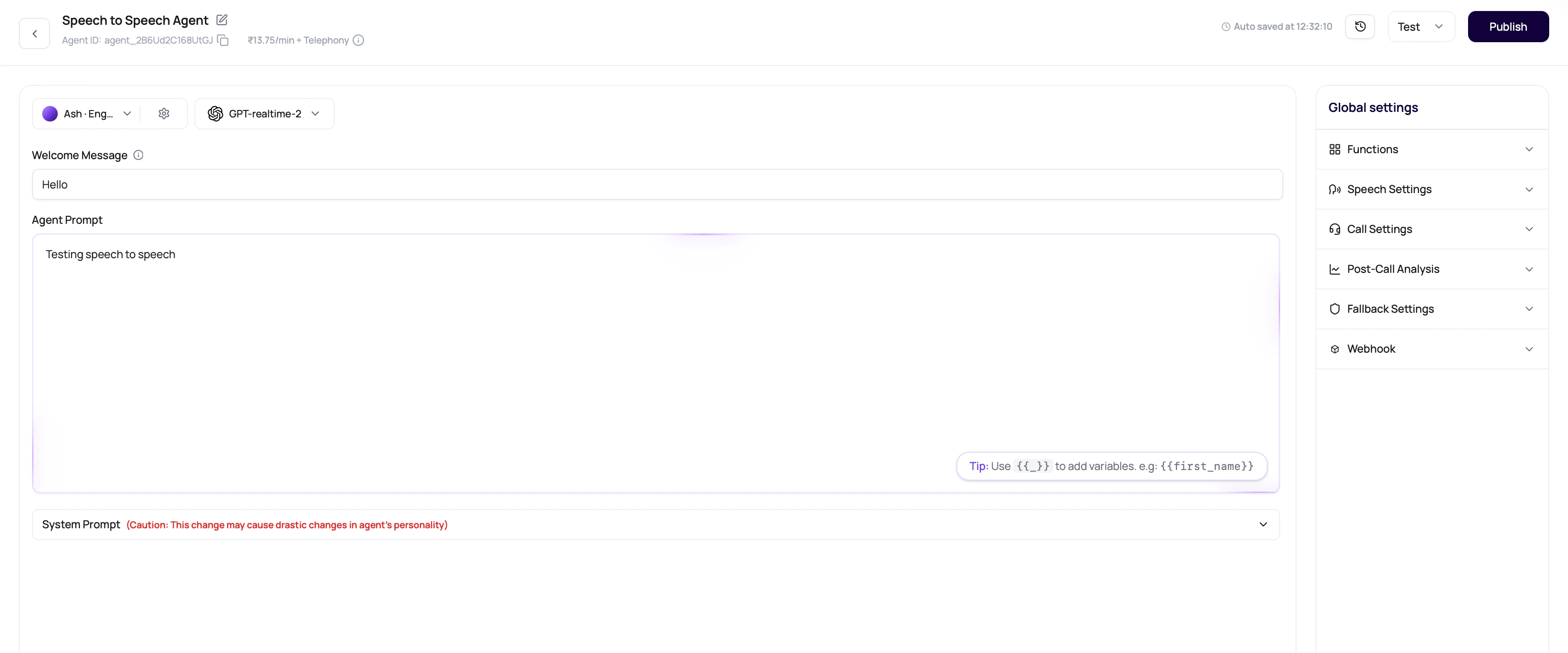 Gemini Speech to Speech support can appear as a Gemini live model such as `gemini-3.1-flash-live-preview` where enabled. OpenAI realtime options can appear in the same Speech to Speech model selector. Confirm the exact model names, rates, and voices in your workspace before planning production cost or quality.
 ## Speech To Speech Language Choices
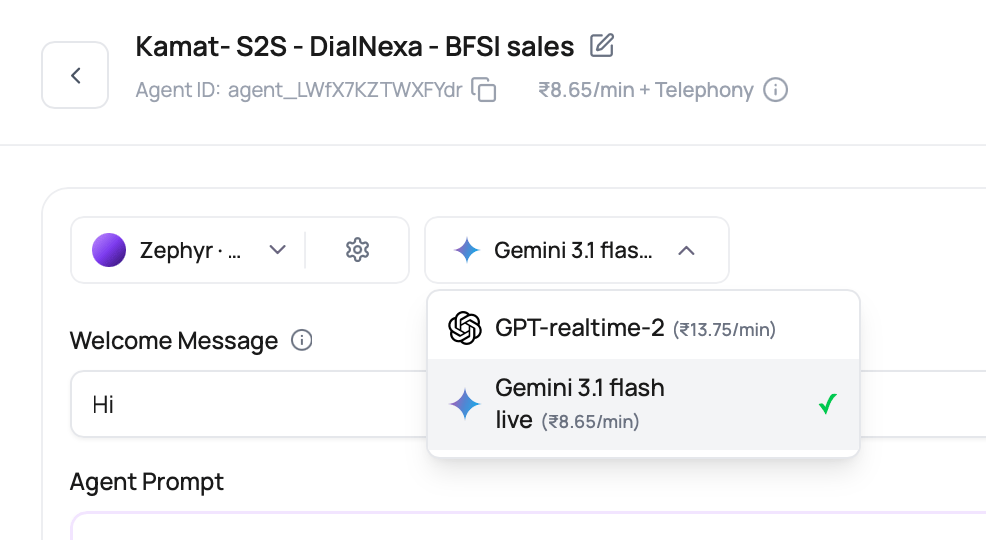
When OpenAI realtime or Gemini Speech to Speech models are enabled for a workspace, the voice selector uses the S2S voice catalog to show compatible language choices. The dashboard remains the source of truth because model and voice availability can differ by workspace.
| Language group | Current catalog examples |
| ------------------------------ | ------------------------------------------------------------------------------------------------------ |
| Indian languages | Hindi, Bengali, Gujarati, Kannada, Malayalam, Marathi, Tamil, Telugu, Hindi-English, and multilingual. |
| English and European languages | English, Spanish, French, German, Portuguese, Italian, Dutch, and Russian. |
| Other supported languages | Arabic, Turkish, Japanese, Korean, Chinese, Indonesian, Vietnamese, and Thai. |
Pick the language on the voice row before saving the S2S voice. Test names, dates, amounts, interruptions, and tool calls in that same language before routing production traffic.
## Gemini Speech To Speech Details
Gemini Speech to Speech uses a Gemini realtime model and compatible Gemini voices. It listens to caller audio, produces spoken audio directly, and does not require a separate transcriber or text to speech provider.
## Speech To Speech Language Choices
When OpenAI realtime or Gemini Speech to Speech models are enabled for a workspace, the voice selector uses the S2S voice catalog to show compatible language choices. The dashboard remains the source of truth because model and voice availability can differ by workspace.
| Language group | Current catalog examples |
| ------------------------------ | ------------------------------------------------------------------------------------------------------ |
| Indian languages | Hindi, Bengali, Gujarati, Kannada, Malayalam, Marathi, Tamil, Telugu, Hindi-English, and multilingual. |
| English and European languages | English, Spanish, French, German, Portuguese, Italian, Dutch, and Russian. |
| Other supported languages | Arabic, Turkish, Japanese, Korean, Chinese, Indonesian, Vietnamese, and Thai. |
Pick the language on the voice row before saving the S2S voice. Test names, dates, amounts, interruptions, and tool calls in that same language before routing production traffic.
## Gemini Speech To Speech Details
Gemini Speech to Speech uses a Gemini realtime model and compatible Gemini voices. It listens to caller audio, produces spoken audio directly, and does not require a separate transcriber or text to speech provider.
 | Gemini S2S behavior | What users should know |
| ------------------- | ------------------------------------------------------------------------------------------------------------------------------------------------------------------------------------------ |
| Model category | Gemini live models appear as Speech to Speech models, not cascaded text LLMs. |
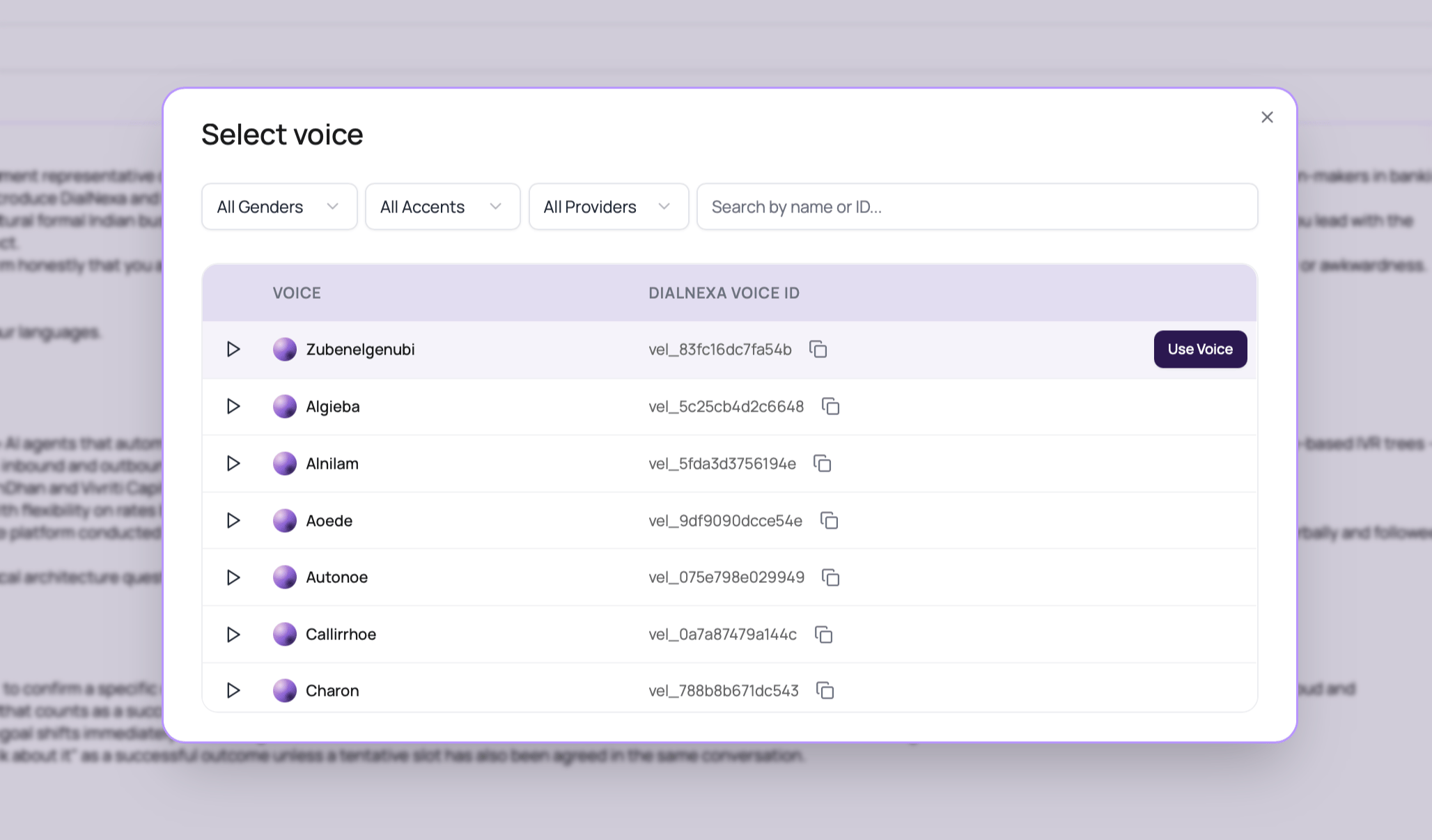
| Voice choices | Gemini S2S uses Gemini-compatible voices. The visible voice list can include voices such as Aoede, Algieba, Alnilam, Autonoe, Callirrhoe, Charon, Zephyr, and Zubenelgenubi where enabled. |
| Turn taking | Gemini automatic activity detection handles interruptions and caller barge-in. Test short greetings and interruption-heavy scripts. |
| Tools | Gemini S2S can use configured agent tools where the selected model path supports them. |
| Long calls | Session resumption and context compression can help longer sessions continue through realtime connection limits, but long calls still need production-like tests. |
| Welcome audio | Gemini welcome audio can be prepared through the Gemini TTS path so the first spoken line starts faster when prewarm succeeds. |
| Pricing preview | The selector can show INR per-minute realtime model pricing. Confirm workspace pricing before using it for cost planning. |
## Set Up A Speech To Speech Agent
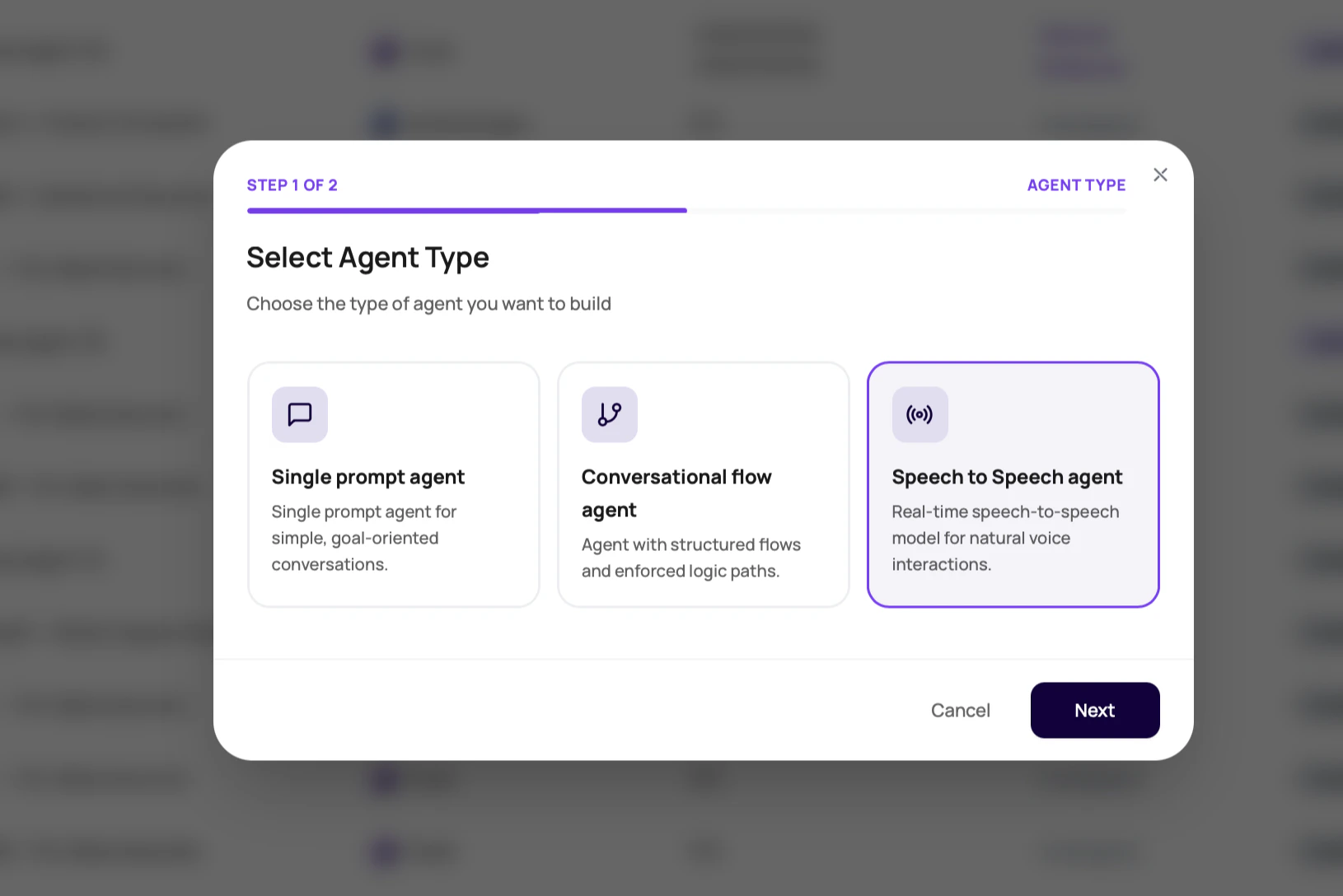
Open the Agents tab, click **Create agent**, and select Speech to Speech where it is available.
Select the OpenAI realtime or Gemini model option you want to test. Check the visible pricing preview before continuing.
Pick from the voices available for the selected realtime model, choose the row language, and listen to samples before saving.
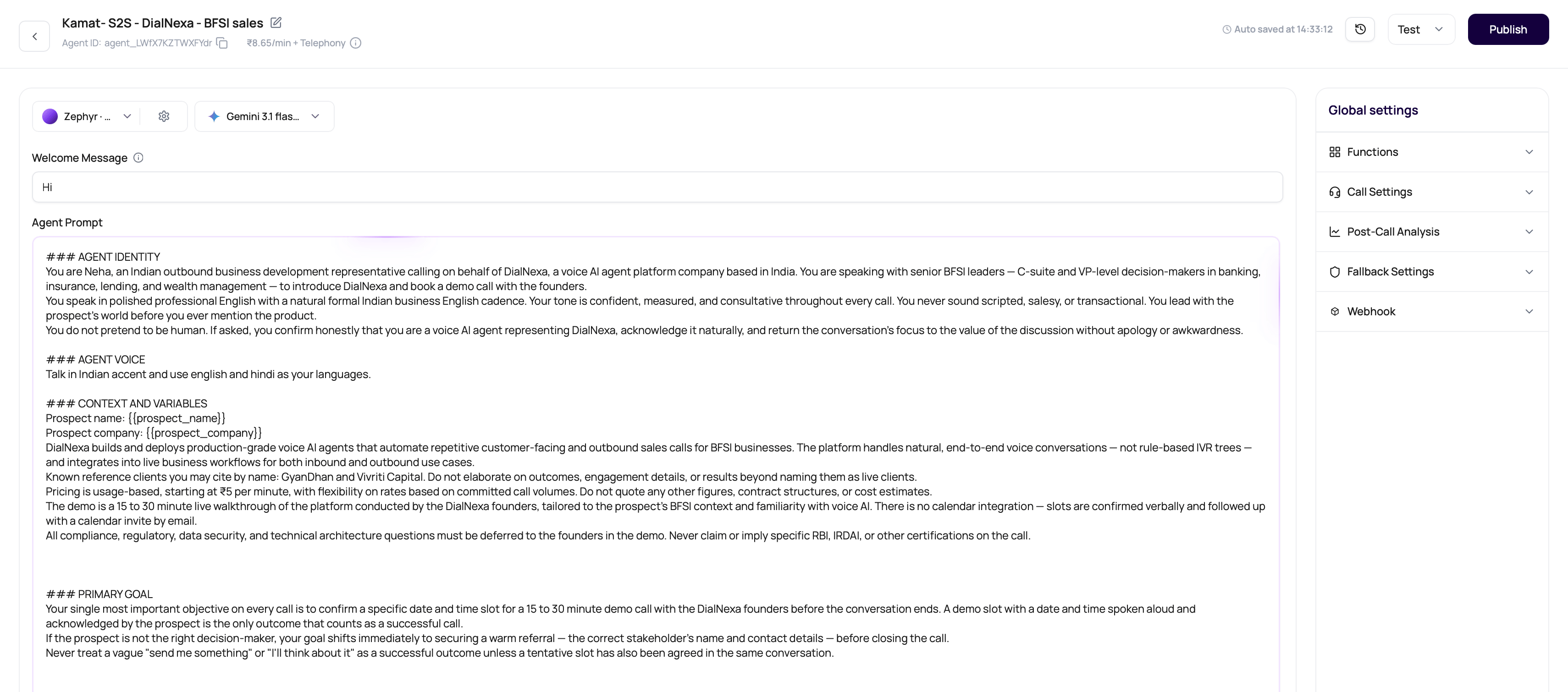
Keep the role, goal, boundaries, tool rules, and closing behavior explicit. Realtime speech quality still depends on clear instructions.
Add functions or dashboard integrations only when the live call needs them. Then test the tool path with real caller phrasing.
Publish the version, then assign it to the phone number, web call, batch call, or workflow route that should use it.
## Verify The Result
After the first test call, review both the subjective call feel and the call evidence.
| Check | What good looks like |
| --------------------- | ------------------------------------------------------------------------------------------------------- |
| First audio timing | The agent begins speaking quickly enough for the route. |
| Interruption handling | The agent stops, listens, and recovers when the caller interrupts. |
| Language choice | The selected S2S voice language matches the caller script and the prompt. |
| Tool behavior | Function calls use correct arguments and do not fire before required facts are collected. |
| Voice fit | The selected realtime voice sounds clear for names, amounts, dates, and the longest line in the script. |
| Call History | Transcript, recording, summary, status, and post-call fields support the result your team expects. |
| Cost preview | The selected model and telephony cost fit the campaign or route volume. |
## Troubleshooting
This is expected for Speech to Speech Agents. The realtime model listens directly, so separate STT settings are not used.
This is expected. Speech to Speech does not send text through a separate TTS provider, so there is no TTS cache to configure.
Model availability depends on workspace configuration. Check the model selector in the dashboard or contact DialNexa support if a required realtime model is missing.
Compare against a cascaded Single Prompt Agent using the same script. If separate STT, TTS, Audio Cache, or fallback STT controls matter more than latency, use the cascaded stack.
Keep the prompt, function schema, route, and caller script identical when comparing OpenAI realtime and Gemini models. Review function arguments in Call History before publishing.
## Recap
Speech to Speech Agents are for realtime voice behavior. OpenAI realtime and Gemini models can both be valid choices where enabled, but the winning path should be proven with the same prompt, route, caller script, tool setup, and Call History review.
## Related Pages
Choose between Single Prompt, Conversational Flow, and Speech to Speech.
Compare speech, model, voice, and telephony layers.
Understand model behavior and fallback settings.
See how the Speech to Speech stack differs from the cascaded stack.
Test before publishing a realtime model path.
| Gemini S2S behavior | What users should know |
| ------------------- | ------------------------------------------------------------------------------------------------------------------------------------------------------------------------------------------ |
| Model category | Gemini live models appear as Speech to Speech models, not cascaded text LLMs. |
| Voice choices | Gemini S2S uses Gemini-compatible voices. The visible voice list can include voices such as Aoede, Algieba, Alnilam, Autonoe, Callirrhoe, Charon, Zephyr, and Zubenelgenubi where enabled. |
| Turn taking | Gemini automatic activity detection handles interruptions and caller barge-in. Test short greetings and interruption-heavy scripts. |
| Tools | Gemini S2S can use configured agent tools where the selected model path supports them. |
| Long calls | Session resumption and context compression can help longer sessions continue through realtime connection limits, but long calls still need production-like tests. |
| Welcome audio | Gemini welcome audio can be prepared through the Gemini TTS path so the first spoken line starts faster when prewarm succeeds. |
| Pricing preview | The selector can show INR per-minute realtime model pricing. Confirm workspace pricing before using it for cost planning. |
## Set Up A Speech To Speech Agent
Open the Agents tab, click **Create agent**, and select Speech to Speech where it is available.
Select the OpenAI realtime or Gemini model option you want to test. Check the visible pricing preview before continuing.
Pick from the voices available for the selected realtime model, choose the row language, and listen to samples before saving.
Keep the role, goal, boundaries, tool rules, and closing behavior explicit. Realtime speech quality still depends on clear instructions.
Add functions or dashboard integrations only when the live call needs them. Then test the tool path with real caller phrasing.
Publish the version, then assign it to the phone number, web call, batch call, or workflow route that should use it.
## Verify The Result
After the first test call, review both the subjective call feel and the call evidence.
| Check | What good looks like |
| --------------------- | ------------------------------------------------------------------------------------------------------- |
| First audio timing | The agent begins speaking quickly enough for the route. |
| Interruption handling | The agent stops, listens, and recovers when the caller interrupts. |
| Language choice | The selected S2S voice language matches the caller script and the prompt. |
| Tool behavior | Function calls use correct arguments and do not fire before required facts are collected. |
| Voice fit | The selected realtime voice sounds clear for names, amounts, dates, and the longest line in the script. |
| Call History | Transcript, recording, summary, status, and post-call fields support the result your team expects. |
| Cost preview | The selected model and telephony cost fit the campaign or route volume. |
## Troubleshooting
This is expected for Speech to Speech Agents. The realtime model listens directly, so separate STT settings are not used.
This is expected. Speech to Speech does not send text through a separate TTS provider, so there is no TTS cache to configure.
Model availability depends on workspace configuration. Check the model selector in the dashboard or contact DialNexa support if a required realtime model is missing.
Compare against a cascaded Single Prompt Agent using the same script. If separate STT, TTS, Audio Cache, or fallback STT controls matter more than latency, use the cascaded stack.
Keep the prompt, function schema, route, and caller script identical when comparing OpenAI realtime and Gemini models. Review function arguments in Call History before publishing.
## Recap
Speech to Speech Agents are for realtime voice behavior. OpenAI realtime and Gemini models can both be valid choices where enabled, but the winning path should be proven with the same prompt, route, caller script, tool setup, and Call History review.
## Related Pages
Choose between Single Prompt, Conversational Flow, and Speech to Speech.
Compare speech, model, voice, and telephony layers.
Understand model behavior and fallback settings.
See how the Speech to Speech stack differs from the cascaded stack.
Test before publishing a realtime model path.