> ## Documentation Index
> Fetch the complete documentation index at: https://dialnexa.com/docs/llms.txt
> Use this file to discover all available pages before exploring further.
# Agent Versions and Publishing in DialNexa
> Understand DialNexa agent versions, draft vs. published state, version immutability, how to publish, how to roll back, and how routing ties to specific versions.
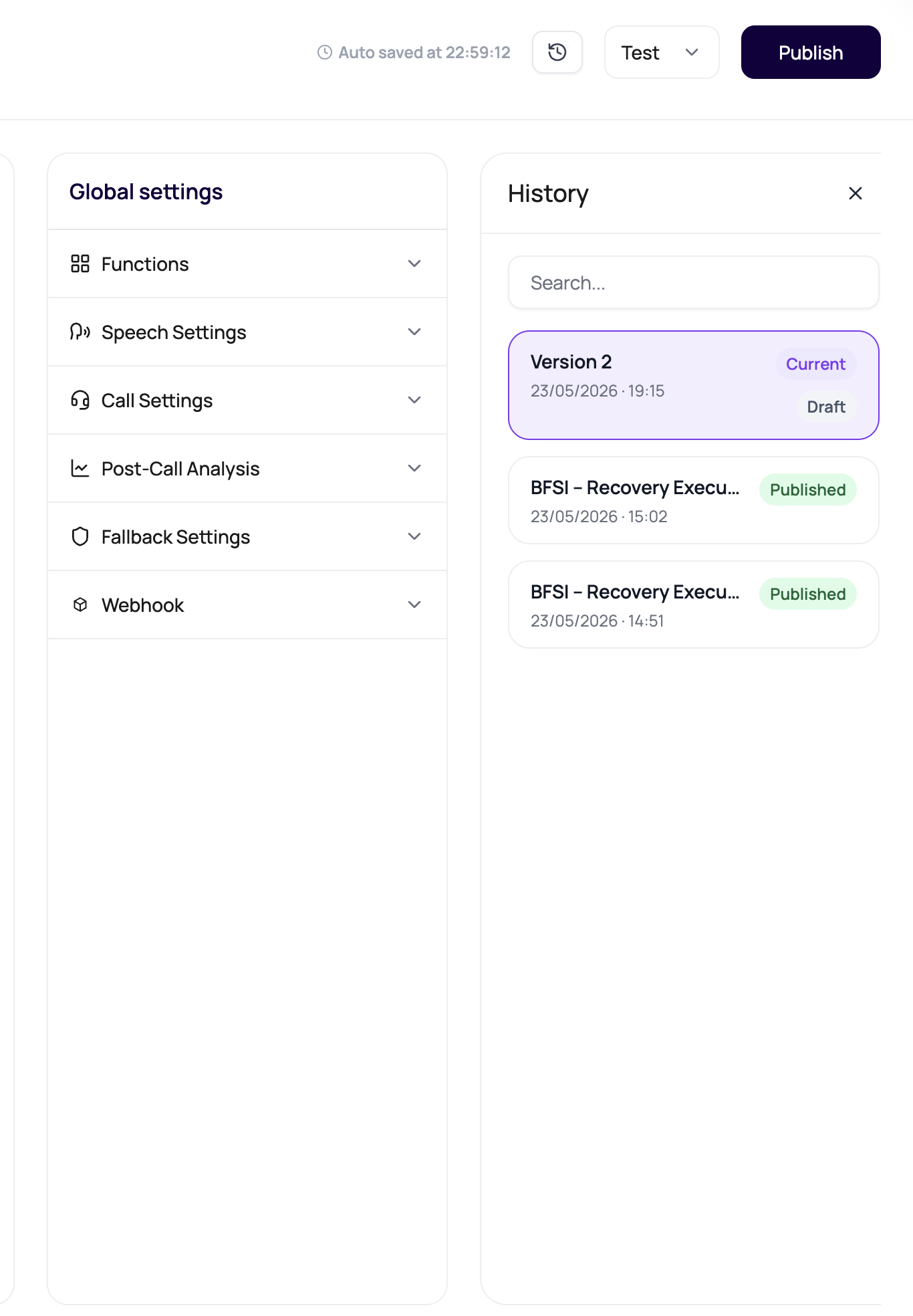
Agent versions in DialNexa separate draft editing from live call behavior. A published version is an immutable snapshot of the agent configuration that can be assigned to phone numbers, batch calls, workflows, and web calls. Draft edits are isolated from live traffic until explicitly published.
 The most dangerous version is the one everyone thinks is live but nobody actually published. Check the published version before assuming callers are getting the new behavior.
## What a Published Version Contains
Publishing captures every layer of the agent at that moment in time.
| Component | Included in published version |
| ---------------------------------------------------------- | ------------------------------------------------------------ |
| System prompt | Yes |
| Welcome message | Yes |
| Voicemail message | Yes |
| Language, voice, LLM, transcriber settings | Yes |
| Current time awareness timezone | Yes |
| Functions and custom functions | Yes |
| Speech settings (eagerness, denoising, Hinglish map) | Yes |
| Call settings (voicemail detection, max duration, silence) | Yes |
| Post-call analysis field definitions | Yes |
| Knowledge base attachments and retrieval settings | Yes, for supported cascaded agents |
| Dynamic variable defaults | Yes |
| Agent webhooks | Yes |
| Phone number assignments | No. Routing is configured separately and points to a version |
## Draft vs. Published State
The working state of the agent. All configuration controls are enabled. Changes in draft are not served to callers. You can save and iterate on a draft as many times as needed without affecting live traffic.
A draft becomes a published version when you click **Publish**. After publishing, the draft continues to exist as an editable state -- you can immediately make more changes and publish again as a new version.
An immutable snapshot created at the moment of publishing. Published versions cannot be edited. To change behavior, edit the draft and publish a new version.
Published versions remain in version history indefinitely. They can be assigned to routes at any time, including assigning an older version to roll back behavior.
Any published version that is not the current live version. Visible in version history. Can be viewed, compared to the current state, and re-assigned to a route to roll back behavior.
See [Agent History and Version Review](/agents/history-and-version-review) for how to access and compare historical versions.
## Why Versions Are Immutable
Immutability provides a reliable audit trail. When a call behaves unexpectedly, you can open the version that handled it and see exactly what prompt, voice, LLM settings, and functions were in place at that moment. If versions were mutable, retroactive edits could obscure what actually ran.
This also means you can safely experiment in draft state without risk: no draft edit goes live until you explicitly publish.
## How to Publish a Version
Edit the prompt, stack settings, functions, speech settings, call settings, and post-call analysis fields as needed. Save as you go.
Before publishing, test the draft configuration. From the agent builder, use the test call action and supply any required dynamic variable values. Confirm the agent behavior is correct.
Click the **Publish** button in the agent builder top bar.
Enter a descriptive version title. Use something that communicates what changed, for example: `v4 - added objection handling for price concerns` or `v2 - switched to Deepgram Flux for faster turns`. Avoid vague names like "final" or "updated".
Click **Publish** in the confirmation dialog. The version is now immutable and appears in version history.
Publishing does not automatically route traffic to the new version. You must update phone number assignments, batch calls, or workflows to use the new published version. Existing routes continue using their currently assigned version until you update them.
## Assigning a Version to a Route
After publishing, assign the version to the route where you want callers to reach it.
| Route type | Where to update the version |
| --------------------- | -------------------------------------------------------------------------------------------------------------------------------------------------------------------------------- |
| Inbound phone number | Phone Numbers shows the inbound agent context for the number. Manage the assigned published version from the agent or routing configuration flow, not by editing the row label. |
| Outbound phone number | Phone Numbers shows the outbound agent context for the number. Manage the assigned published version from the agent or routing configuration flow, not by editing the row label. |
| Batch call | Batch Calls > select campaign > choose agent version |
| Workflow | Workflow builder > agent node > choose version |
| Web call | Web Calls settings > choose version |
The Phone Numbers table shows assigned agent context for each number. It does not rename agents or edit published versions from the table row itself.
Always confirm the assigned version after updating. A mismatch between what you published and what is assigned to the route is a common cause of unexpected call behavior.
## Rolling Back to an Older Version
If a new published version causes call quality issues, roll back by reassigning the route to an earlier published version.
In the agent builder, open the version selector or click **Version History** in the agent settings. All published versions are listed with their titles and timestamps.
Look at the version titles and timestamps. Identify the version that was live before the problematic publish.
Open the route configuration surface for the phone number, batch call, or workflow that is receiving traffic. Where that surface exposes version assignment, select the last known good published version and save.
Place a test call or monitor the next inbound call to confirm behavior has reverted. Open Call History and check that the transcript matches expected behavior.
Rolling back does not delete the problematic version. It remains in history and can be inspected to understand what went wrong. Fix the issue in draft and publish a corrected version when ready.
## Version Fields You Will See
| Field | What it shows |
| ------------------- | ------------------------------------------------------- |
| Version number | Auto-incremented identifier for the version. |
| Version title | The human-readable label you entered at publish time. |
| Published timestamp | When the version was published. |
| Published by | Which user account published the version (where shown). |
| Live indicator | Whether this version is currently assigned to a route. |
## Version Mistakes to Avoid
A published version goes live as soon as a route is updated to use it. Test in draft first using the test call feature, including edge cases and off-script caller behavior.
Version titles are your primary debugging tool when something goes wrong in a live call. "Final v2" tells you nothing. "v5 - switched to GPT-4o, added transfer function" tells you exactly what changed.
Publishing a new version and assuming routes switch automatically is the most common mistake. Routes retain their current version assignment until you manually change them.
You cannot edit a published version. If controls are grayed out, you are viewing a published version. Switch to the draft to make changes, then publish again.
After a major publish, check all routes assigned to the agent. Old phone numbers may still point to version 1 while your team expects version 5 to be live everywhere.
## A Safe Publish Routine
Use a title that tells future users what changed and why.
Test the welcome message, variable rendering, each function call, any transfer behavior, post-call analysis fields, and the end-call path.
Click Publish only when you are confident the draft is correct.
Update phone number route configuration, batch calls, or workflows to the new version. Do not update all routes simultaneously on a large-scale deployment. Update one route, monitor a sample of calls, then expand.
Open Call History immediately after routing traffic. Check transcript quality, function call success, post-call field extraction, and call completion status.
## Related Reading
View and compare historical versions.
Assign published versions to inbound and outbound routes.
Understand how variable defaults are captured in published versions.
Test before publishing to catch issues early.
The most dangerous version is the one everyone thinks is live but nobody actually published. Check the published version before assuming callers are getting the new behavior.
## What a Published Version Contains
Publishing captures every layer of the agent at that moment in time.
| Component | Included in published version |
| ---------------------------------------------------------- | ------------------------------------------------------------ |
| System prompt | Yes |
| Welcome message | Yes |
| Voicemail message | Yes |
| Language, voice, LLM, transcriber settings | Yes |
| Current time awareness timezone | Yes |
| Functions and custom functions | Yes |
| Speech settings (eagerness, denoising, Hinglish map) | Yes |
| Call settings (voicemail detection, max duration, silence) | Yes |
| Post-call analysis field definitions | Yes |
| Knowledge base attachments and retrieval settings | Yes, for supported cascaded agents |
| Dynamic variable defaults | Yes |
| Agent webhooks | Yes |
| Phone number assignments | No. Routing is configured separately and points to a version |
## Draft vs. Published State
The working state of the agent. All configuration controls are enabled. Changes in draft are not served to callers. You can save and iterate on a draft as many times as needed without affecting live traffic.
A draft becomes a published version when you click **Publish**. After publishing, the draft continues to exist as an editable state -- you can immediately make more changes and publish again as a new version.
An immutable snapshot created at the moment of publishing. Published versions cannot be edited. To change behavior, edit the draft and publish a new version.
Published versions remain in version history indefinitely. They can be assigned to routes at any time, including assigning an older version to roll back behavior.
Any published version that is not the current live version. Visible in version history. Can be viewed, compared to the current state, and re-assigned to a route to roll back behavior.
See [Agent History and Version Review](/agents/history-and-version-review) for how to access and compare historical versions.
## Why Versions Are Immutable
Immutability provides a reliable audit trail. When a call behaves unexpectedly, you can open the version that handled it and see exactly what prompt, voice, LLM settings, and functions were in place at that moment. If versions were mutable, retroactive edits could obscure what actually ran.
This also means you can safely experiment in draft state without risk: no draft edit goes live until you explicitly publish.
## How to Publish a Version
Edit the prompt, stack settings, functions, speech settings, call settings, and post-call analysis fields as needed. Save as you go.
Before publishing, test the draft configuration. From the agent builder, use the test call action and supply any required dynamic variable values. Confirm the agent behavior is correct.
Click the **Publish** button in the agent builder top bar.
Enter a descriptive version title. Use something that communicates what changed, for example: `v4 - added objection handling for price concerns` or `v2 - switched to Deepgram Flux for faster turns`. Avoid vague names like "final" or "updated".
Click **Publish** in the confirmation dialog. The version is now immutable and appears in version history.
Publishing does not automatically route traffic to the new version. You must update phone number assignments, batch calls, or workflows to use the new published version. Existing routes continue using their currently assigned version until you update them.
## Assigning a Version to a Route
After publishing, assign the version to the route where you want callers to reach it.
| Route type | Where to update the version |
| --------------------- | -------------------------------------------------------------------------------------------------------------------------------------------------------------------------------- |
| Inbound phone number | Phone Numbers shows the inbound agent context for the number. Manage the assigned published version from the agent or routing configuration flow, not by editing the row label. |
| Outbound phone number | Phone Numbers shows the outbound agent context for the number. Manage the assigned published version from the agent or routing configuration flow, not by editing the row label. |
| Batch call | Batch Calls > select campaign > choose agent version |
| Workflow | Workflow builder > agent node > choose version |
| Web call | Web Calls settings > choose version |
The Phone Numbers table shows assigned agent context for each number. It does not rename agents or edit published versions from the table row itself.
Always confirm the assigned version after updating. A mismatch between what you published and what is assigned to the route is a common cause of unexpected call behavior.
## Rolling Back to an Older Version
If a new published version causes call quality issues, roll back by reassigning the route to an earlier published version.
In the agent builder, open the version selector or click **Version History** in the agent settings. All published versions are listed with their titles and timestamps.
Look at the version titles and timestamps. Identify the version that was live before the problematic publish.
Open the route configuration surface for the phone number, batch call, or workflow that is receiving traffic. Where that surface exposes version assignment, select the last known good published version and save.
Place a test call or monitor the next inbound call to confirm behavior has reverted. Open Call History and check that the transcript matches expected behavior.
Rolling back does not delete the problematic version. It remains in history and can be inspected to understand what went wrong. Fix the issue in draft and publish a corrected version when ready.
## Version Fields You Will See
| Field | What it shows |
| ------------------- | ------------------------------------------------------- |
| Version number | Auto-incremented identifier for the version. |
| Version title | The human-readable label you entered at publish time. |
| Published timestamp | When the version was published. |
| Published by | Which user account published the version (where shown). |
| Live indicator | Whether this version is currently assigned to a route. |
## Version Mistakes to Avoid
A published version goes live as soon as a route is updated to use it. Test in draft first using the test call feature, including edge cases and off-script caller behavior.
Version titles are your primary debugging tool when something goes wrong in a live call. "Final v2" tells you nothing. "v5 - switched to GPT-4o, added transfer function" tells you exactly what changed.
Publishing a new version and assuming routes switch automatically is the most common mistake. Routes retain their current version assignment until you manually change them.
You cannot edit a published version. If controls are grayed out, you are viewing a published version. Switch to the draft to make changes, then publish again.
After a major publish, check all routes assigned to the agent. Old phone numbers may still point to version 1 while your team expects version 5 to be live everywhere.
## A Safe Publish Routine
Use a title that tells future users what changed and why.
Test the welcome message, variable rendering, each function call, any transfer behavior, post-call analysis fields, and the end-call path.
Click Publish only when you are confident the draft is correct.
Update phone number route configuration, batch calls, or workflows to the new version. Do not update all routes simultaneously on a large-scale deployment. Update one route, monitor a sample of calls, then expand.
Open Call History immediately after routing traffic. Check transcript quality, function call success, post-call field extraction, and call completion status.
## Related Reading
View and compare historical versions.
Assign published versions to inbound and outbound routes.
Understand how variable defaults are captured in published versions.
Test before publishing to catch issues early.