> ## Documentation Index
> Fetch the complete documentation index at: https://dialnexa.com/docs/llms.txt
> Use this file to discover all available pages before exploring further.
# DialNexa Post-Call Analysis
> Configure DialNexa post-call analysis fields for text, selector, boolean, number, and DateTime extraction from completed calls.
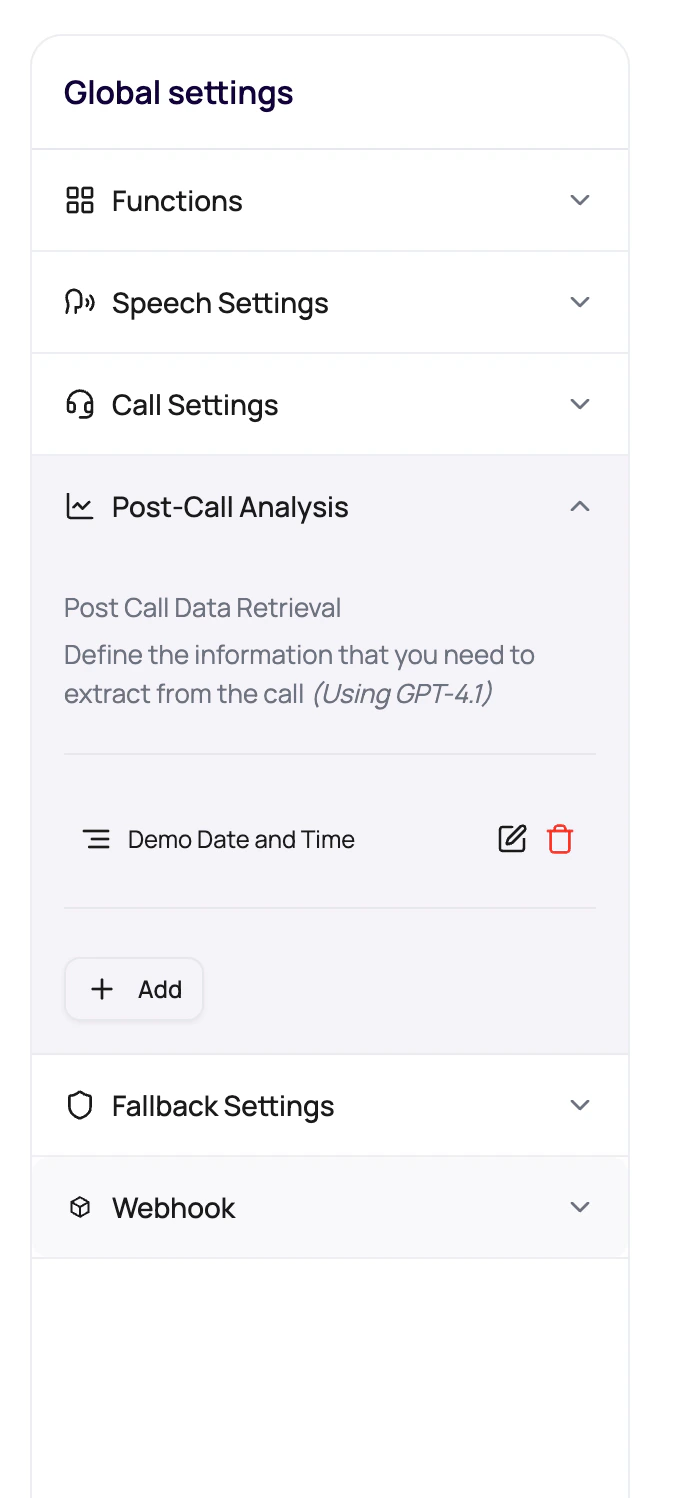
DialNexa post-call analysis extracts structured fields from a completed call. Define the extraction fields here; review the extracted values per call in [Post-Call Analysis Results](/monitoring/post-call-analysis-results). Users can add, edit, delete, and reorder text, selector, boolean, number, and DateTime fields so Call History and exports show outcomes such as summary, call result, customer interest, age, qualification, callback time, or next step.
 If operations needs a column later, define the field before the campaign. Future-you has enough to do.
## Supported Field Types
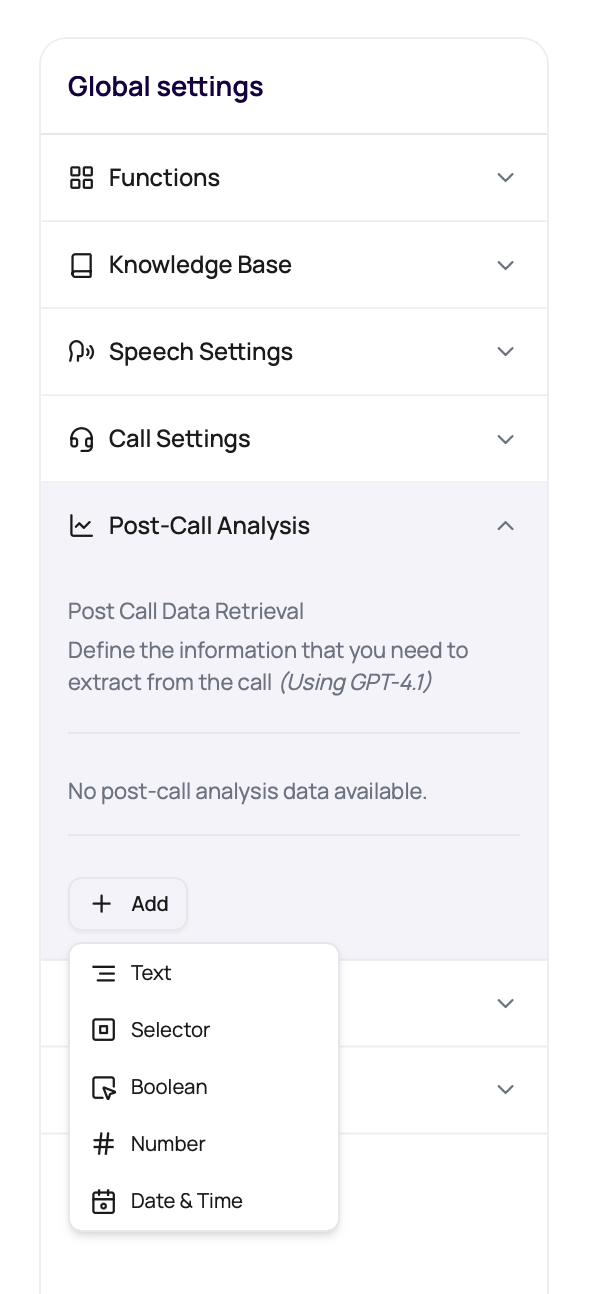
Choose the type that matches the value you need.
| Type | Best for | Example |
| -------- | ---------------------------------------------------- | ---------------------------------------------------------------------------- |
| Text | Free-form summaries or notes. | `call_summary` |
| Selector | One value from a known set. | `call_outcome`: Resolved, Escalated, Follow-up Required |
| Boolean | True or false outcomes. | `customer_interested` |
| Number | Numeric values. | `customer_age` or payment amount |
| DateTime | Callback, appointment, renewal, or follow-up timing. | `callback_datetime` returned as UTC ISO 8601, such as `2024-06-17T10:30:00Z` |
Use DateTime when another system or a workflow needs a schedulable time. In the field description, ask for the value in UTC ISO 8601 format so the extracted result can be parsed consistently.
If operations needs a column later, define the field before the campaign. Future-you has enough to do.
## Supported Field Types
Choose the type that matches the value you need.
| Type | Best for | Example |
| -------- | ---------------------------------------------------- | ---------------------------------------------------------------------------- |
| Text | Free-form summaries or notes. | `call_summary` |
| Selector | One value from a known set. | `call_outcome`: Resolved, Escalated, Follow-up Required |
| Boolean | True or false outcomes. | `customer_interested` |
| Number | Numeric values. | `customer_age` or payment amount |
| DateTime | Callback, appointment, renewal, or follow-up timing. | `callback_datetime` returned as UTC ISO 8601, such as `2024-06-17T10:30:00Z` |
Use DateTime when another system or a workflow needs a schedulable time. In the field description, ask for the value in UTC ISO 8601 format so the extracted result can be parsed consistently.
 ## Where Results Appear
Post-call fields become operational data after the call.
Custom extracted values appear on the call detail page.
Exports can include extracted fields for reporting.
Workflow paths can reason about call attributes when configured.
Annotations and transcript review can explain why a field was wrong.
## Post-Call Extraction LLM
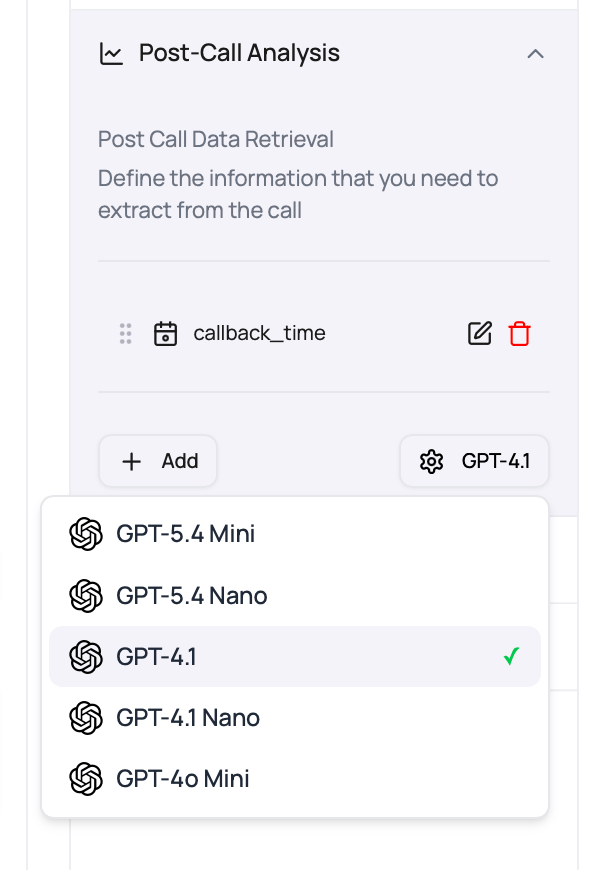
The Post Call Analysis panel includes a model settings control for the LLM used by post-call extraction. This is separate from the live conversation model so teams can tune completed-call extraction without changing how the agent speaks during the call.
## Where Results Appear
Post-call fields become operational data after the call.
Custom extracted values appear on the call detail page.
Exports can include extracted fields for reporting.
Workflow paths can reason about call attributes when configured.
Annotations and transcript review can explain why a field was wrong.
## Post-Call Extraction LLM
The Post Call Analysis panel includes a model settings control for the LLM used by post-call extraction. This is separate from the live conversation model so teams can tune completed-call extraction without changing how the agent speaks during the call.
 | Setting | Behavior |
| ------------------------- | ------------------------------------------------------------------------------------------------------------------- |
| Default | DialNexa selects GPT-4.1 when it is available. |
| Allowed dashboard choices | GPT-5.4 Mini, GPT-5.4 Nano, GPT-4.1, GPT-4.1 Nano, and GPT-4o Mini. |
| Published versions | Published versions can disable edits. Update a draft version before changing extraction fields or extraction model. |
| API field | Integrations can set `post_call_analysis_llm_id` when creating or updating agents. |
Use a stronger extraction model when the transcript is long, the fields depend on reasoning across multiple turns, or selector values need careful evidence. Keep the live model and post-call extraction model aligned only when you want both tasks to share the same cost and behavior profile.
## Write Strong Extraction Fields
Use names that will make sense in exports.
Tell the extractor exactly what part of the conversation proves the value.
Do not ask for free text when operations needs a clean report.
Ask for UTC ISO 8601 output when the caller gives a callback time, appointment time, or other follow-up date.
Check whether the transcript contains the evidence needed to extract the field.
## Extraction Problems
The transcript may not contain the fact, or the description may be too vague.
Use clearer allowed options and descriptions.
Define what counts as true and false.
Use the DateTime field type and describe the expected UTC ISO 8601 output. Workflow Time nodes should point at a DateTime PCA field.
Published versions protect live settings. Edit a draft version.
## Related Reading
Review extracted fields.
Export analysis columns.
Inspect one call.
| Setting | Behavior |
| ------------------------- | ------------------------------------------------------------------------------------------------------------------- |
| Default | DialNexa selects GPT-4.1 when it is available. |
| Allowed dashboard choices | GPT-5.4 Mini, GPT-5.4 Nano, GPT-4.1, GPT-4.1 Nano, and GPT-4o Mini. |
| Published versions | Published versions can disable edits. Update a draft version before changing extraction fields or extraction model. |
| API field | Integrations can set `post_call_analysis_llm_id` when creating or updating agents. |
Use a stronger extraction model when the transcript is long, the fields depend on reasoning across multiple turns, or selector values need careful evidence. Keep the live model and post-call extraction model aligned only when you want both tasks to share the same cost and behavior profile.
## Write Strong Extraction Fields
Use names that will make sense in exports.
Tell the extractor exactly what part of the conversation proves the value.
Do not ask for free text when operations needs a clean report.
Ask for UTC ISO 8601 output when the caller gives a callback time, appointment time, or other follow-up date.
Check whether the transcript contains the evidence needed to extract the field.
## Extraction Problems
The transcript may not contain the fact, or the description may be too vague.
Use clearer allowed options and descriptions.
Define what counts as true and false.
Use the DateTime field type and describe the expected UTC ISO 8601 output. Workflow Time nodes should point at a DateTime PCA field.
Published versions protect live settings. Edit a draft version.
## Related Reading
Review extracted fields.
Export analysis columns.
Inspect one call.